
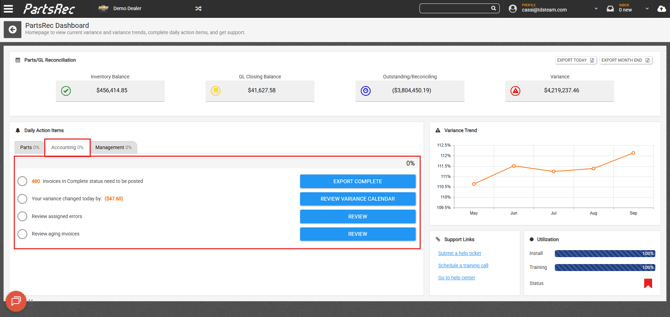
To succeed in accurately tracking variance, the accounting team should consistently use the last two daily action items- export complete invoices and review variance calendar (illustrated below). Feel free to share this help article amongst your group.
After invoices are completed, accounting can use the Export Complete Invoice button to download a PDF or Excel spreadsheet (for PowerPosting) of all invoices that are ready to be posted. You can filter the settings for your specific posting needs. The date range is based on the invoice date, not the completed date. Leaving this field blank will download all complete invoices that meet other filtered criteria.
PowerPosting: PowerPosting should only be used for factory invoices, in most cases. POs should be posted through EIV for open item tracking purposes. To PowerPost factory invoices, simply deselect the PO option, click the EXCEL button and select "All". An Excel document will download to your computer and from there you can "enable editing" to load the formulas and copy/paste into AGJE or Bulk Post in Dealertrack. 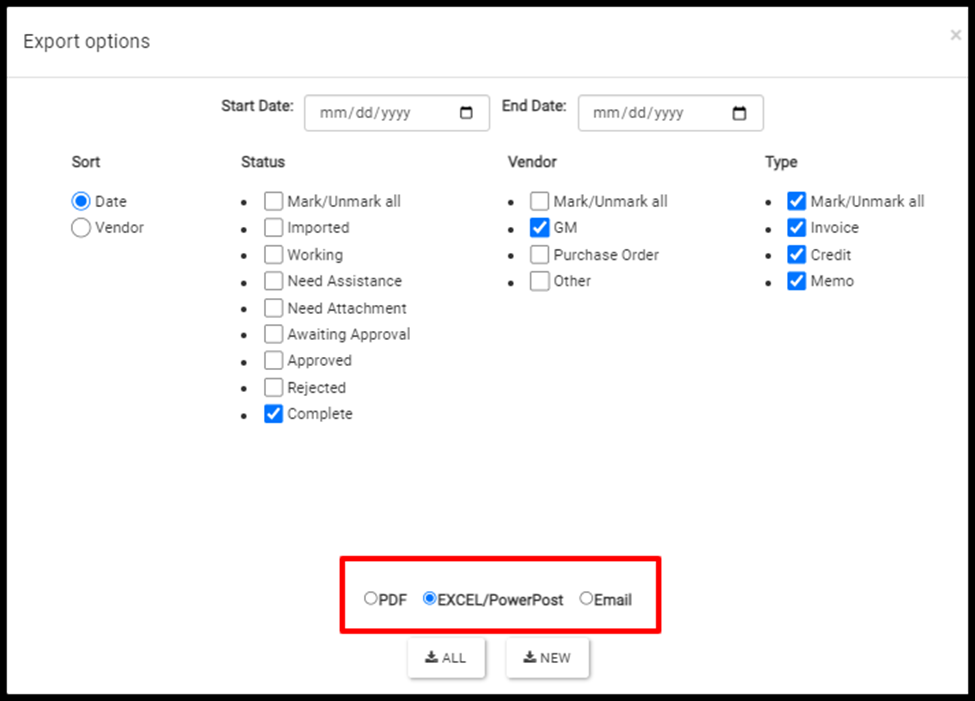
The software clears invoices out of the Complete section overnight when the invoice matches the posting entries. The "NEW" option is to upload the report if any new invoices have been completed after the initial upload (given those invoices have been posted).
Review variance calendar: The fifth daily action item is to review the Variance calendar. This action item is for both Parts and Accounting to work on. Some errors will be the parts managers responsibility to fix, and others will need to be done by accounting. The variance calendar will show you how the variance has changed from the previous day. Clicking on a day will update the data on the left of the page to show you why there is a variance for that day. 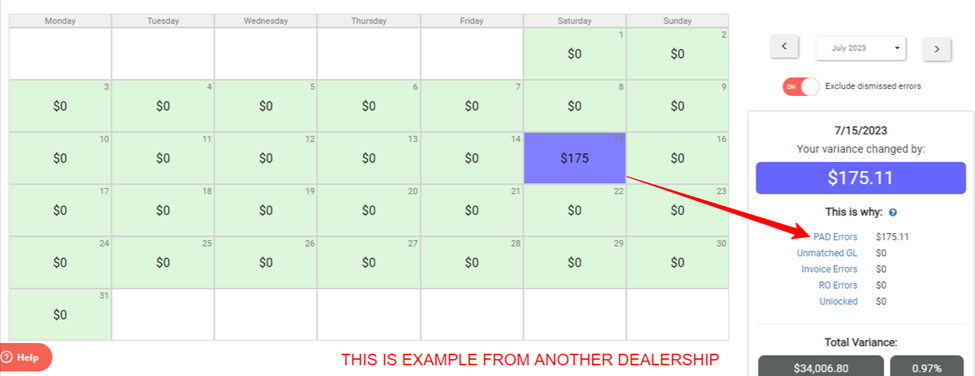
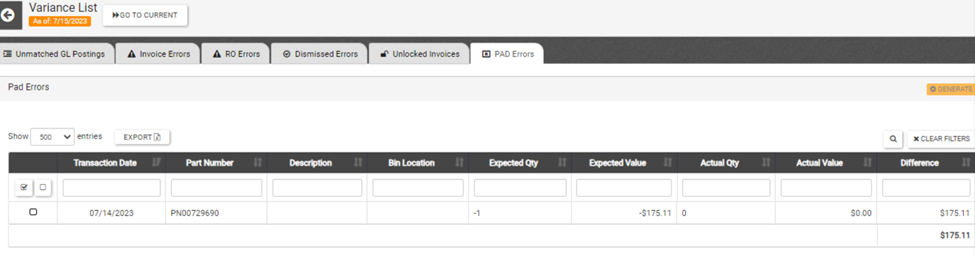
You can click on the links to each error to drill down into that day and fix the errors. Example below. Fixing the errors eliminates variance for that day. Zero variance is highlighted in green on the calendar. The goal is to make it 80% green.
Review Assigned Errors
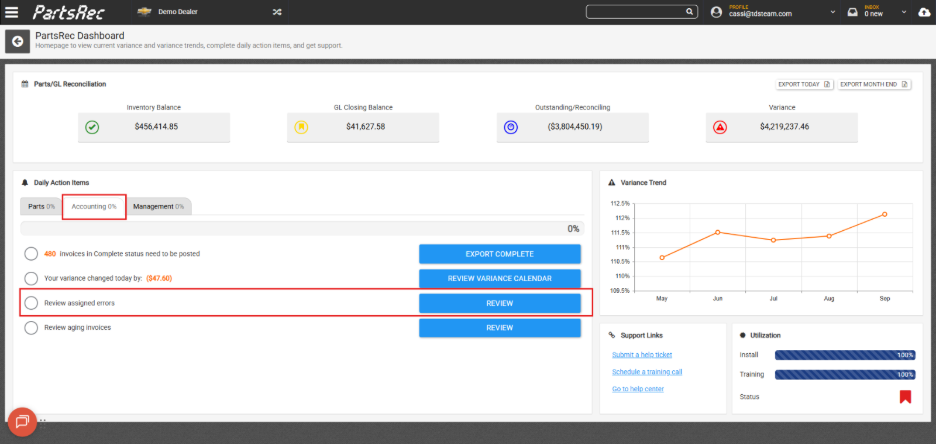
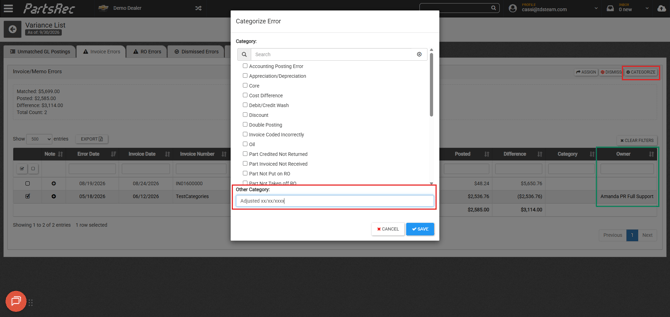
This button will take you to the variance section where you can work any variance errors assigned to you. Be sure to check the Unmatched GL tab, Invoice Errors tab, and RO Errors tab for assigned errors. Use the Owner column to filter for your name. Once adjustments are made, you can use the Categorize button using the “Other” category to notate that the error has been adjusted in Invoice Errors and RO Errors.
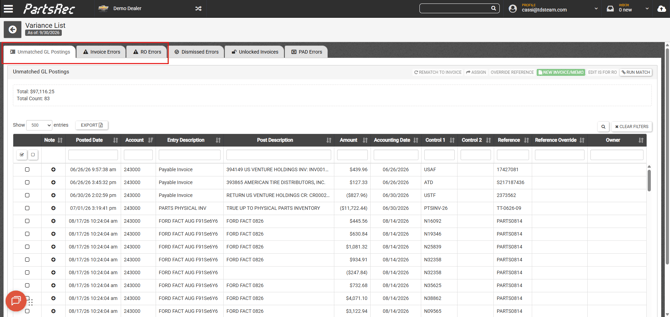
Aging Complete Invoices: Every night PartsRec runs a routine to match up and clear your complete invoices to the GL entry. If complete invoices are not clearing, it can mean a few things.
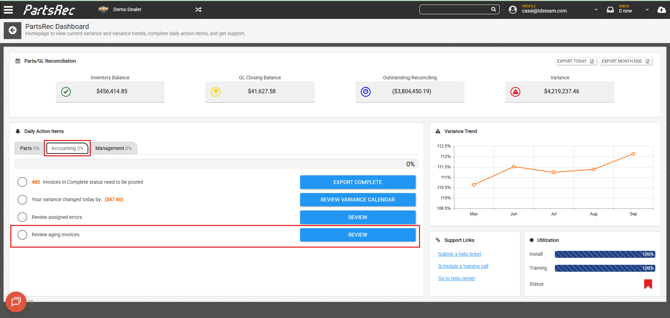
- The invoice has not been posted to the GL yet.
- The invoice may have been posted to the wrong GL. Verify the account the posting went to.
- If you are showing the invoice is posted, please reach out to PartsRec support and provide the date posted to the GL along with the reference number used for posting.
- There is an invoice number mismatch (the invoice number in PartsRec is different than the reference accounting used to post, or accounting posted the invoice number incorrectly).
- Perform a reference override in the unmatched GL tab of your variance section.
- The invoice will never be posted to a parts GL account (the entire invoice is allocated to a non-parts GL account).
- Manually mark the invoice as posted as these invoices will never go into posted status on their own. This is because PartsRec does not track postings to non-parts GL accounts.