Creating a manual memo in PartsRec is the easiest way to report adjustments that need to be made for appreciation/depreciation to the dealership’s accounting team. For DealerTrack stores, this is also referred to as your LIFO adjustments.
Navigate to the Outstanding section in the Cost Adj. tab.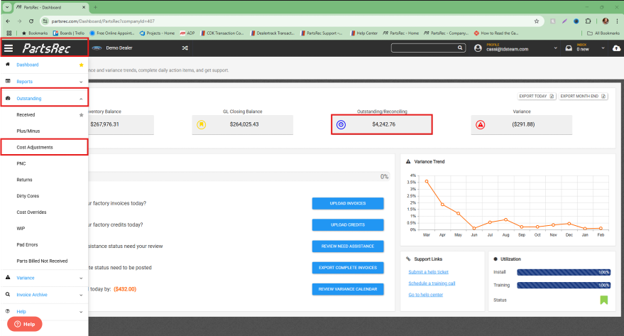
Select the relevant dates using the date filter in the Un-matched Transactions table. Select “Last Month” to isolate the transactions from the previous month. Alternatively, you can use “Custom Range” to choose your dates. Click Apply.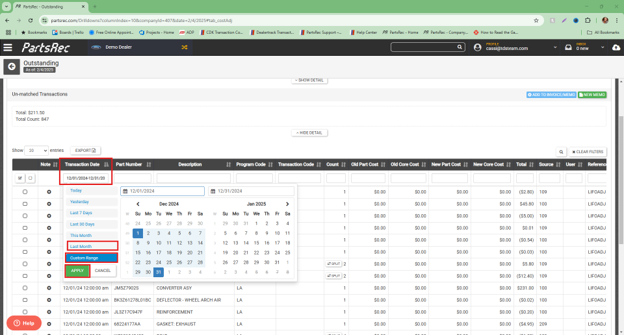
Transactions for LIFO adjustments can be identified with the program code “LA” and the reference “LIFOADJ”. These transactions are sent directly to DealerTrack when the cost of a part changes.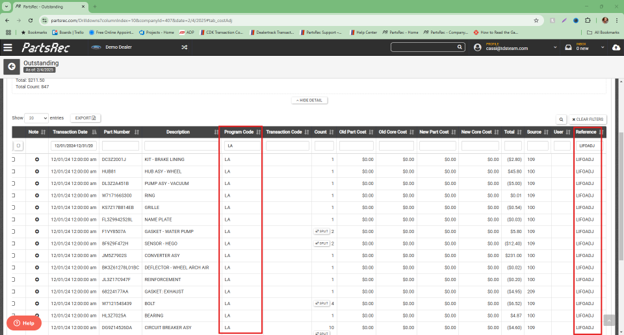
Click the “select all” check box on the left side to grab all the transactions and click the green “New Memo” button. 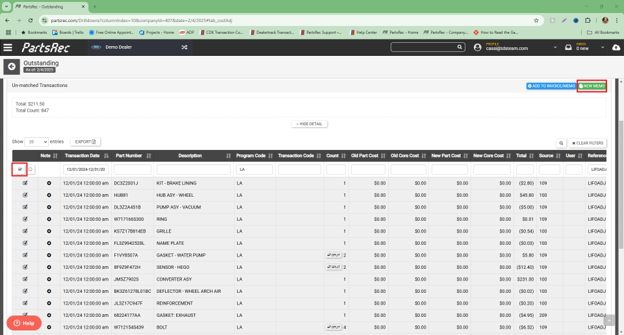
In the modal, add a unique invoice number. Use our Memo Nomenclature Guide to help with the naming of your manual invoices.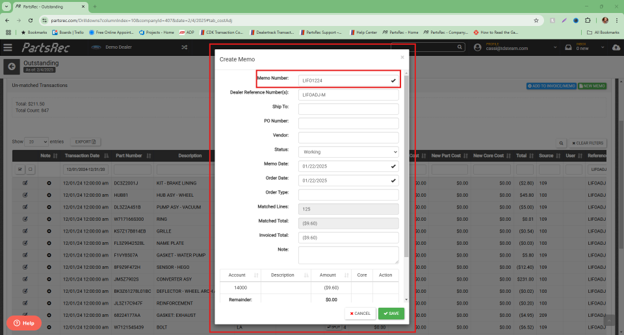
Since transactions from only one tab are being added, the memo can be wrapped up here.
-
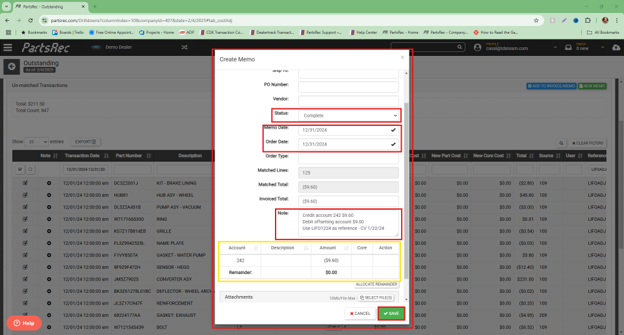
- Change the status to Complete.
- Change the Memo Date and Order Date to the last day of the month of the memo. For example, if we were to create a memo for March 2024, the dates should be March 31, 2024.
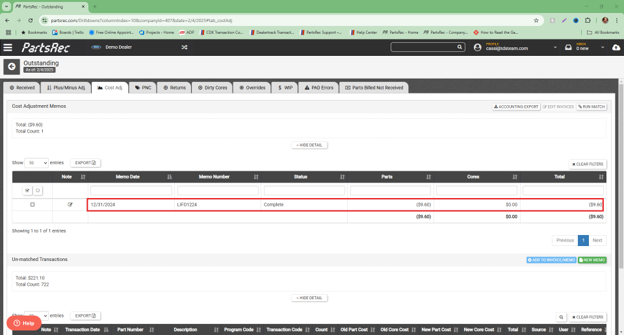
- Note the adjustments for accounting. In this case, accounting should credit the inventory account $9.60 (as seen in the breakdown box), debit the offsetting account the same, and use LIFO1224 as the reference. Click Save.
Click “Show Detail” to find and click on the newly created memo.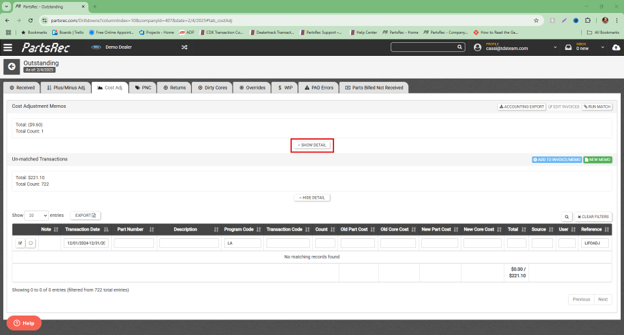
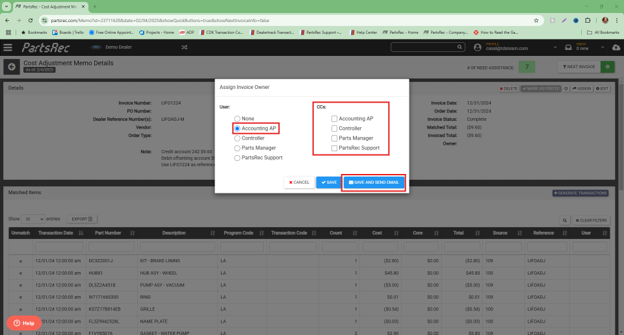
Use the Assign button to assign to the accounting team for posting. CC another user if necessary. Click “Save and Send Email” to assign.