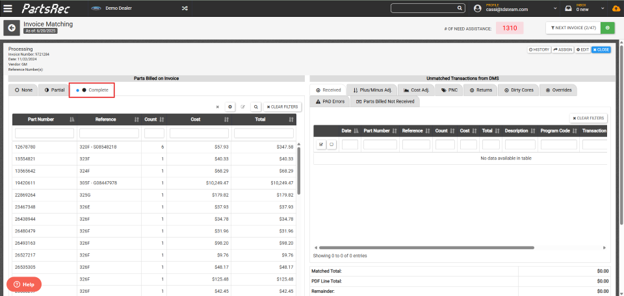
Generate All
The Generate All function in PartsRec will generate multiple transactions at once. This function should primarily be used for month-end when generating Parts Billed Not Received transactions but can be used anywhere multiple generated transactions are needed and all go to the same source/stocking group. For more information on when generating transactions is appropriate, please see our help article Generating Transactions. If you don’t see this button on your matching screen, please reach out to PartsRec support.
To bulk generate transactions, start in the None tab. Click the Generate All button at the top of the table. 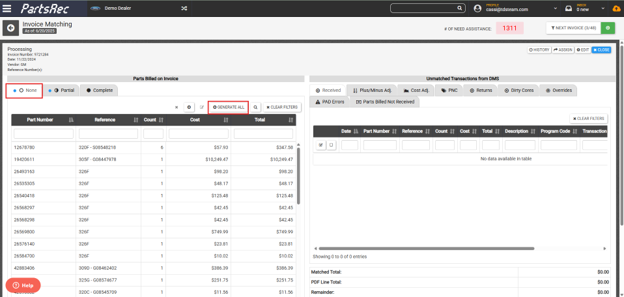
The Generate All modal will pop up. From here, you can choose which parts you want to generate transactions for. Transactions for multiple sources or stocking groups should be generated separately. 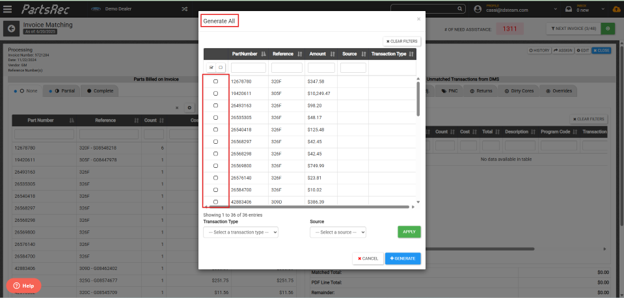
Once you have selected the transactions you want to generate, select the transaction type and the appropriate source. Click Apply. 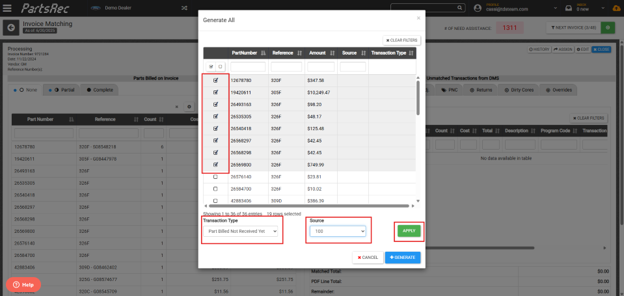
The transaction type and source will be filled in. Click Generate. 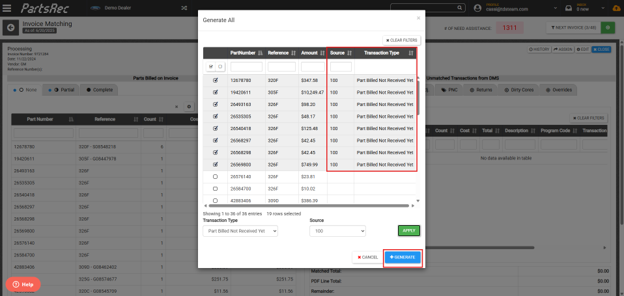
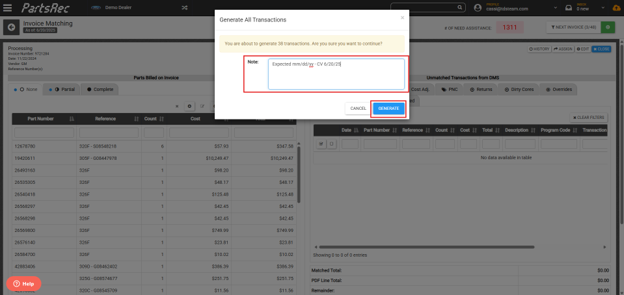
In the modal that pops up, you can notate the expected arrival date if known. Finally, click the blue Generate button to confirm and complete the transactions.
Allocate All
The Allocate All button will pop up in the Partial tab only. This button allows you to allocate differences on transactions in bulk. Allocations to multiple allocation accounts should be done separately. 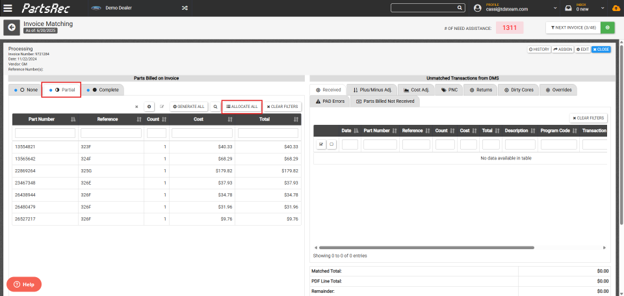
In the Add Allocation modal, you will be able to see all the lines eligible for bulk allocations. This will include any line matched to a transaction with the same quantity but different costs.
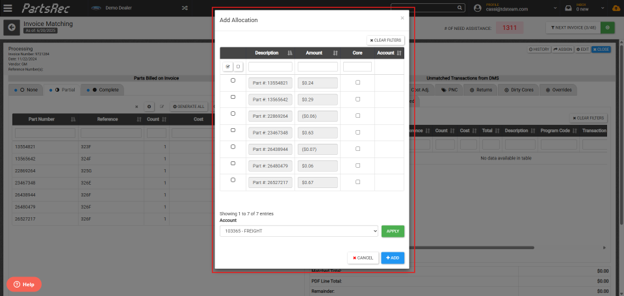
Select all parts going to the same allocation account. For this example, all of these will be allocated to the discounts account. Click Apply. 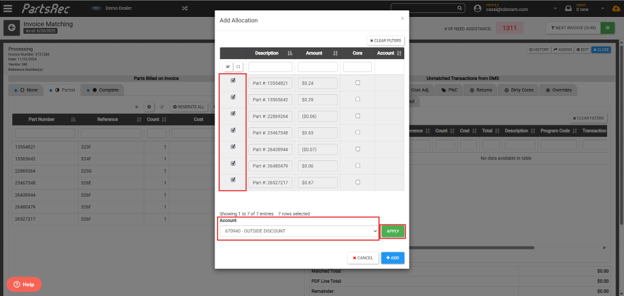
You will see the Account column filled in. Click Add to finish the allocations. 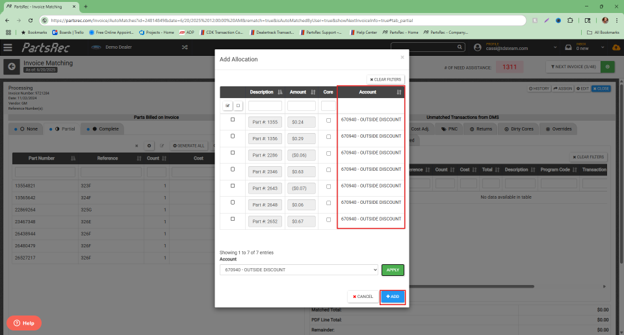
Once all transactions have been matched, allocated, and generated, all parts are in the complete tab, and the invoice is ready for accounting to post.