
How to Generate a Transaction
As a best practice, you should NOT allocate to your parts GL account. If you allocate to your parts GL account (or any inventory account i.e. tires, GOG, etc.), it will cause a variance error.
There should always be a parts transaction to match to your invoice or credit. However, there may be times where there is no data from the DMS or in PartsRec:
- You never received the part into inventory or sold as an in/out.
- You received/returned the part prior to your PartsRec installation.
The generate button provides you with the capability to create any transaction you require if matching isn't feasible.
Please use caution when generating transactions, it should be the exception not the norm. If you have questions or are unsure if you should generate on a given invoice or credit, please contact support – we are happy to help.
The generate options are:
- CORES
- IN/OUT
- RECEIVED
- RETURN
- DIRTY CORE
- PART BILLED NOT RECIEVED
- FOR RO*

Cores:
If you've been invoiced for a part along with its core, and it’s not a stocking part that you received into inventory and the core is not charged to the customer when it was sold, you should generate the cores. Please note, this option is only available on invoices.
This action will result in two transactions:
- A clean core transaction, which will automatically match to the invoice and move the part into the complete tab.
- A dirty core transaction, which will appear as a reconciling item in the Outstanding-Dirty Cores tab until it's matched to the credit. Once you receive credit, match this transaction to the credit memo using the reference number from the original vendor invoice.
*Please note: CORES can only be generated on the billed invoice. You cannot generate on a credit.

In/Outs:
If you have been invoiced for a part that:
- Was NOT received into inventory and was NOT sold as an in/out.
- Was sold as an in/out but was taken off in the same day.
- And the part was returned for credit (damaged, wrong part, customer changed mind, etc.).
When this occurs, there will not be a record of this transaction in your DMS or PartsRec. To track properly, you need to manually generate an in/out transaction.
To do this, select the part and then click the “Generate” button located at the bottom right of the matching table. Choose the "In/Out" option. If a source isn't automatically filled in, enter it manually and click "yes".
This action will generate two transactions:
- A received part transaction, which will automatically match to the invoice and move the part into the complete tab.
- A return part transaction, appearing as a reconciling item in the Outstanding-Returns tab until it's matched to the credit. Once you receive credit, match this transaction to the credit memo using the reference number from the original vendor invoice.
*Please note: In/Outs can only be generated on the billed invoice. You cannot generate on a credit.

Received:
If you received the part prior to your data start date, you should use the RECEIVED option to generate a received transaction to complete the invoice.

*Please note: Received can only be generated on the invoice. You cannot generate on a credit.
Return:
If you returned a part prior to your data start date, you should use the RETURN option to generate a credit transaction to complete the invoice.
Dirty Core:
If you returned a core prior to your data start date, you should use the DIRTY CORE option to generate a dirty core transaction to complete the invoice.

*Please note: Dirty Cores can only be generated on the credit. You cannot generate on an invoice.
* Please use the received, return and dirty core generate options with caution. They should ONLY be used when the transaction occurred before the start date or before the store was installed on PartsRec. If it’s not an allocation, there should be a transaction available. *
Parts Billed Not Received:
If you have been billed for a part that you haven’t received yet, best practice is to wait until you receive the part and then finishing matching the invoice. However, if you need to complete invoice (for example, it is month-end but the parts won't be received until the next month and accounting needs to post the invoice) you can utilize the "Parts Billed Not Received" option to generate the transaction and complete the invoice.
This action will result in two transactions:
- A received transaction, which will automatically match to the invoice and move the part into the complete tab.
- An offsetting parts billed not received transaction, appearing as a reconciling item in the Outstanding-Parts Billed Not Received tab. Upon receiving the part, if the reference numbers are exact, PartsRec will automatically match the actual received transaction and match the offsetting parts billed not received transaction to the original invoice to reconcile.

*For RO:
This is intended for stores that sell parts on lube lines or missing transactions when parts are sold, taken off, and sold again on the same day. If you require this option, please contact PartsRec support for assistance.
Notes:
There is a note field when you generate transactions. You can optionally include helpful information like a claim number, vendor info, eta for credit, etc.
How to Undo a Generated Transactions:
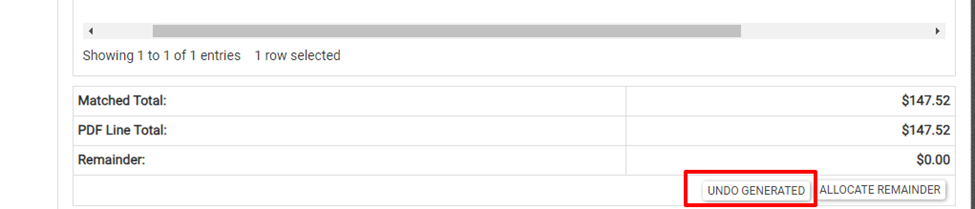
If you generate a transaction by mistake, you can click on the part in the complete tab and click the "undo generated" button or simply unmatch from the generated transaction to remove it.
*Generate "Received", "Return", and "Dirty Core" access will be terminated at 90 days as these types are for pre-install transactions only. Other transaction types will remain available.