
Not only does PartsRec make variance error tracking easier, but it also allows for daily variance tracking to ensure any discrepancies are resolved sooner. Your PartsRec dashboard shows your overall variance, variance percentage, and allows immediate access to the variance calendar.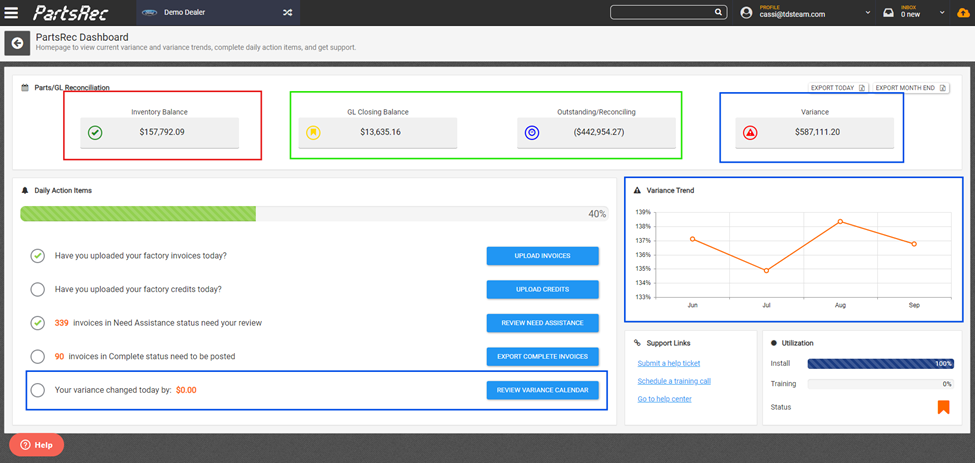
Some things to remember:
- PartsRec’s variance formula is GL Closing Balance + Outstanding – Inventory Balance = Variance.
- The Variance Trend shows your variance percentage month to month.
- The 5th Daily Action Item shows your variance change from the day before and allows access to the Variance Calendar. You can read more about the variance calendar here: Variance Calendar . You can access the variance section of PartsRec by going through the menu or clicking the Variance button in the Parts/GL Reconciliation section of the dashboard.
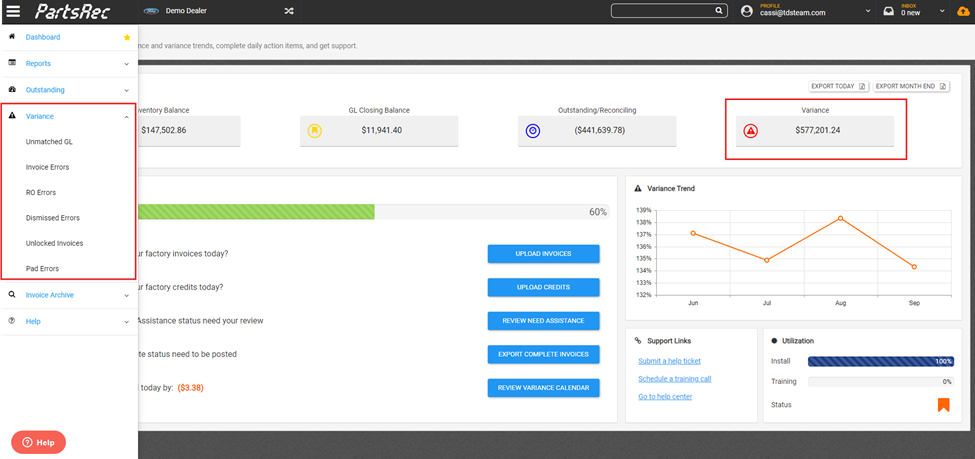
The Variance section is divided into six tabs containing various types of variance errors.
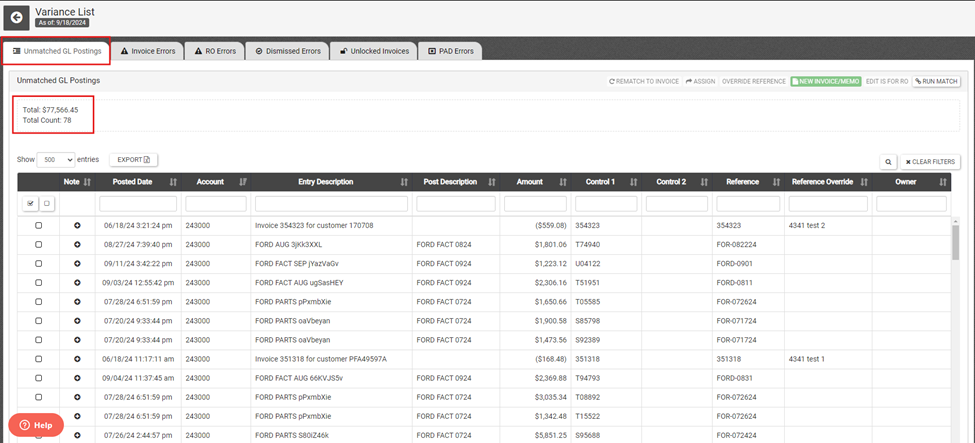
- Unmatched GL – This section contains GL entries made by accounting that do not have a complete invoice in PartsRec to which to match. GL entries will only match with complete invoices with a matching invoice/reference number. On the top left of the screen, you can see the total dollar amount and count of unmatched GL entries. This section will help catch invoices that have not yet been uploaded, POs that have not been written, invoices not yet completed, postings to the GL that belong to another store, and debits posted as credits or credits posted as debits. The best practice to keep this tab clean is to ensure invoices are complete in PartsRec before posting to the GL, good POs are written including credit POs, and utilizing the complete invoices report on the dashboard to post invoices.
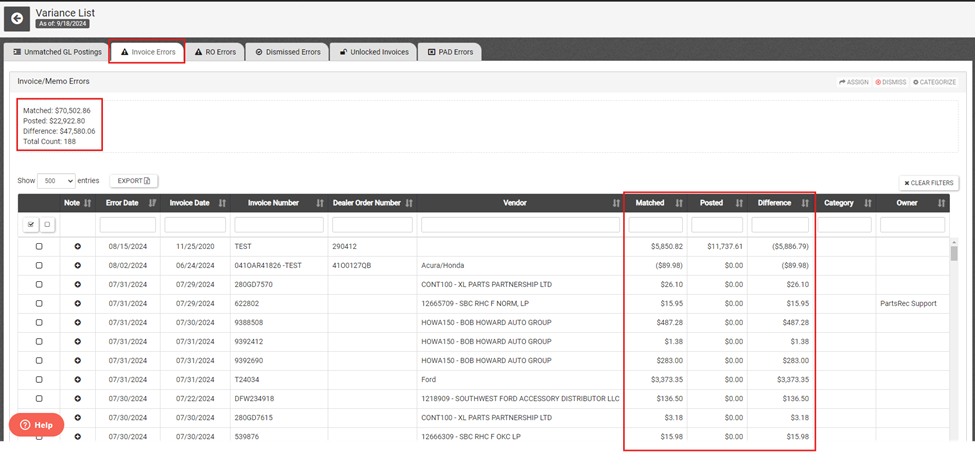
- Invoice Errors – An invoice error occurs when invoices are not posted to the GL for the expected amount. The matched column shows the dollar amount of transactions matched on the invoice. The posted column shows the dollar amount of GL postings attached to the invoice. The difference column shows the discrepancy between the two that needs to be fixed. This helps identify double postings, incorrect coding, human error, freight or discounts posted to the wrong account, credits posted as debits, etc. The best practice to keep this section clean is to use the complete invoices report to make the postings as this report shows invoice number to be posted, amount to be posted, and the GL coding. You can see the total dollar amount impacting your variance as well as the total number of invoice errors on the top left. You can read more on our Help Center about Exporting Complete Invoices.
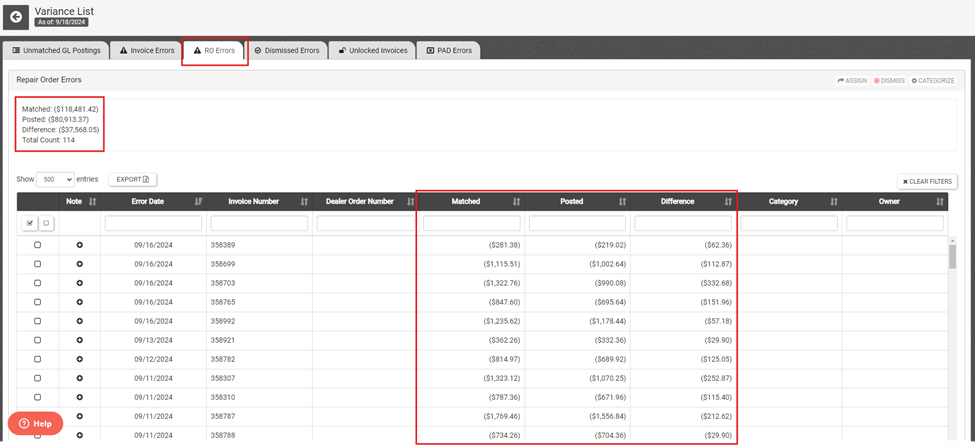
- RO Errors – An RO Error occurs when an RO or customer ticket did not close and post to the GL for the expected amount. This section primarily helps track prepaid special orders and cost differences on parts sold. The matched column shows the dollar amount of parts sold on the RO/customer ticket. The posted column shows the dollar amount of GL postings attached to the invoice; postings on RO/customer tickets typically happen automatically when they close. The difference column shows the discrepancy between the two that needs to be fixed. You can see the total dollar amount impacting your variance as well as the total number of RO errors on the top left.
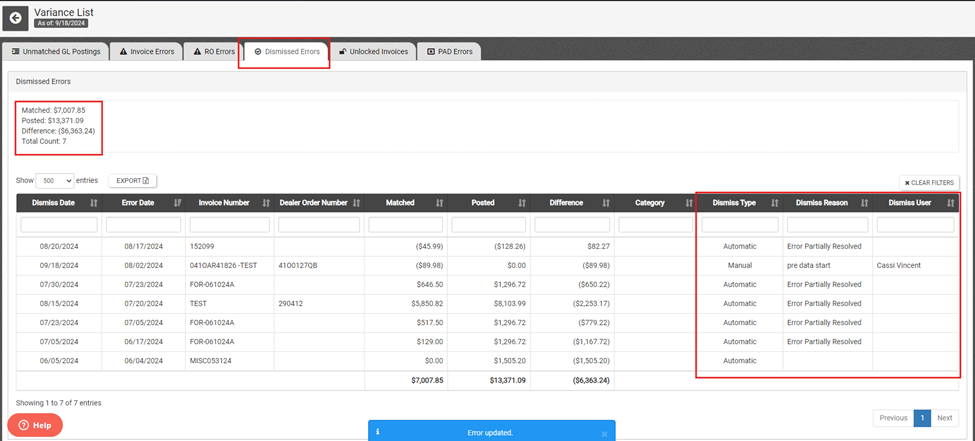
- Dismissed Errors – A dismissed error has either been fixed and automatically dismissed by the system or manually dismissed. When PartsRec runs nightly routine, it looks for accounting adjustments and filled prepaid special orders and will automatically dismiss those. Likewise, if an RO error is fixed with the Fix Me button or a GL entry is matched to an error to correct it, the system will also automatically dismiss the error. An automatically dismissed error means it is no longer impacting your variance. You do have the ability to manually dismiss errors as well. Keep in mind, a manually dismissed error still impacts your variance. We suggest reaching out to PartsRec Support if you are not sure if dismissing is correct. You can see the dollar amount and the total number of dismissed errors at the top left.
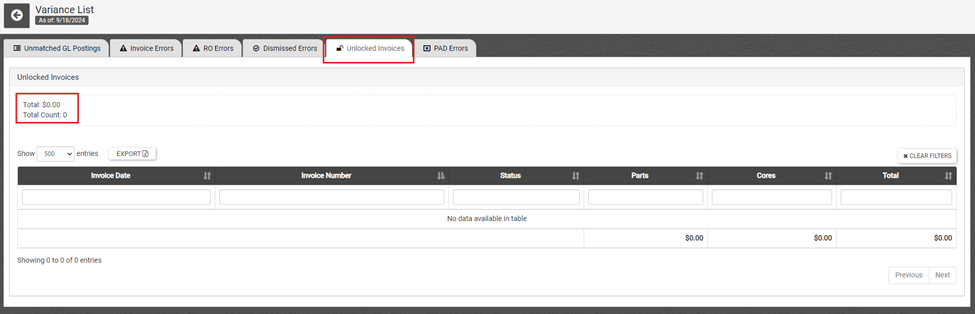
- Unlocked Invoices – An unlocked invoice occurs when an invoice that was in posted status is moved to any other status (Complete, Need Assistance, etc). The GL entry matched with the invoice will go back to the unmatched GL section, and the invoice will stay in the unlocked invoices tab until the invoice is put back to posted status. The unlocked invoices section should be empty for the most part. You can see the dollar amount and the total number of unlocked invoices at the top left.
- PAD Errors – A pad error occurs when there is a mismatch between the DMS transaction file and the DMS inventory file. This will include on-hand quantity and cost discrepancies. The Expected Qty & Value are what PartsRec thinks you have, and the Actual Qty & Value are what your DMS says you have. The bin location is also given on the table.
