
Invoice errors occur when there is a mismatch between the dollar amount of parts matched to the invoice and the dollar amount posted to the GL. For an introduction to the invoice errors section, please review Invoice Errors article or Invoice Errors video tutorial in the help center.
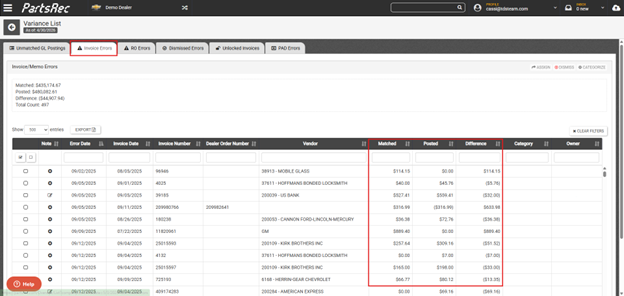
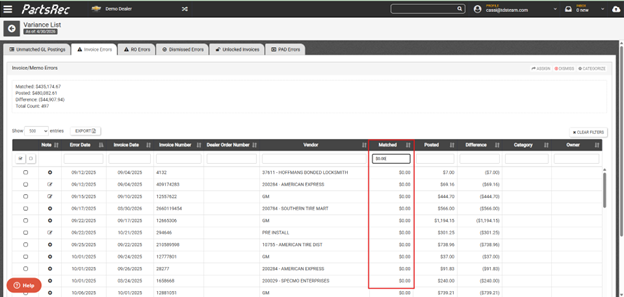
$0.00 Matched errors typically indicate one of two things: either the invoice was fully allocated to a non-parts GL account but posted to an inventory account or the invoice was marked as posted manually and matched with a posting before being matched.
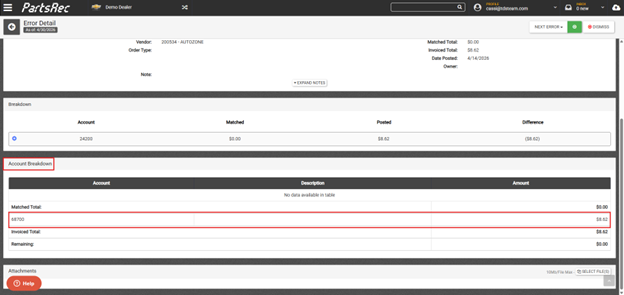
To determine which is the case, scroll down. In the account breakdown, is there an allocation or a remainder?
-
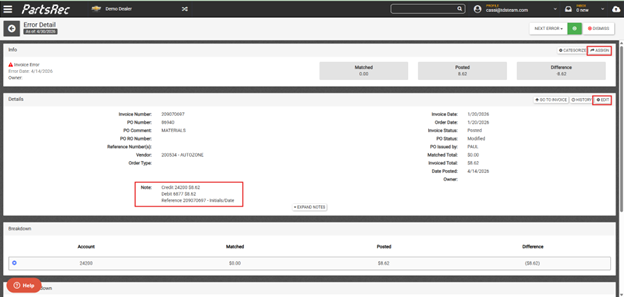
If it’s an allocation, the invoice needs an accounting adjustment. Notate the invoice error and assign to the accounting team for an adjustment. In this case, accounting should credit $8.62 to account 24200 and debit $8.62 to account 68700.
-
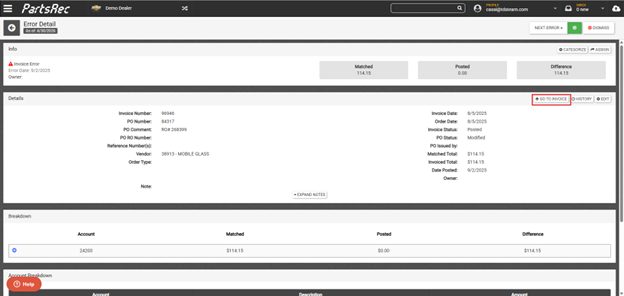
If there is a remainder, scroll back to the top of the invoice and click the Go to Invoice button. Resolve the remainder on the invoice to determine what the correct course of action is. In some cases, simply completing the invoice will resolve the invoice error.
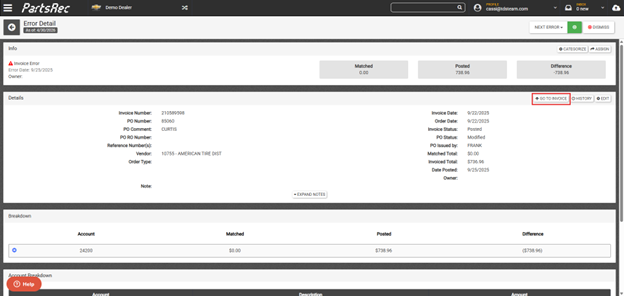
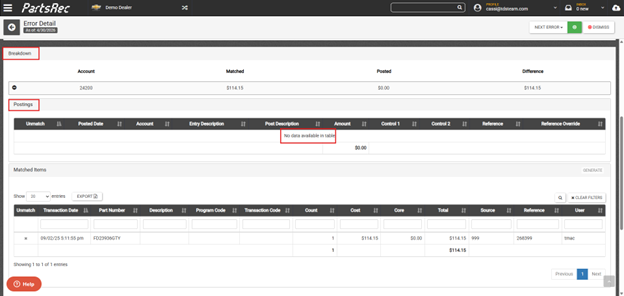
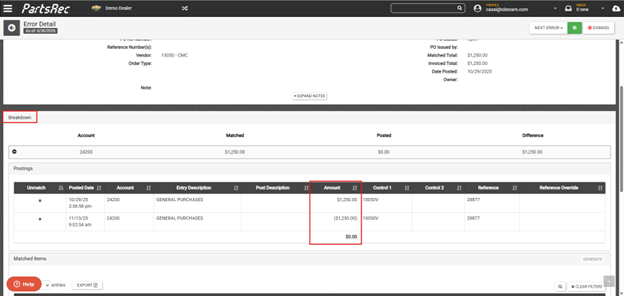
$0.00 Posted errors indicate either the invoice was marked as posted and no posting has been done or a posting was made with a subsequent offsetting posting. Either way, the invoice is not posted to the GL. Open the breakdown and take a look at the Postings section.
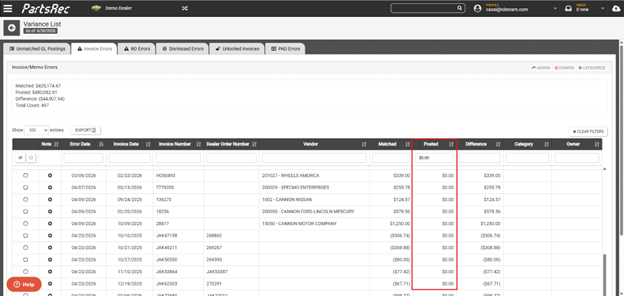
-
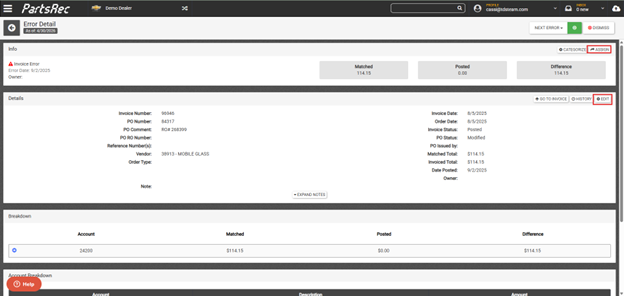
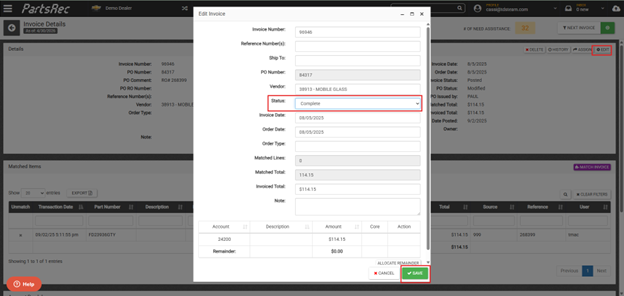
If the invoice is simply not posted, you can either notate the invoice for adjustment and assign to accounting or go to the invoice and use the Edit button to move the invoice back to complete status and onto the complete invoices report.
-
If the invoice has an offsetting posting, determine why that is. Were the parts returned?
-
If yes, there should be a separate credit invoice where the return transaction should match. Unmatch the offsetting credit entry to free it up to match to the credit invoice. This will send it back to the unmatched GL section where you can resolve it.
-
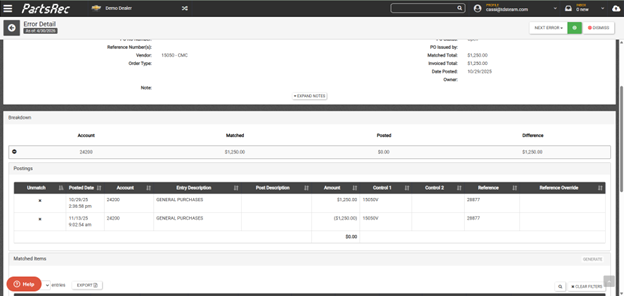
If no, the posting may have been reversed in error. Use the Edit and assign buttons to notate the invoice to escalate the issue to your accounting team and get the invoice posted properly.
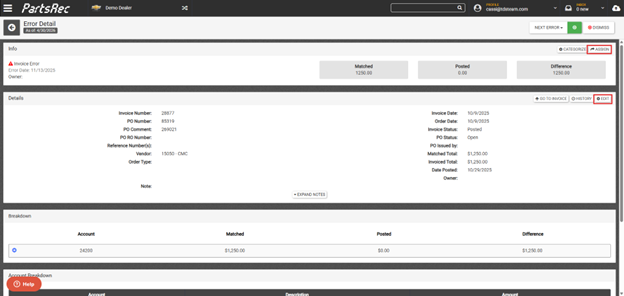
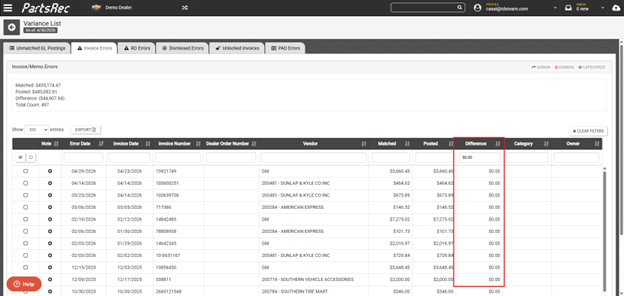
$0.00 Difference errors will indicate either an accounting posting error or a source/stocking group error.
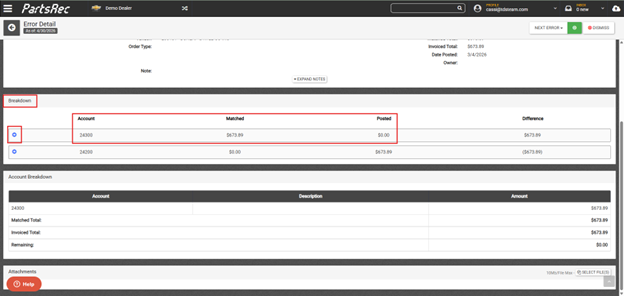
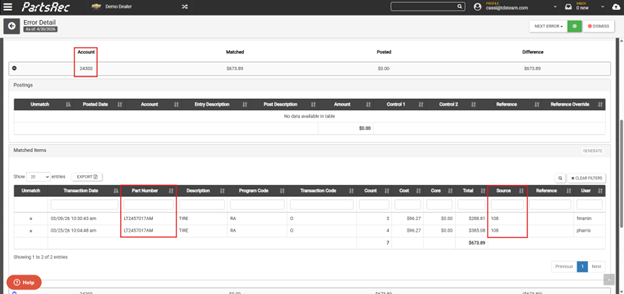
To determine which is the case, open the breakdown of the account with the parts matched and scroll down to the Matched Items section. Compare the part, source, and account.
-
If the part is sourced correctly and the source is mapped to the correct account, this is an accounting posting error. Use the Edit and Assign buttons to ask accounting to adjust the posting to the correct inventory account.
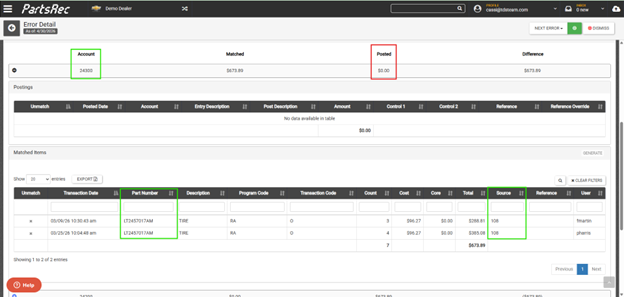
-
If the part is in the correct source but the source is mapped to the wrong account in PartsRec, use the Edit and Assign button to reach out to PartsRec Support and open a ticket. We can remap the source and fix the error.
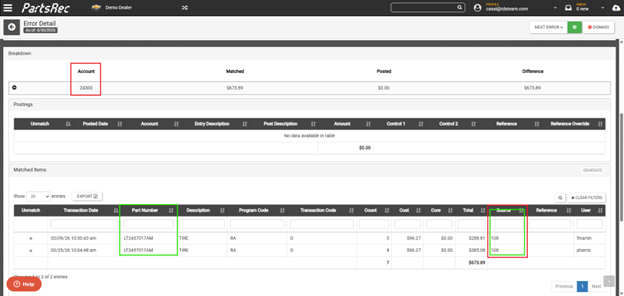
-
If the part is not in the correct source, fix that in the DMS. Once the source is corrected, use the Dismiss button to dismiss the error. Since the accounting side is correct, no adjustment is needed. Fixing the source is not a retroactive fix, so dismissing the error is the best course of action.
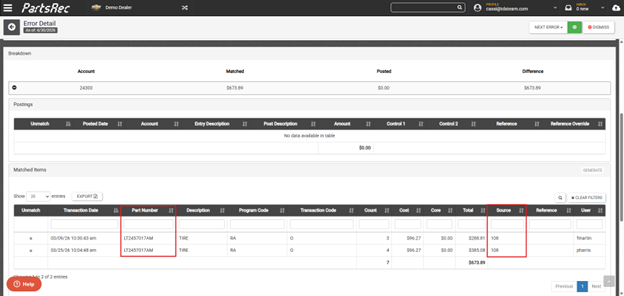
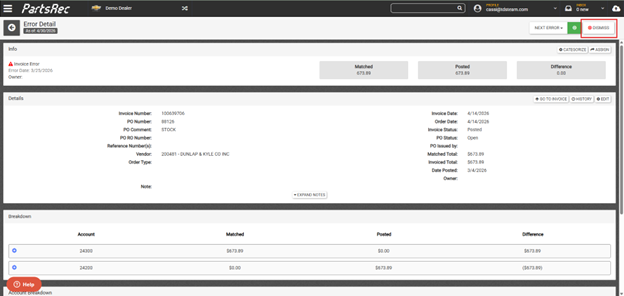
**If you think you should dismiss an error under any circumstance other than a source/stocking group error, reach out to PartsRec support so we can take a look. You should rarely dismiss errors that have a true difference.