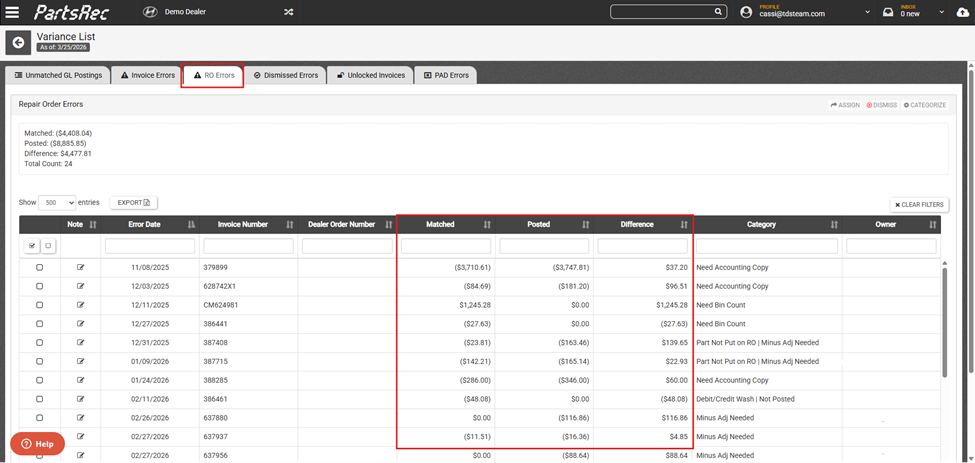
RO errors occur when there is a mismatch between the total dollar amount of parts sold on a repair order or counter ticket and the total dollar amount posted to the GL. For an introduction to the RO errors section, please review RO Errors article or RO Errors video tutorial in the help center. For RO errors that are not $0.00 errors, please see Investigating General RO Errors article and Investigating General RO Errors video tutorial.
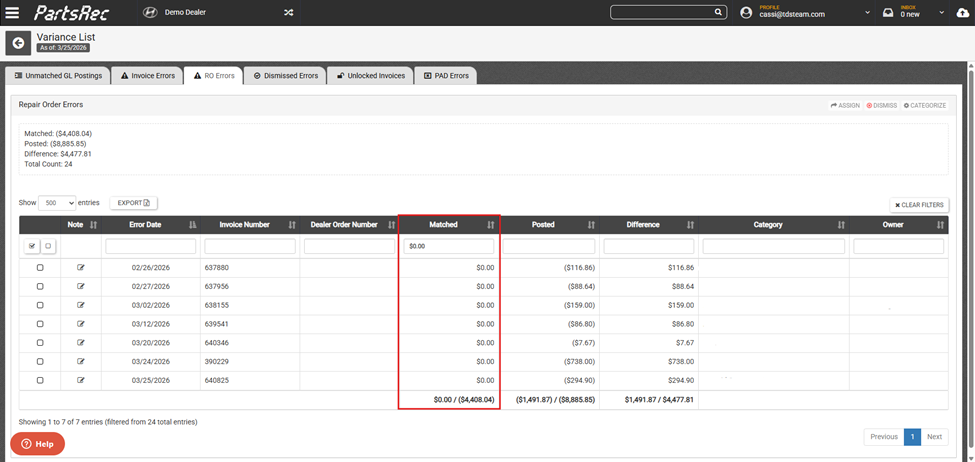
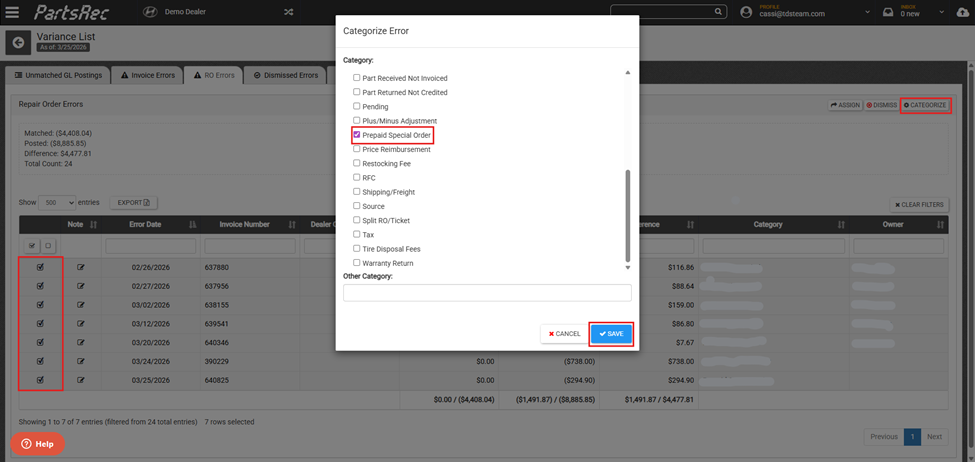
$0.00 Matched errors typically indicate a prepaid special order. This is considered a variance because the GL has been impacted and the inventory account has not. These should dismiss automatically in PartsRec the day after are filled. If the special order is still open, categorize these as Prepaid Special Orders, and it will remain a variance until the order is filled.
To dig further into the RO, open the Breakdown to see GL and transaction details.
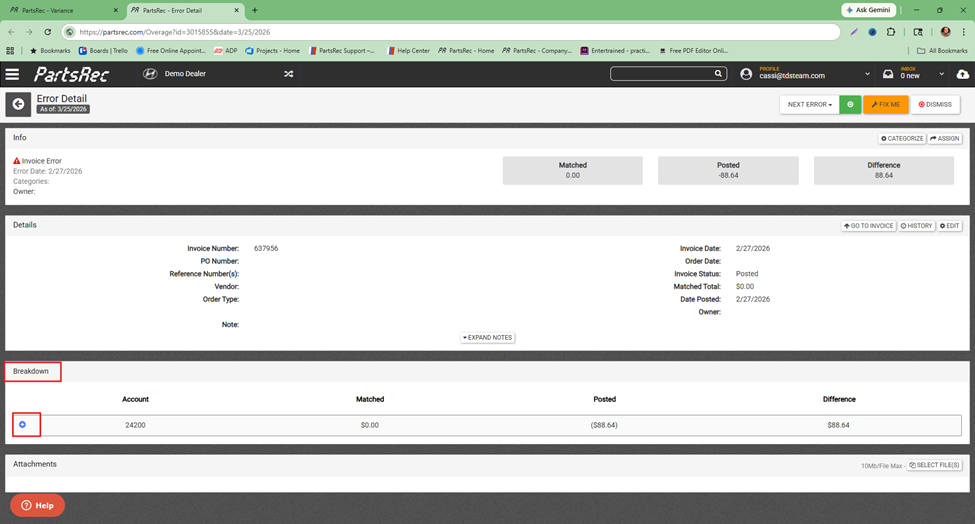
In the event the RO is filled, and the error does not dismiss automatically the next day, use the magnifying glass to look at transaction history to be sure the special order was filled properly and the part relieved from inventory.
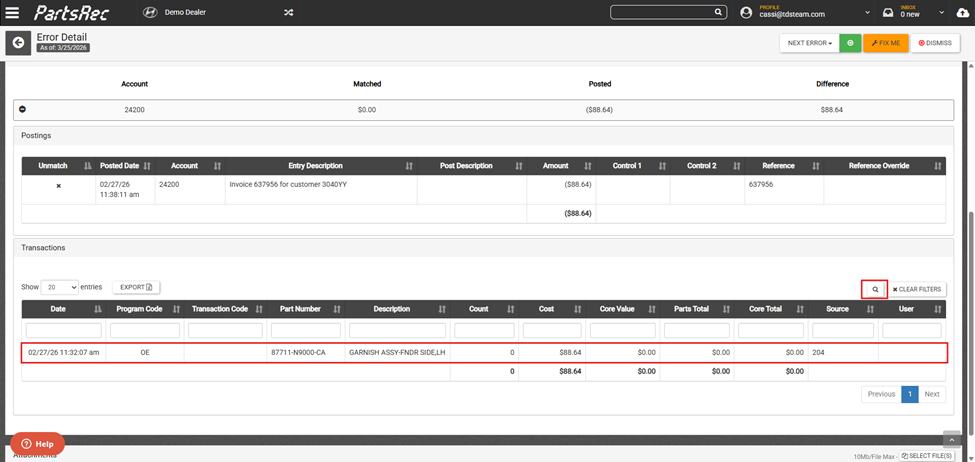
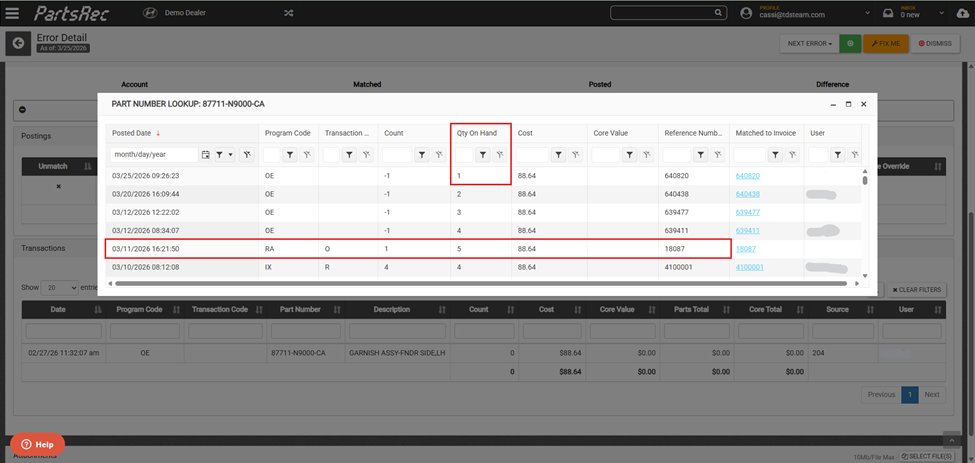
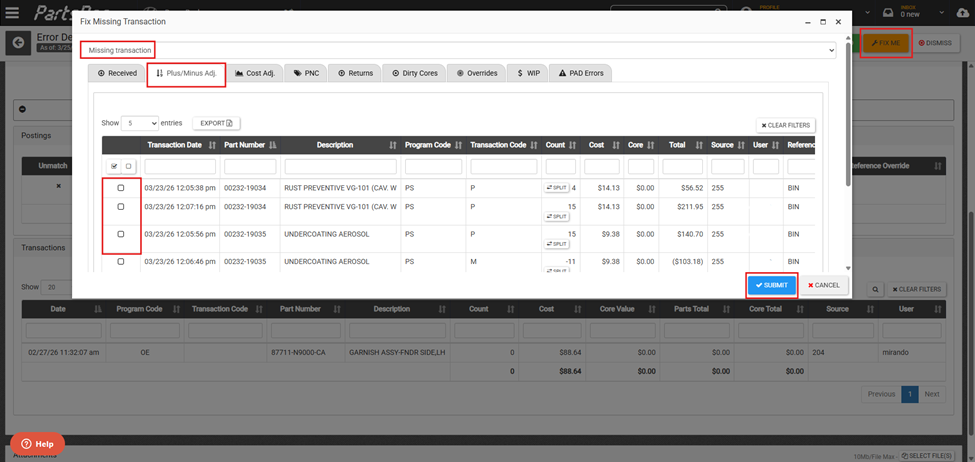
If the part did not relieve inventory, perform a manual minus adjustment and match the minus adjustment the next day using the Fix Me button. In the dropdown, choose Missing Transaction. Navigate to the Plus/Minus Adj tab, enter the part number into the part number field, select the relevant transaction, and click Submit. The transaction will resolve the difference and dismiss the error.
In the event the part was relieved from inventory after a monthly cost change, there will be an adjustment that needs to be made by accounting.
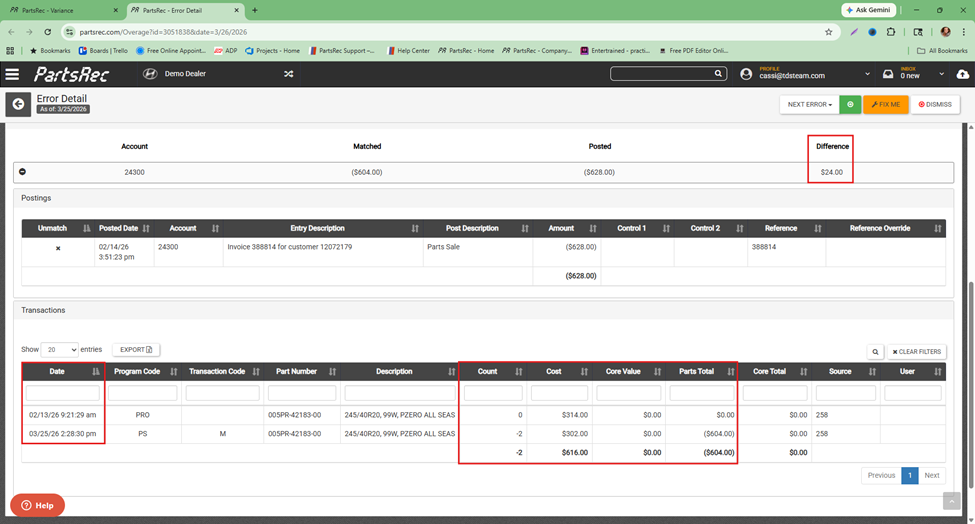
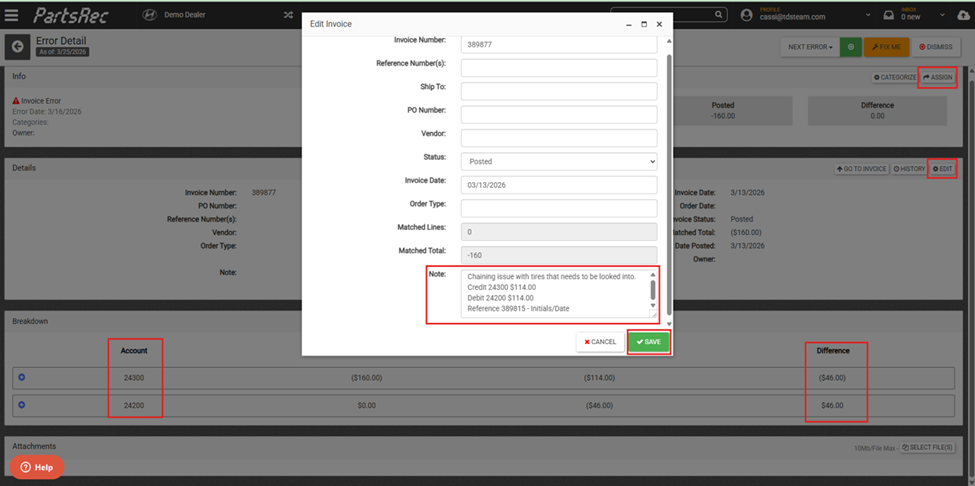
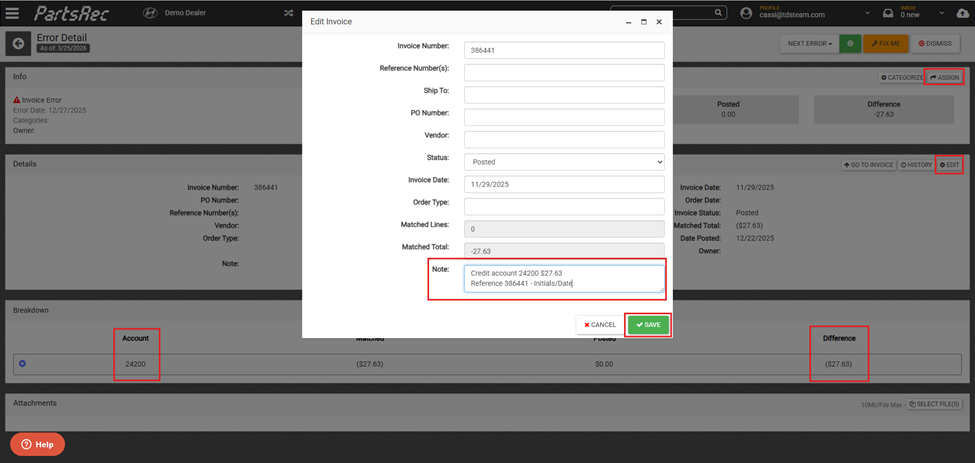
Notate the adjustment using the Edit button. Specify the inventory account receiving the adjustment, the adjustment amount, and the reference number. The adjustment amount is based on the difference still on the RO error. If the difference is in parentheses, the adjustment should be a credit. If it is not in parentheses, the adjustment should be a debit. Assign the RO error to accounting. In the event the special order is rolled to another RO, you will need to match an override. See our article entitled Rollover & Split RO’s in PartsRec for more information.
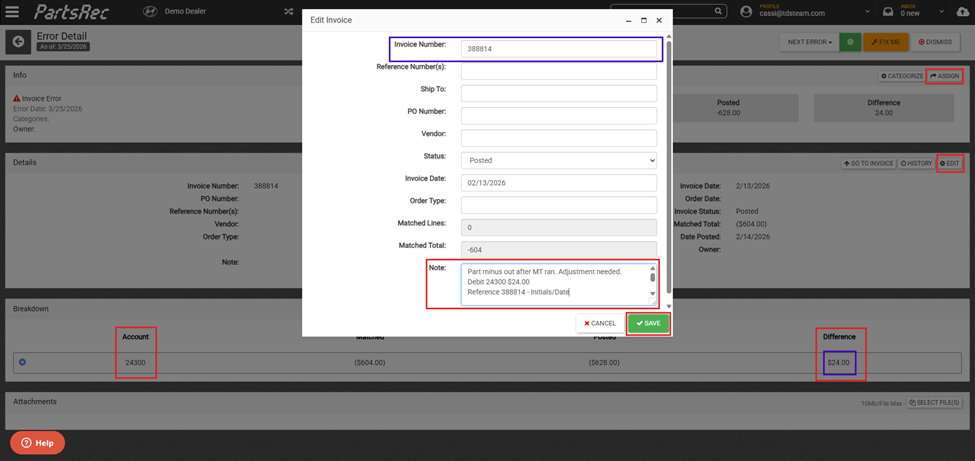
$0.00 Posted errors occur either when an RO closes with a $0.00 posting to the GL or when a WIP invoice is marked as posted before closing and being posted.
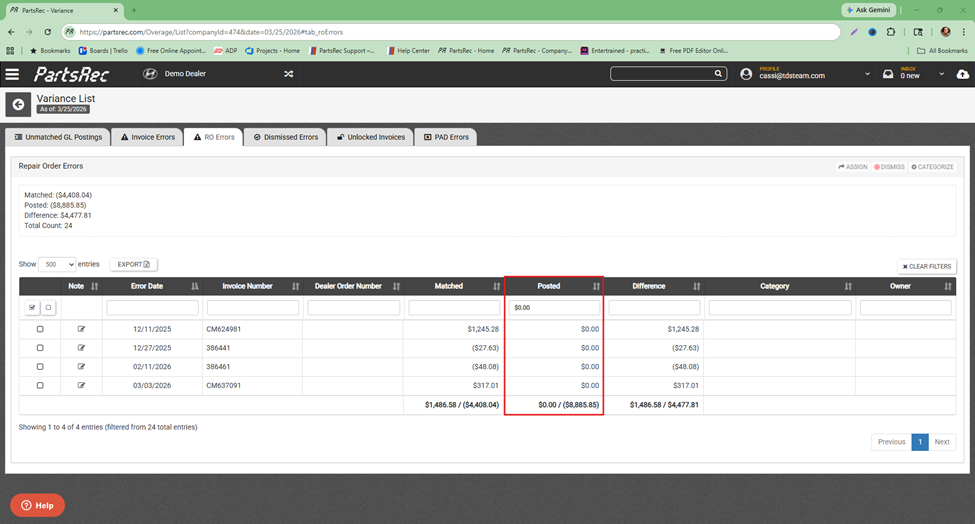
WIP invoices should clear on their own unless there is an issue with the way they are closing or the account they are closing to. To ensure your WIP is reflecting accurately in PartsRec, look at the totals in the WIP tab of the Outstanding section. If they look off, perform a WIP tie out. For more information on WIP tie outs, see our help center for a WIP Tie Out article and WIP Tie Out video tutorial.
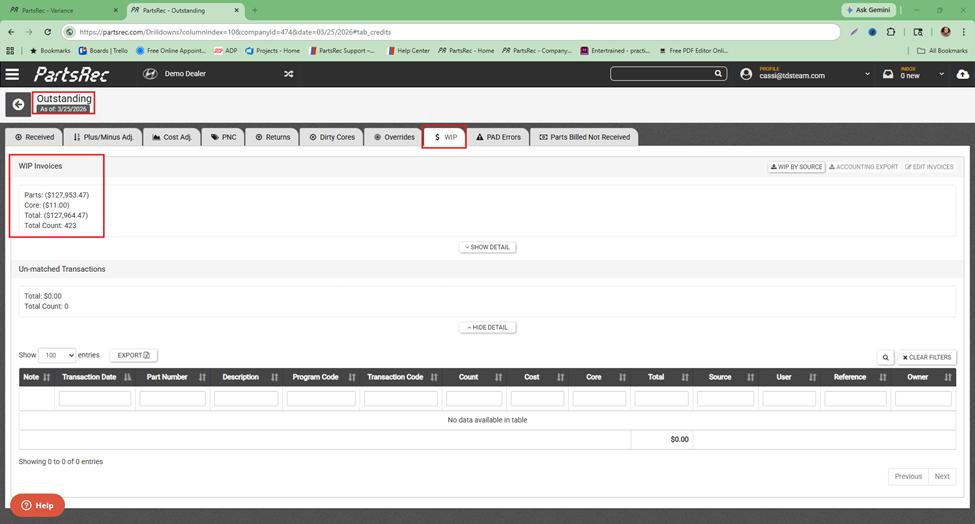
If a WIP invoice has been marked as posted, click Go To Invoice on the RO error to open the RO details screen. Open the Edit button and use the Status dropdown to move the RO back to Unposted status. This will send the open RO back to the WIP tab and resolve the RO error.
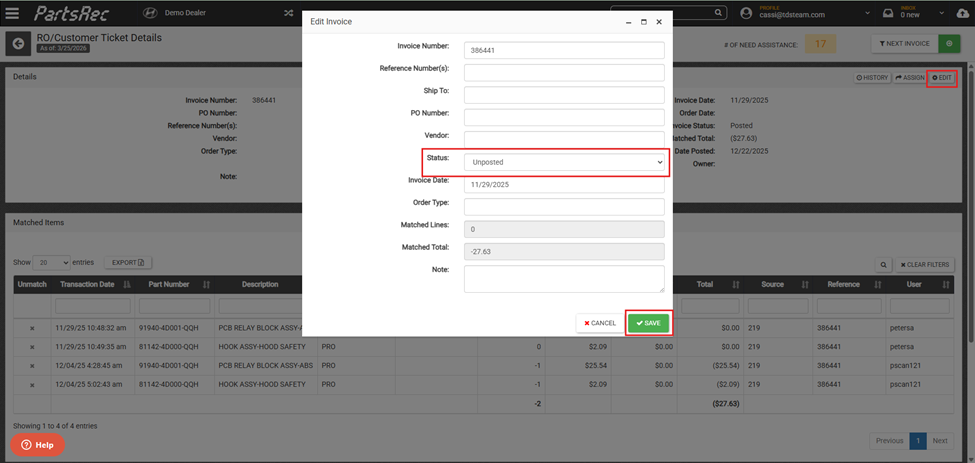
If an RO has closed with no posting to the GL, investigate why it closed with no posting. Ensure there are no chaining issues or postings automatically going to non-inventory accounts. Finally, notate the error for adjustment and assign to accounting.
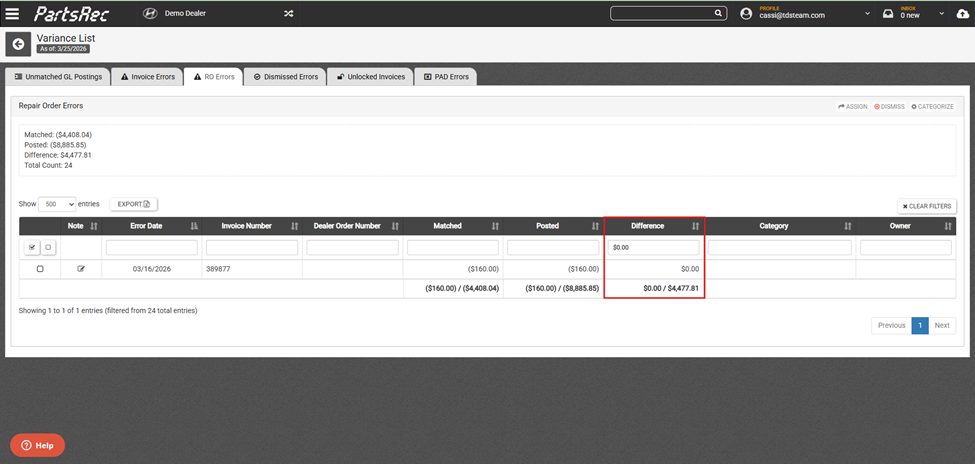
$0.00 Difference errors occur either when there is a chaining issue and RO’s are closing to the wrong inventory account or when there are sourcing/stocking group issues on one or more part.
To determine which one, click the Breakdown and look at the source column.
- Should this source be in this account?
- Should this part be in this source?
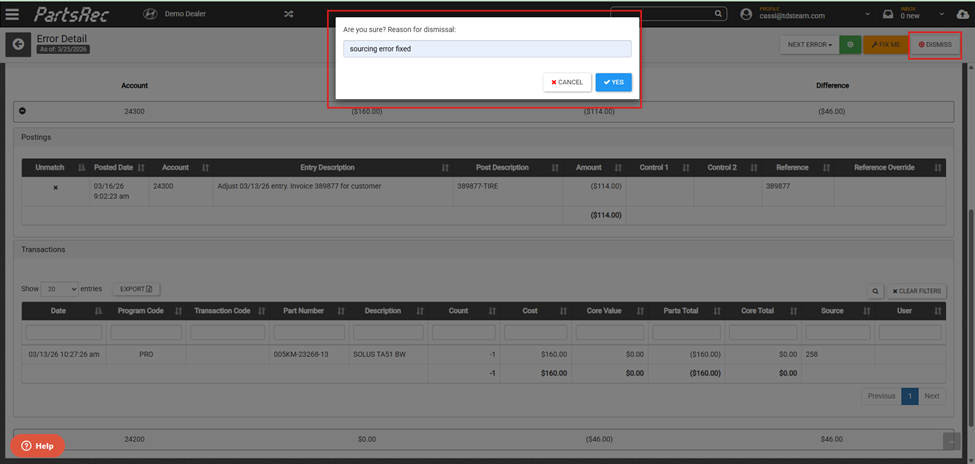
If the answer to either question is no, this is a sourcing issue. If the source is mapped incorrectly in your DMS, update it and let us know so we can update it on our end. If the part is in the wrong source, update the source in the part information screen of the DMS. This is not a retro fix. After the root source issue is corrected, you should dismiss all associated RO errors with the reason of “source error fixed”. If only incorrect in PartsRec, we can update the source to fix the associated RO errors.
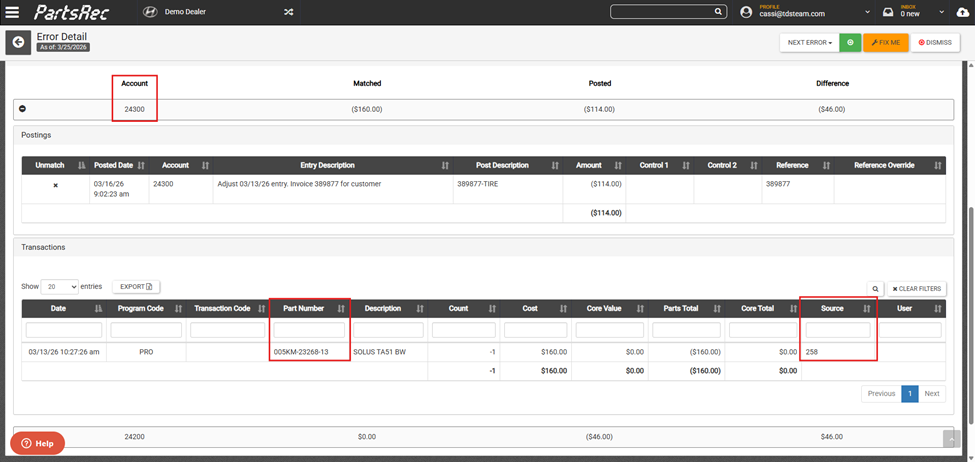
If the part, source, and account all go together, this means the RO is closing to the wrong account. Alert accounting so they can fix the root issue and prevent future errors. Use the Edit button to notate the adjustment and assign to accounting.