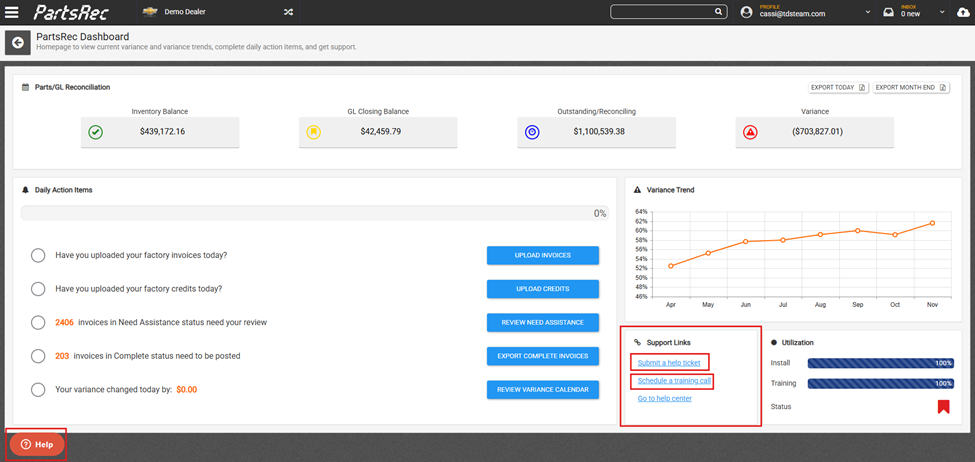
Invoices in PartsRec will not move from complete status to posted status until a GL entry is detected with a reference or control number matching the invoice number (or PO number). When invoices are not moving to posted status and off the complete invoices report, they should be investigated.
There are several reasons an invoice may not be clearing from the complete invoice report:
- The invoice has not been posted to the GL.
- The invoice has been posted to the GL but with the wrong reference/control.
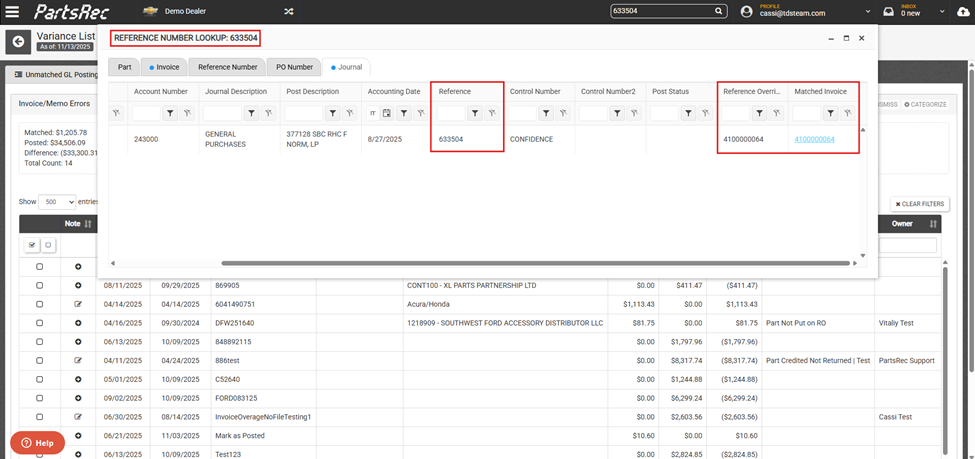
- The invoice has been posted to the GL with the correct reference/control but the GL entry matched with another invoice via manual reference override.
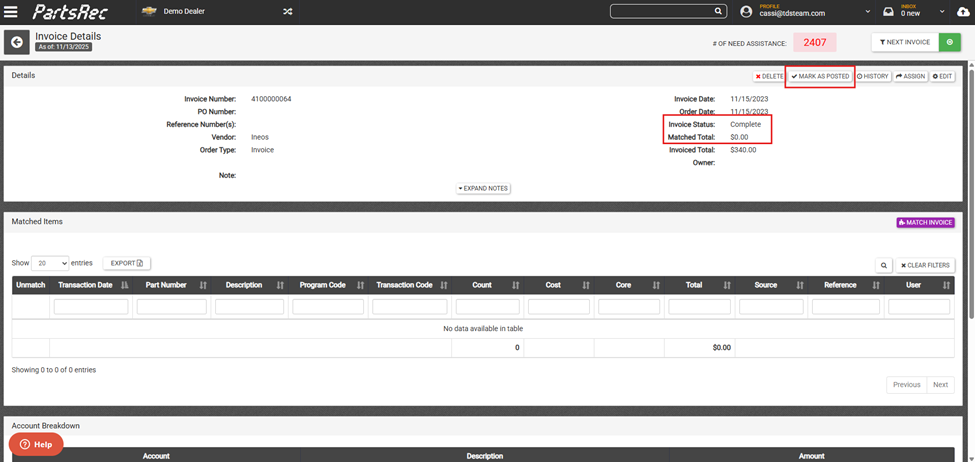
- The full invoice total was allocated to non-parts GL account. In this case, your matched total will be $0.00.
There are steps you can take to investigate and resolve aged complete invoices. Follow the steps below.
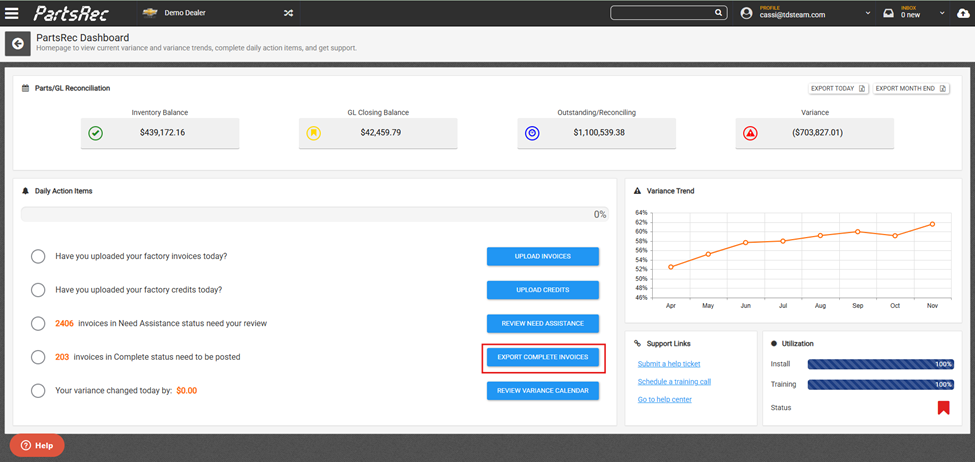
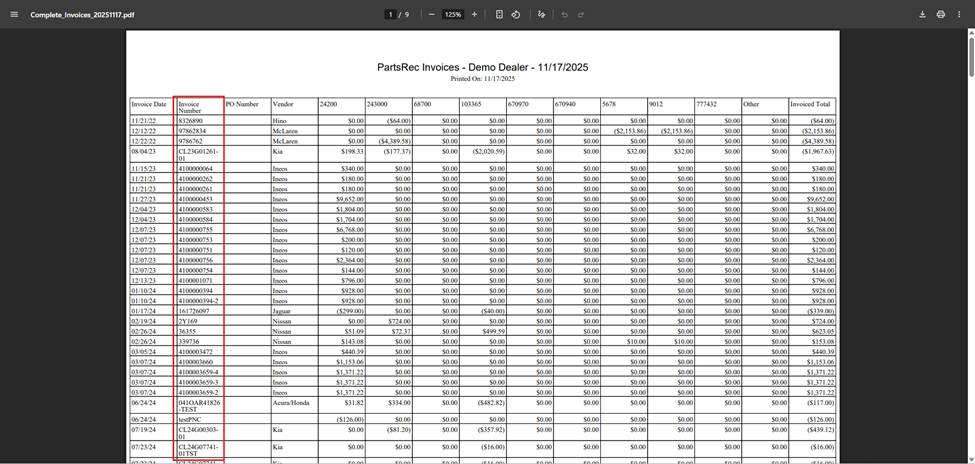
Download the complete invoices report using the fourth daily action item. The PDF (No Attachments) option will provide just the summary page listing the complete invoices and GL coding.
Go down your list of complete invoices. Confirm in your DMS whether the invoice was posted.
- Was your invoice posted?
- No – Post it now. The invoice will move to posted status and off the complete invoice list after nightly processing.
- Yes – Move to step 4.
- Was your invoice total allocated to a non-parts GL account?
- No – Move to step 5.
Yes – Manually mark the invoice as posted in PartsRec. There should be a $0.00 matched total on this invoice.
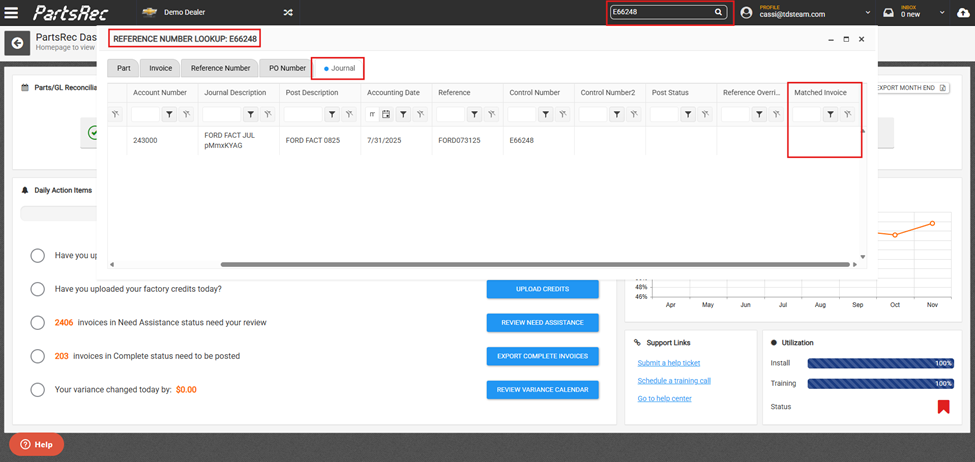
- What reference number was used to make the posting? Put it in the search bar.
A different number – Find the GL entry using the reference number. If the entry is not matched to an invoice, find it in unmatched GL and perform a reference override.
Invoice number – If the GL entry is matched to a different invoice, the entry will need to be unmatched before it can match with the correct invoice.
- Get stuck? Reach out to PartsRec support via the red Help button or schedule a training call.