
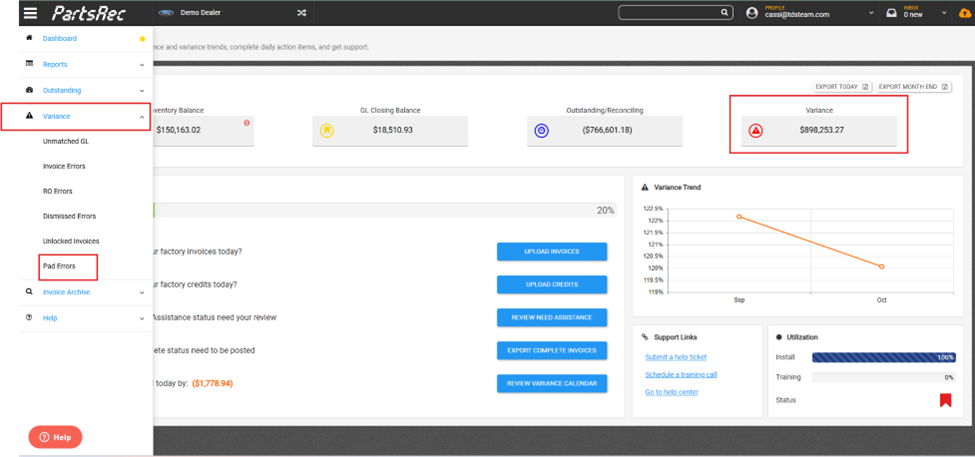
Pad errors are tracked in your variance section. You can access your pad errors through the menu by clicking Variance then Pad Errors or by clicking the Variance button on the dashboard and navigating to the pad errors tab. This is not a report found in any DMS.
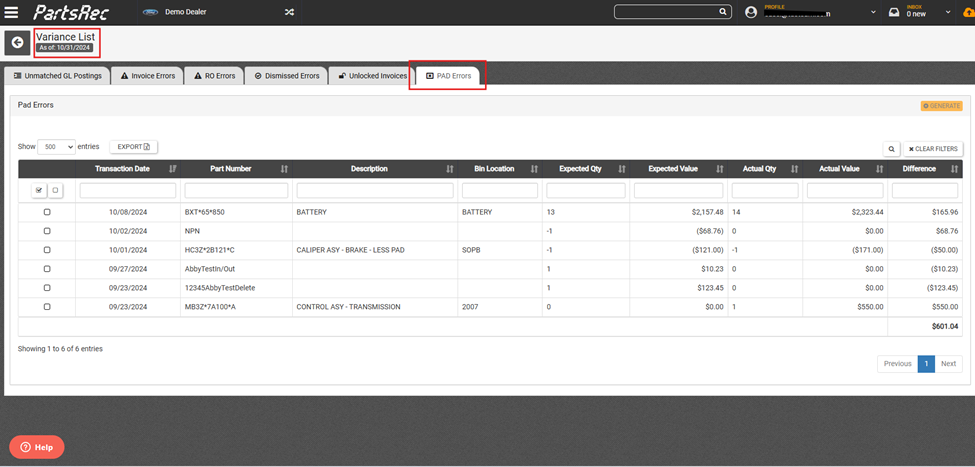
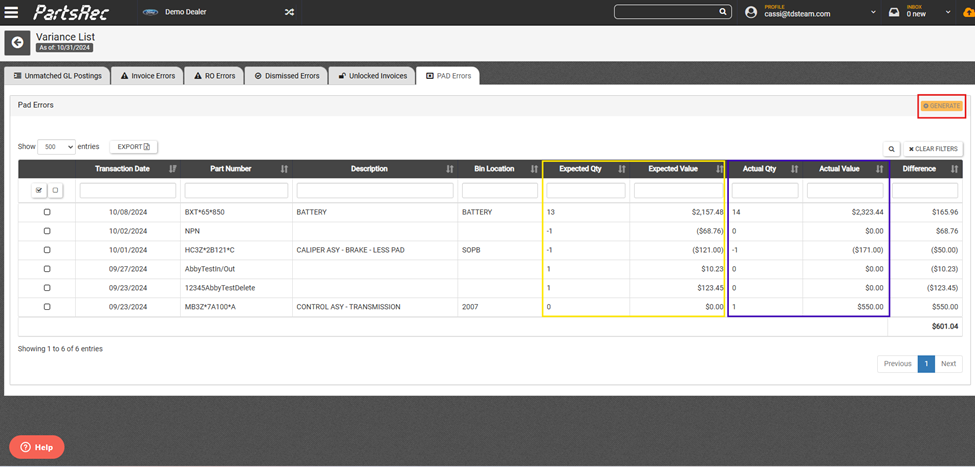
**Note: Only PartsRec Support will have the orange Generate button.
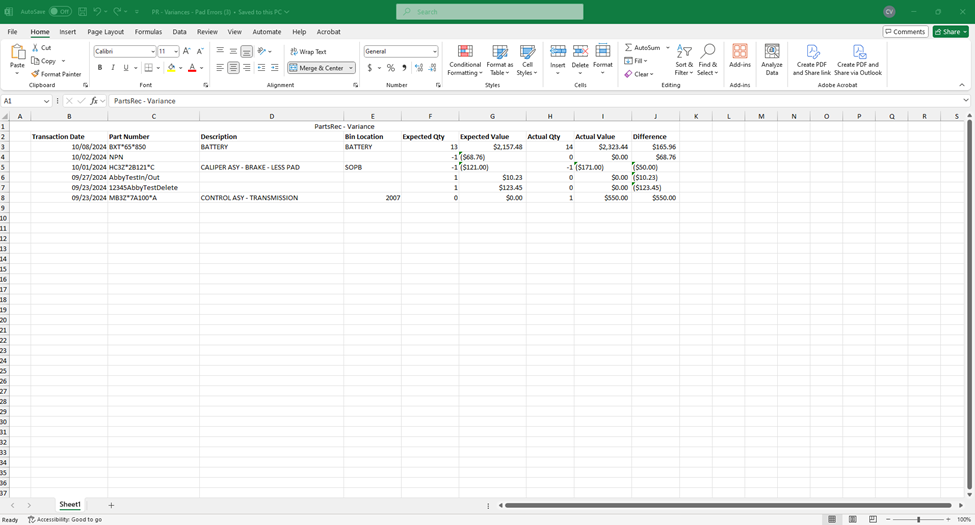
A pad error occurs in PartsRec when there is a mismatch between the DMS transaction file and inventory file. Every night when data is pulled from the DMS, PartsRec receives any transactions done throughout the day (ie: parts being received, sold, manually adjusted, returned, and cost adjustments and overrides) as well as the current on-hand quantity and cost for each part. If there are discrepancies between what the cost and/or on-hand quantity PartsRec is expecting and the cost and/or on-hand quantity the DMS is reporting, a pad error will occur. In the pad error table, the “Expected Qty” and “Expected Value” are what PartsRec is expecting. The “Actual Qty” and “Actual Value” are what the DMS is reporting.
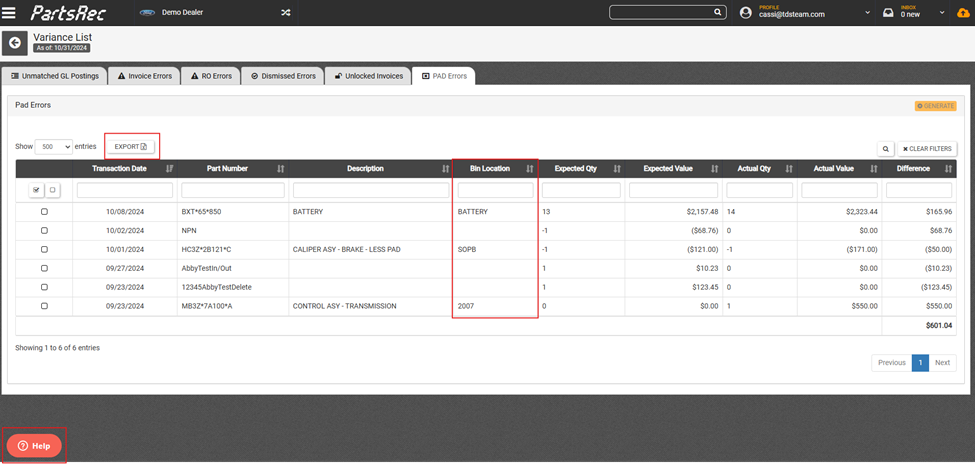
To investigate pad errors, this table can be exported into an Excel spreadsheet. If known, the bin locations are also given here. Perform a bin count and cost check on each of these parts, correct anything in your DMS that does not match the shelf, and notate your findings. Be sure to also notate any corrections made on the spreadsheet. Once done, send this information to PartsRec support using the red Help button. The support team can generate the pad errors in PartsRec.
Once the pad errors have been investigated and generated by the PartsRec support team, those transactions can be found in the Outstanding Pad Errors tab. From there, they can be used to match to need assistance invoices, fix RO errors, or offset transactions with no match. Any pad errors with no match or offset should be adjusted by accounting. To see how to create a manual invoice, please see our help article Creating a Manual Invoice/Memo in Outstanding .
