RO errors occur when there is a mismatch between the total dollar amount of parts sold on a repair order or counter ticket and the total dollar amount posted to the GL. For an introduction to the RO errors section, please review RO Errors article or RO Errors video tutorial. For $0.00 errors, please see the Investigating $0.00 RO Errors article and Investigating $ 0.00 Errors video tutorial.
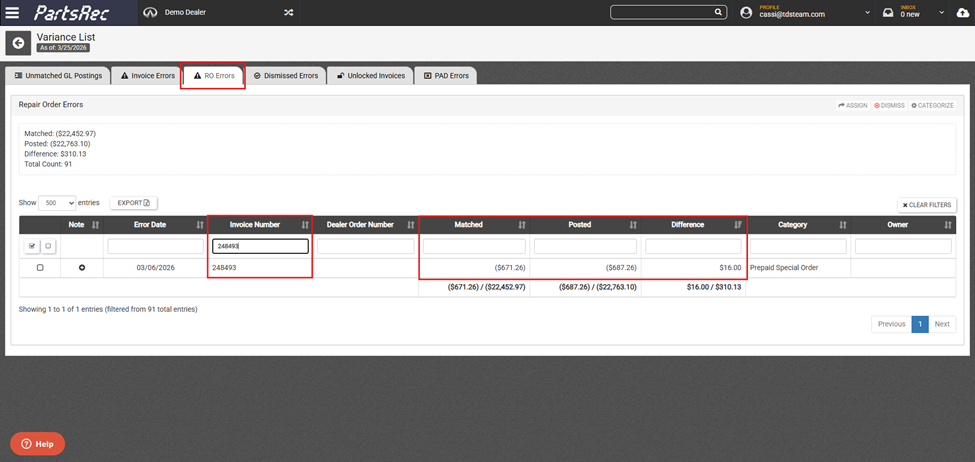
RO errors can occur due to missing transactions and cost changes on parts sold on an RO. To determine the correct course of action for resolving an RO error, the best practice is to download the accounting (CDK) or audit (Dealertrack) copy of the RO and compare it to what is showing as sold in PartsRec.
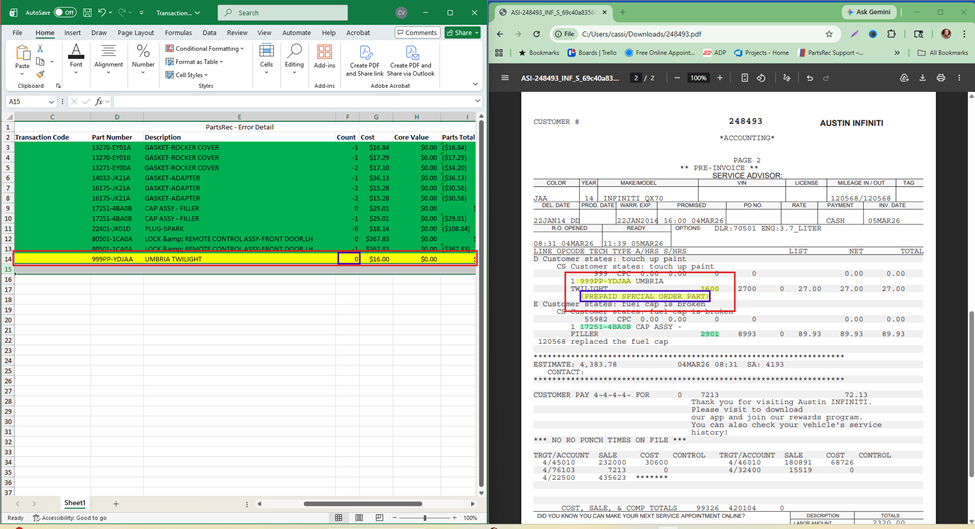
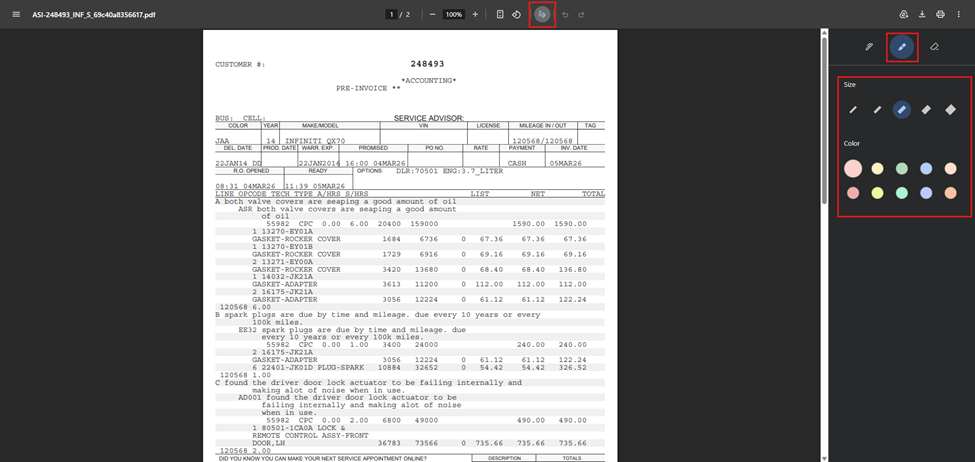
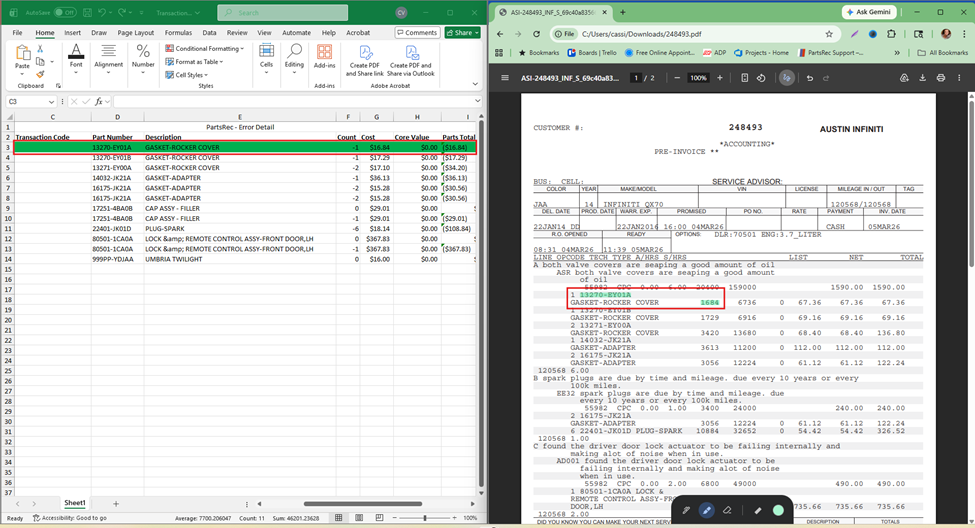
To start, locate the accounting copy of the RO error in the DMS and download it. To make this as easy as possible, you will use the highlight function in the browser for your PDF. For this tutorial, I will use Google Chrome as that is the best browser to use with PartsRec. See the screenshot below for where to locate the highlighters in Google Chrome.
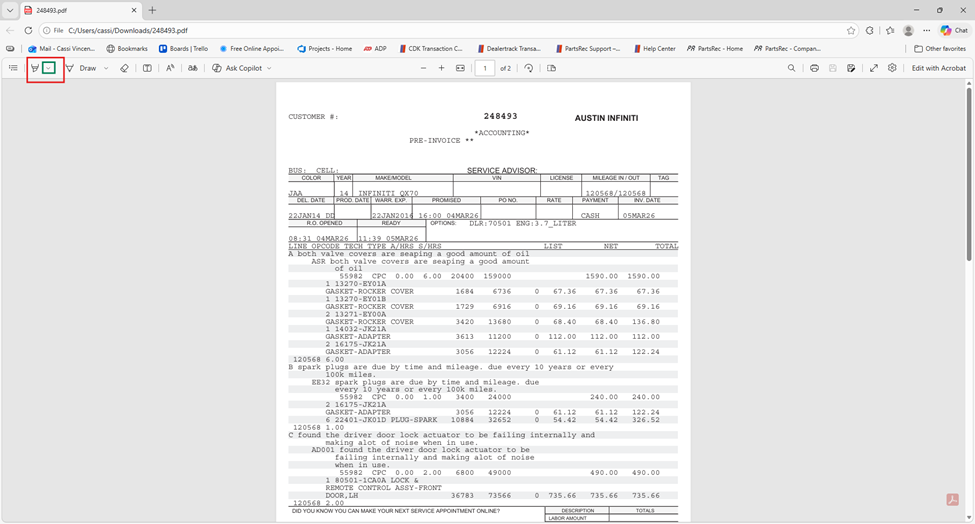
If you are using Microsoft Edge to view and edit your PDF, see the screenshot below for where to locate the highlighters.
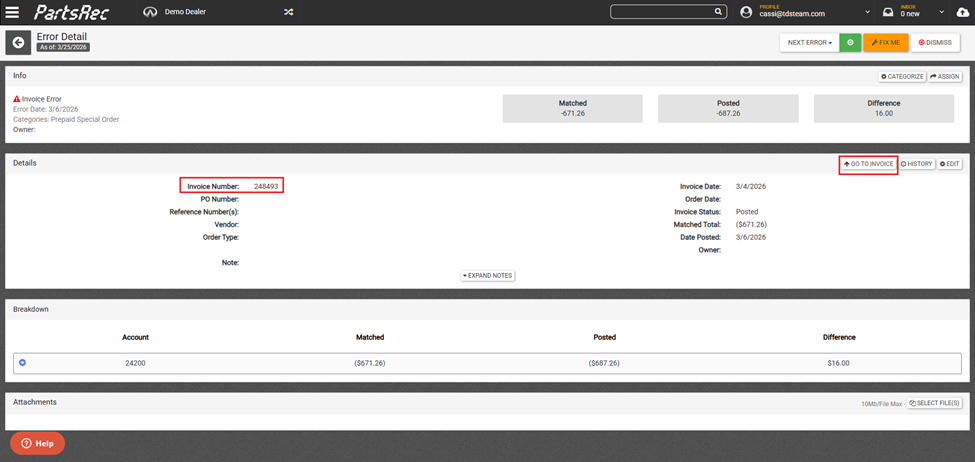
Next, download the list of transactions from the RO error in PartsRec. Click Go To Invoice on the top right of the error screen.
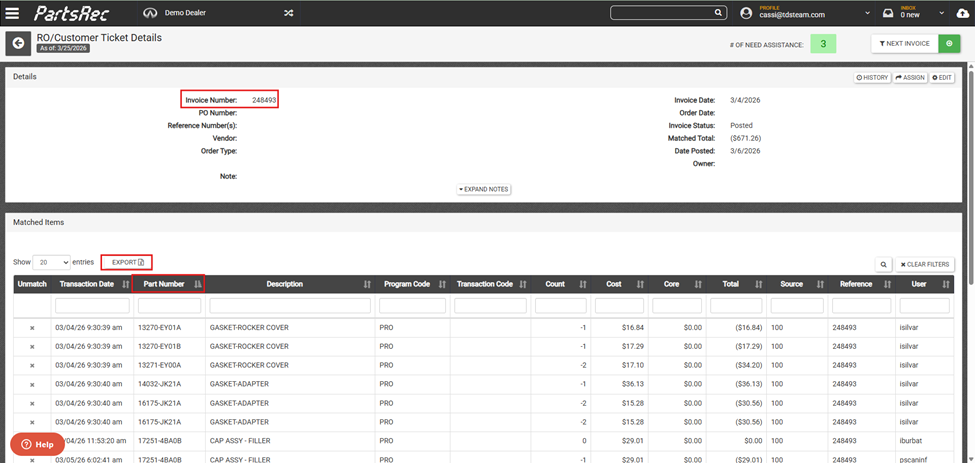
Scroll down to the list of transactions and sort by part number. This will make finding the transactions easier in a moment. Click the Export button. This will export an Excel file with the part transactions listed. Click Enable Editing.
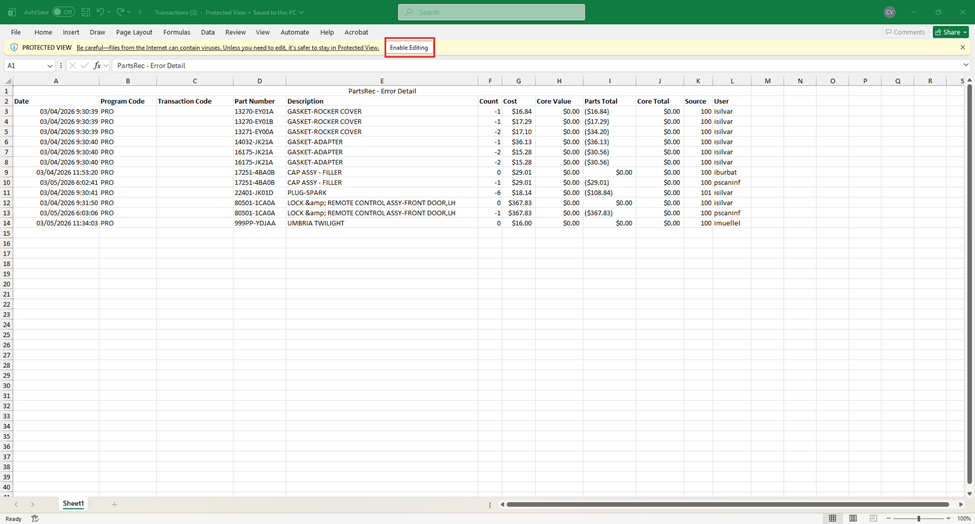
Compare the list of parts in the accounting copy. Locate the same part on the report from PartsRec.
- If you find the part number and it is sold at the same cost, highlight the part on both documents green.
- If the cost is incorrect but the part is listed, highlight the part on both documents yellow.
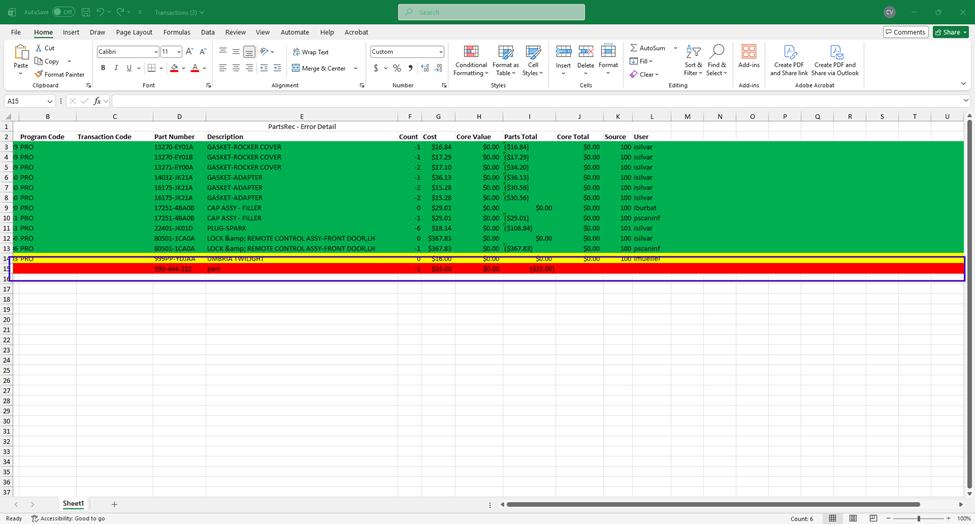
- If the part is listed on one document but not the other, highlight it red. Compare each part listed until all have been verified.
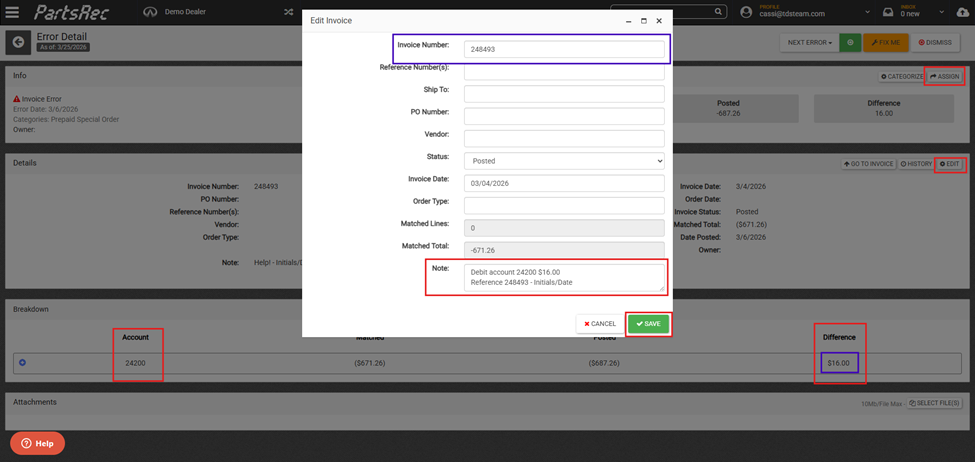
At the end, look at the comparisons. Are there cost differences due to appreciation/depreciation? Accounting should make an adjustment. Use the Edit button to notate the adjustment for accounting. The adjustment amount is based on the difference still on the RO error. If the difference is in parentheses, the adjustment should be a credit. If it is not in parentheses, the adjustment should be a debit. The reference number should be the RO number.
If the part is not listed on one document but is on the other, perform a bin count on the part and determine if it was sold.
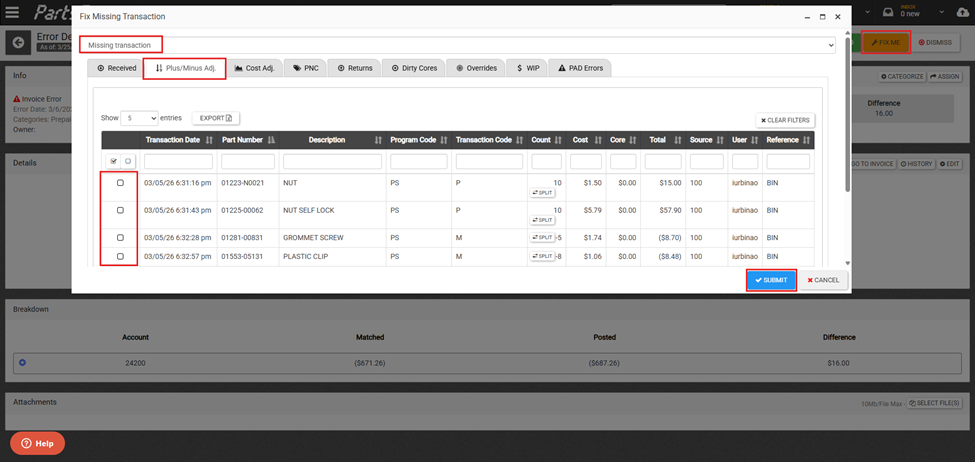
- If the part is showing sold in PartsRec but not in the DMS, the inventory may need to be corrected and the inventory adjustment matched using the Fix Me button..
- If the part is showing sold in the DMS but not in PartsRec, an accounting adjustment may be needed. Determine the correct course of action.
- If you’re unsure, attach the accounting copy to the bottom of the RO error, use the Edit button to notate the error, and assign to PartsRec Support for help.
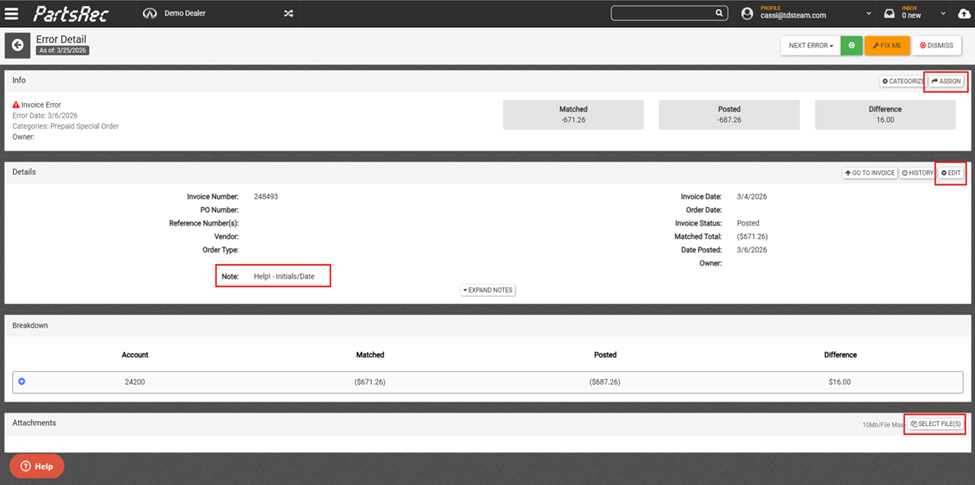
If the part is showing as a Prepaid Special Order on the Accounting copy (as shown in our example RO), determine whether the special order has been filled.
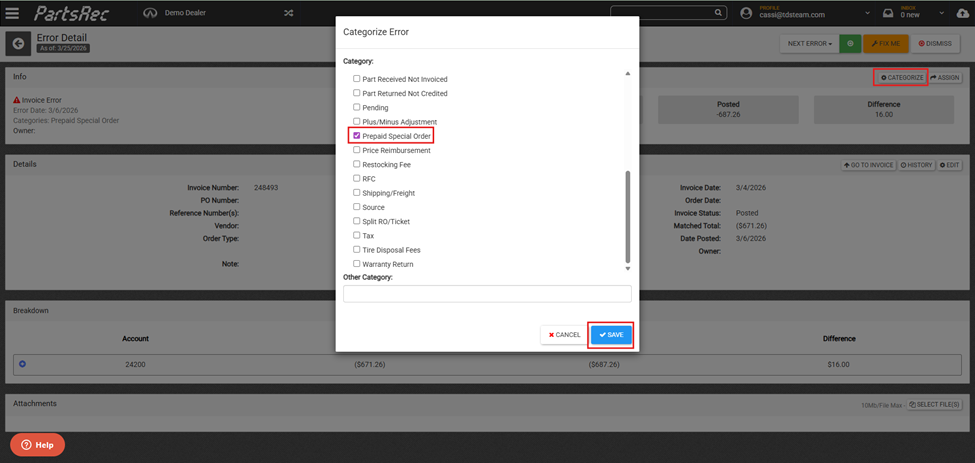
- If the special order has not been filled, categorize the RO error as a Prepaid Special Order and wait for the order to fill. It will dismiss automatically in PartsRec when filled properly.
- If the order has been filled but the part did not relieve inventory, perform a minus adjustment and use the Fix Me button to match the adjustment the next day.
- If the sale was rolled to another RO, there will be an override to match. See our article entitled Rollover & Split RO’s in PartsRec for more information.