
Investigating and resolving unmatched and aging transactions is part of the month end procedure. Any transactions that have not been matched to an invoice should be investigated and either matched to an invoice, offset with another transaction, or added to a cleanup memo for accounting to adjust.
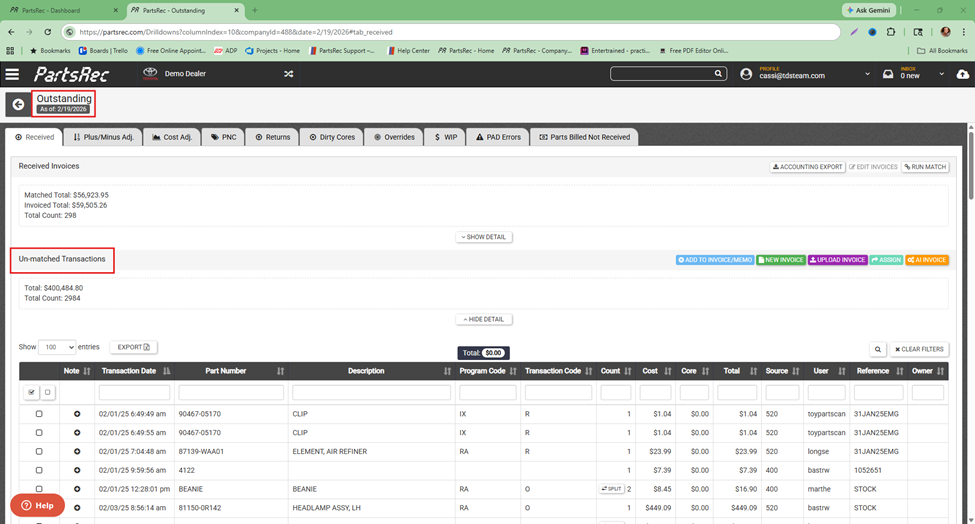
The best way to keep the Outstanding section clean is by completing the first four daily action items every day.
- Uploading all factory invoices and credits and writing purchase orders in the DMS for anything being brought into our removed from the inventory account.
- Matching and completing all invoices.
- Posting all complete invoices to the GL.
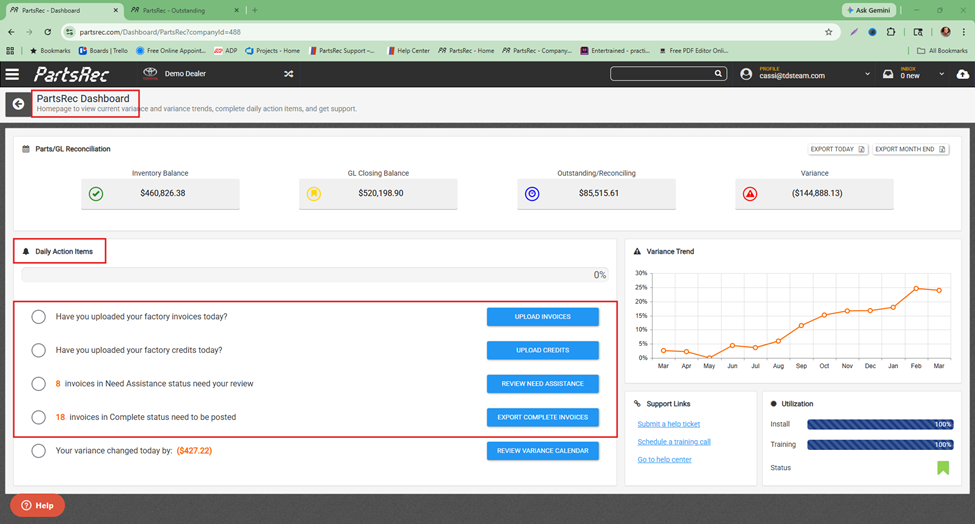
If all invoices for the month have been uploaded and matched and there are still transactions unmatched in the Outstanding section, investigating these in a timely manner will help keep variance as close to zero as possible.
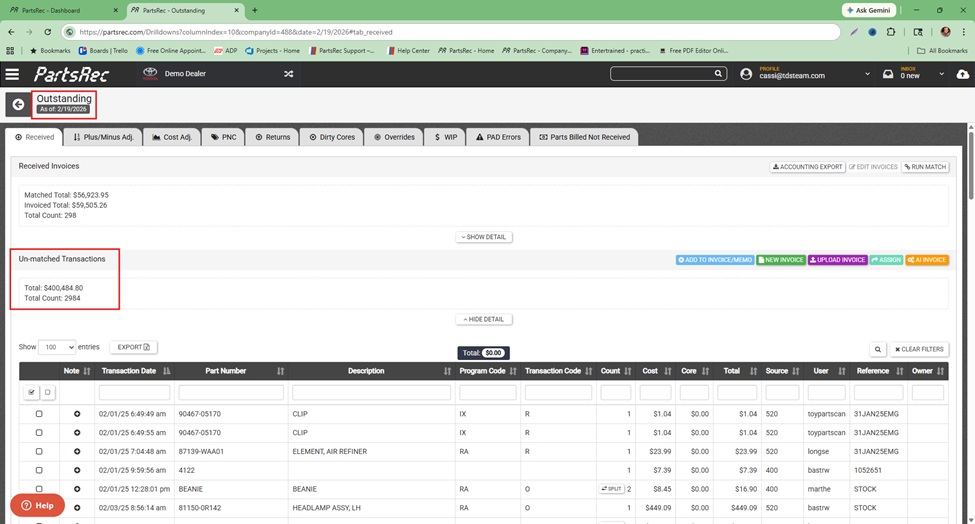
Any transaction older than 30 days not matched to an invoice in the Outstanding section of PartsRec is considered an aged transaction. Unmatched/aged transactions can occur for a few different reasons:
- Invoice never uploaded/PO never invoiced
- Incorrect reference prevented automatching
- A transaction was generated before the match became available
- You allocated the billed line incorrectly before the match became available.
- You received a part you were never billed for
- You returned a part you were never credited for
- A part is put into inventory because it was found on the shelf
To resolve an unmatched transaction, it must be traced back to the invoice it was originally billed on. Use the information on the transaction to determine if the part would have been billed on a factory invoice or a third-party vendor invoice.
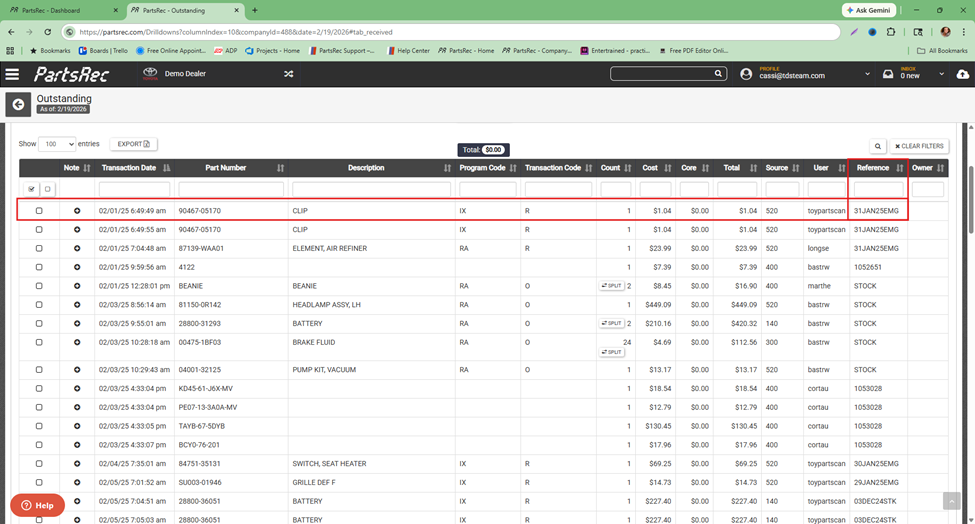
You can also use the magnifying glass to look at transaction history. Finding the order line for the transaction as well as surrounding transactions will point you in the right direction.
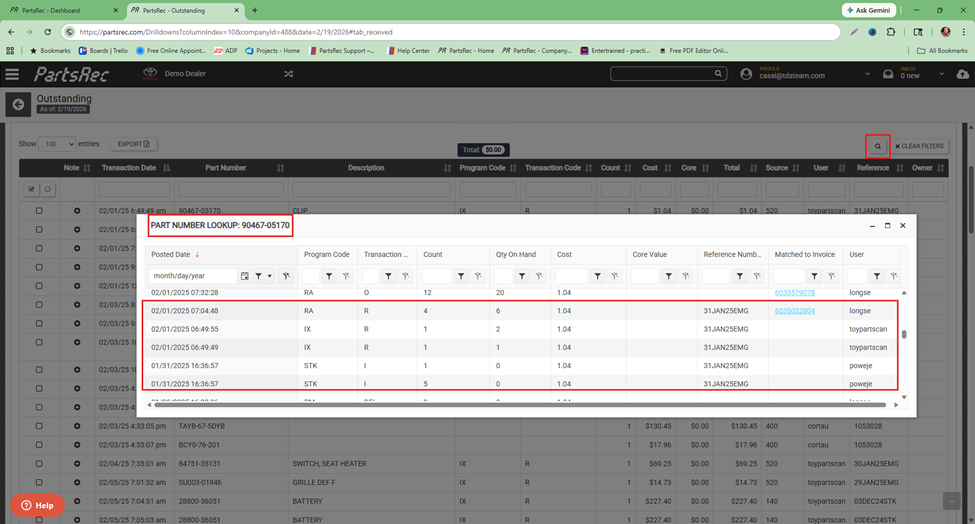
Next steps depend on what type of invoice the part is billed on.
Factory Invoice:
- Do you have the invoice number?
- If no, use the part number, reference number, and date received to look up the invoice on the factory website.
- Was the invoice uploaded?
- If no, upload the invoice and match.
- If yes, locate the invoice in PartsRec using the search bar.
Third-Party Vendor Invoice (PO):
- Was the part billed on a third-party vendor invoice?
- If yes, what vendor? This will help narrow down where to search for the invoice.
- Was a PO written?
- If no, create a PO in the DMS or manual invoice in PartsRec.
- If Accounting has already posted this invoice to the GL, create a manual invoice. If the invoice has not been posted, create a PO in the DMS.
- If yes, use the search bar to locate the PO in PartsRec.
- If no, create a PO in the DMS or manual invoice in PartsRec.
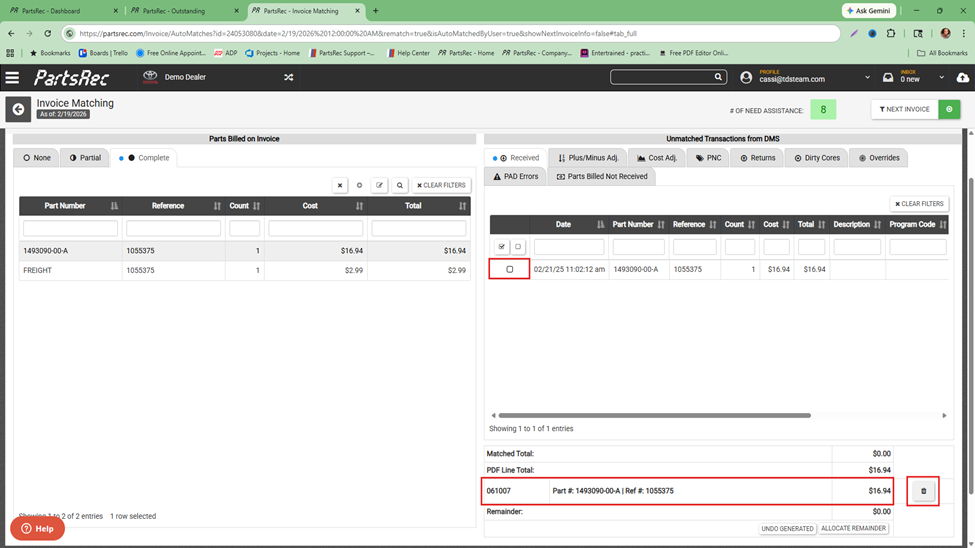
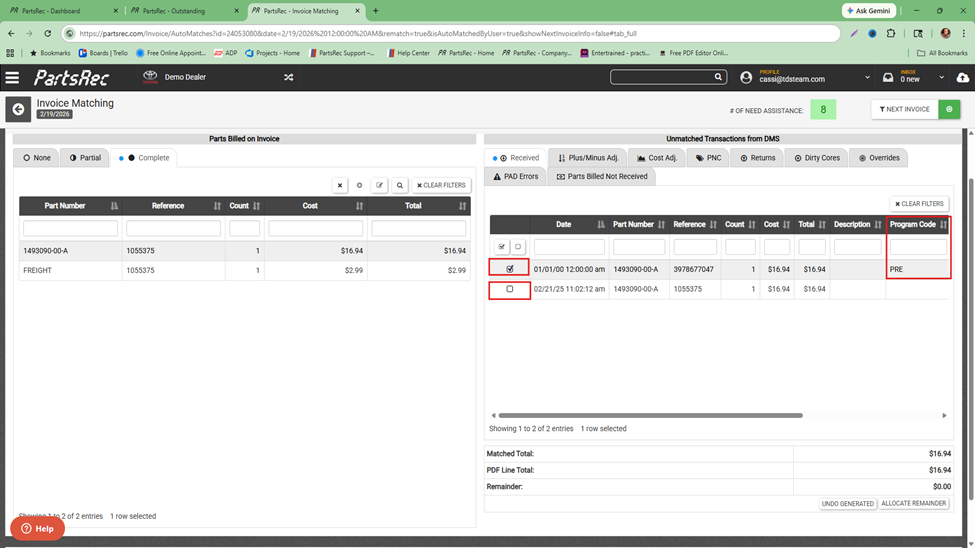
If you can locate an invoice in PartsRec, match the transaction to that invoice.
- If the part line was allocated, delete the allocation and match the transction.
- If a transaction was generated, unmatch from the generated transaction to delete it and match the transaction from the DMS.
- If an incorrect transaction is matched, unmatch it. Match the correct transactions to the correct invoices. The transaction you unmatch will go back to the unmatched transactions section in Outstanding so you can investigate it.
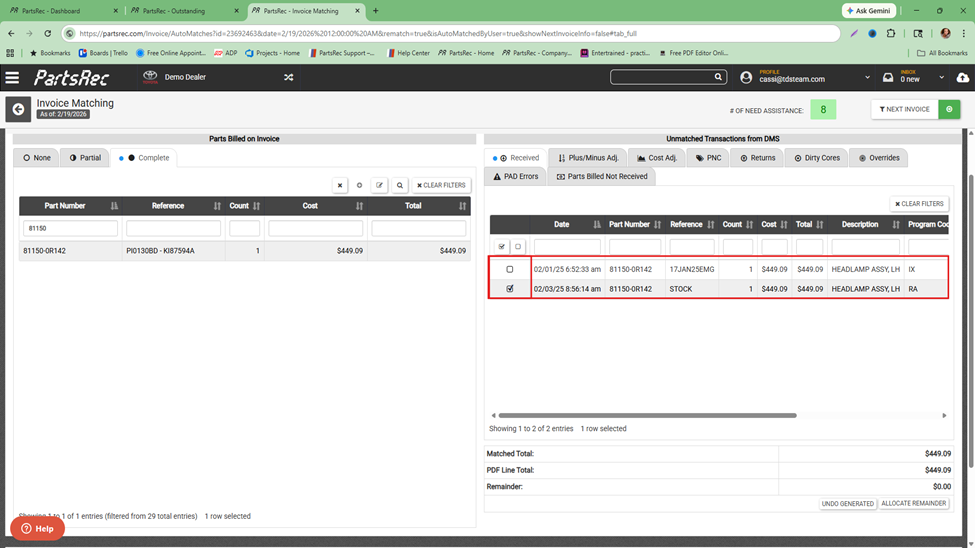
In the event there is no invoice to match the transaction with, the transaction still needs to be resolved as it has impacted your inventory account. First, perform a bin count. Correct your on-hand quantity if necessary. Remember: you should not correct on hand quantity just to match PartsRec. You should correct on hand quantity to match what is on your shelf only.
If there is no correction to the on-hand count needed and no offsetting transaction, the transaction will need to be added to your monthly Plus/Minus Adjustment memo to be adjusted by accounting. For more information on how to create manual memos in PartsRec, see our help article Creating a Manual Invoice/Memo in Outstanding.