
The invoice matching screen is where parts billed on an invoice are matched with the corresponding transaction from the DMS. This page is accessed by clicking the purple Match Invoice button on the Invoice Details screen. The matching screen is comprised of two tables; the table on the left contains all the parts billed on the invoice, and the table on the right contains the unmatched transactions from your DMS. The Parts Billed on Invoice side pulls lines directly from the invoice, whether that be from a factory invoice being uploaded or a PO written in the DMS and imported to PartsRec. This is split into three tabs: complete, partial, and none. The Unmatched Transactions from DMS side pulls directly from transaction history in the DMS. This is split into nine tabs differentiating the transaction type and are the same tabs found in the Outstanding section (except for the WIP tab). Blue dots on the tabs on either side indicate data is present. There are also some basic invoice details at the top of the page. 
Complete: The part has been matched, and the remainder is $0.00. 
Partial: The system has identified a potential match but there is a discrepancy between the reference number, quantity, or cost. A part identifies a potential match based on an exact match with the part number. To get this part to the complete tab, select the check box next to the correct transaction on the right side. If the cost matches and the remainder is $0.00, the part will bump to the complete tab. If a there is a remainder, a transaction may be present in another tab (if so, you will see a blue dot in another tab) or an allocation is needed. 
None: The system has not identified a potential match for this part. Most of the time, it is because this part has not been received, there has been a part number change, or has not been billed on a counter ticket/RO. If the part has been received or billed out today, the match will be available tomorrow. If a part number change occurred, search the new part number on the right-hand side. There is full access to all unmatched transactions regardless of part number. 
The tabs on the right side of the screen are the same tabs from the Outstanding section and show corresponding transactions from the DMS.
- Received – the part was received in to the DMS or billed out on an RO/counter ticket.
- Plus/Minus Adj. – the part was manually added or removed from inventory.
- Cost Adj. – a master tape transaction has been identified or the cost was updated in Parts Maintenance (CDK)
- PNC – a part number change has occurred from the manufacturer.
- Returns – the part has been removed from inventory via a manufacturer stock return or a generated In/Out.
- Dirty Cores – a core has been removed and should match to a core credit.
- Overrides – the cost of the part was changed on an RO/counter ticket.
- PAD Errors – there has been a mismatch in the DMS transaction file and DMS inventory file; a transaction appears here only after the PAD error has been generated from the Variance section by PartsRec support.
- Parts Billed Not Received – the offsetting transaction of a part that has not been received by the dealership but has been billed on an invoice; there will only be a transaction here when one has been generated.
Tools: There are several tools that can assist in investigating and completing the invoice. 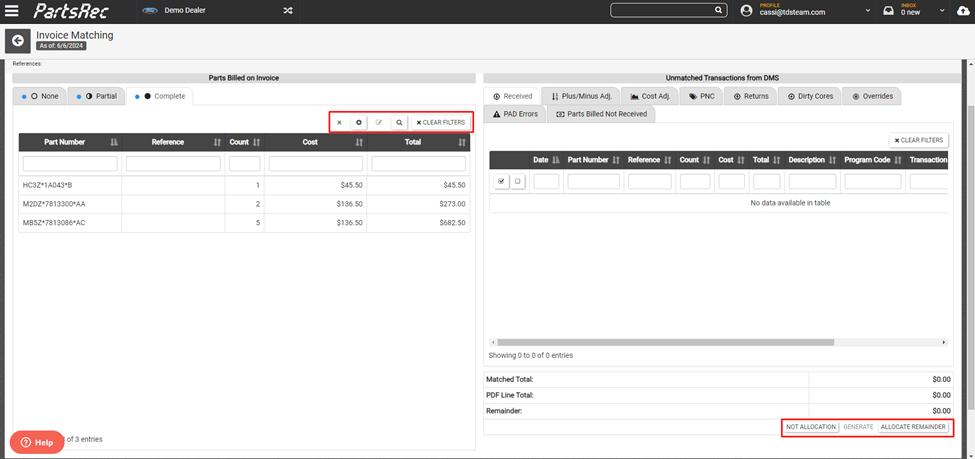
On the left side of the screen:
- “x” icon – Delete a matching line.
- “+” icon – Add a matching line.
- Notepad icon – Edit a matching line.
- These options should only be used when absolutely necessary. If the invoice is a PO and it is still open, the PO should be edited in the DMS. For factory invoices, if the matching line did not parse over correctly, alert the Support team in case there is an issue with the invoice.
- These options need to be added by PartsRec support and are not there automatically.
- Magnifying Glass – Allows the user to find transaction history for a part. Click the magnifying glass then the part line to access this.

- Clear Filters – Removes any filters applied to the table.
On the right side of the screen:
- Not Allocation – Use this to access all parts from your DMS if the billed line is not an allocation and you do not have a match.
- Generate – Use when no transaction exists or ever will (review Generating Transactions help article for more information).
- Generating received and returned transactions are removed after the initial onboarding training is complete.
- Allocate Remainder – The remainder needs to be allocated to a non-parts GL account. A box will pop up with a drop down menu containing a list of accounts to choose from.
- Force Rematch – If a part is in the partial tab and access is needed to all transactions, not just the ones with a matching part number, this button pushes the part back to the None tab. This option is only available in the Partial tab.
