
Invoice Statuses in PartsRec
All factory invoices uploaded into PartsRec, as well as imported PO/PO Credits, follow status changes as the invoice progresses through to completion. A dealership can choose between operating with Auto Statuses or Manual Statuses. Auto Status is the recommended best practice.
Auto Statuses: Invoices move through all statuses automatically.
- Imported - The factory invoice is uploaded, or the PO/PO Credit has been pulled in from the DMS.
- Working - The invoice updates to this status once someone clicks the “Match Invoice” button for the first time. The invoice is still in the buffer window.
- Need Assistance - The invoice cannot be auto matched and is no longer in the buffer window. This usually indicates there is an issue/error with the invoice i.e. parts that you were billed for were not received. Other issues that can cause an invoice to go into need assistance include cost discrepancy between what you were billed versus the actual cost of the part, reference number mismatch, the quantity of the parts you were billed for is different than the quantity you received, part number mismatch.
- Need Attachment – An attachment is required before the invoice will move to Complete status. (Submit request to Support to turn this option on.)
- Complete - $0.00 remainder, ready to be posted by accounting.
- Posted – The invoice has been matched with its gl posting. This invoice is locked, and no changes can be made.
- Voided - This is an auto status that only applies to PO/PO Credits that have been voided in the DMS.
Manual Statuses: Invoices will need to be manually moved to the appropriate status at each step by the end user. This includes manually created invoices/memos. You can change the status of an invoice by clicking the Edit button in the top right corner, choosing the appropriate status in the Status dropdown menu, and clicking the green Save button. Below are 3 additional statuses available for manual use.
- Awaiting Approval – This invoice needs to be approved.
- Approved – This invoice is approved to be posted.
- Rejected – This invoice is not approved.
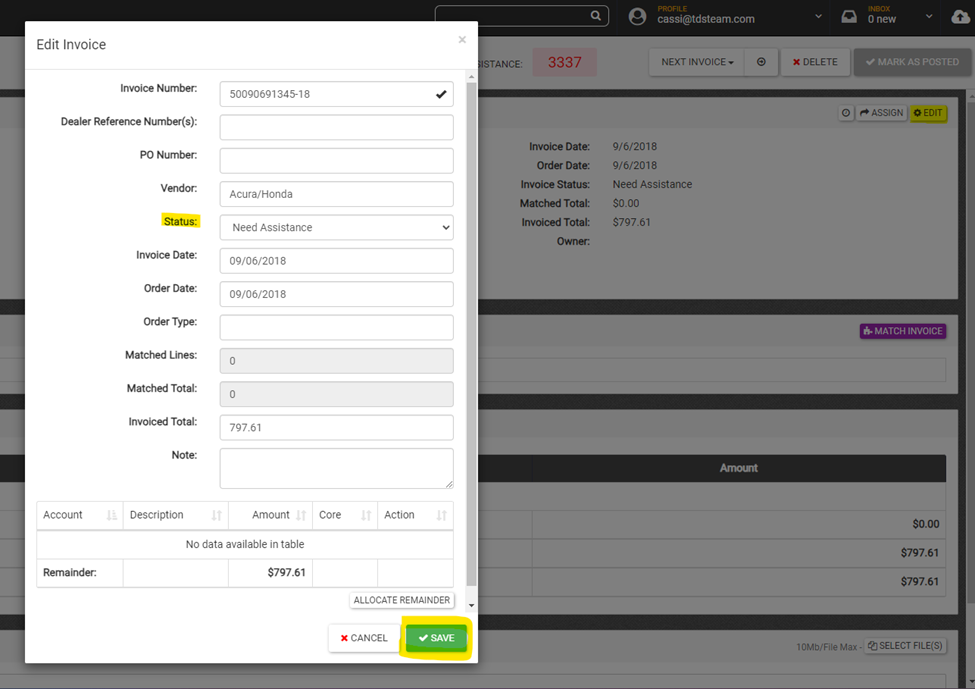
*One exception is for invoices where the full invoice total is allocated to a non-parts GL account. These invoices will not be updated to posted status automatically because we do not track allocation account postings. Those invoices will need to be manually marked as posted. For invoices that you need to manually mark as posted click the “Mark as Posted” button on the top right corner of the Invoice Details page as shown below.

** Buffer Window: By default, an invoice will sit in a 5-day buffer based on the date of the invoice. The system will attempt to match these invoices during this buffer, putting the invoice in Need Assistance status on day 6. This buffer can be adjusted to your preference. However, we recommend no less than a 2-day buffer. This buffer starts the date of the invoice, not necessarily the date of the upload. If you upload an invoice on March 3 dated March 1, this will decrease the amount of time the invoice sits in this buffer.