To reconcile factory invoices in PartsRec, they must be downloaded directly from the factory website as a PDF and uploaded into PartsRec. This is done in the first two Daily Action Items: Upload Invoices and Upload Credits. Third-party purchases are tracked through POs imported directly from the DMS and are not uploaded here.

First, download your batch of invoices and credits from the factory website and save them to your computer. We recommend creating a “PartsRec” folder on your desktop to save these to each day.

Next, log in to PartsRec and click the Upload Invoices button. If you have more than one vendor, use the dropdown menu to select the correct vendor. Click Select File.

Locate the “PartsRec” folder you created, open it, and select the file you want to upload. Click Open.

Once the upload has started, it will continue in the invoice upload cloud at the top, right corner of the screen. A notification confirming that your upload is in progress will pop up at the bottom, and the cloud will be green indicating it is processing your invoices.
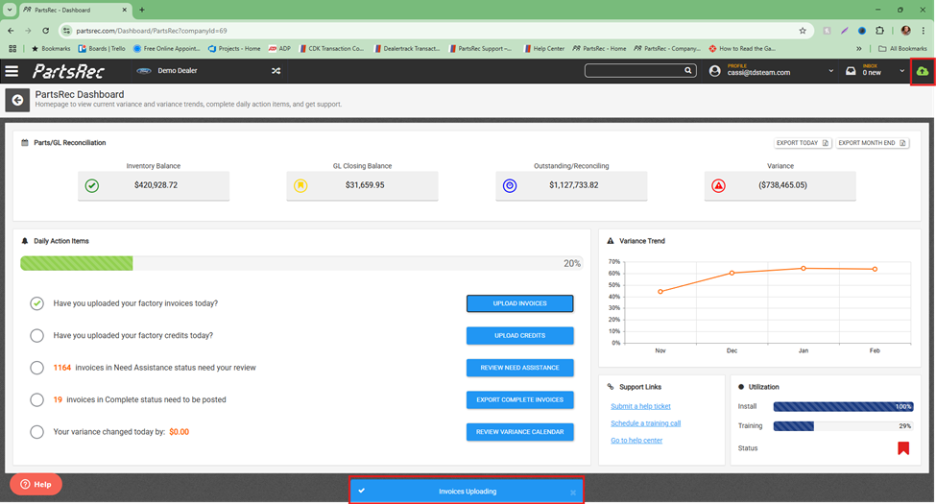
Follow the same steps using the Upload Credits button to upload your credit invoices. The batch must be uploaded to both buttons as they only extract specific invoices. The invoices will upload in the background.

Once the invoices are uploaded successfully, the cloud will turn white. If there is a failed invoice or a duplicate invoice, the cloud will turn orange, and you will see the invoice status in the upload center.

**HONDA Dealers
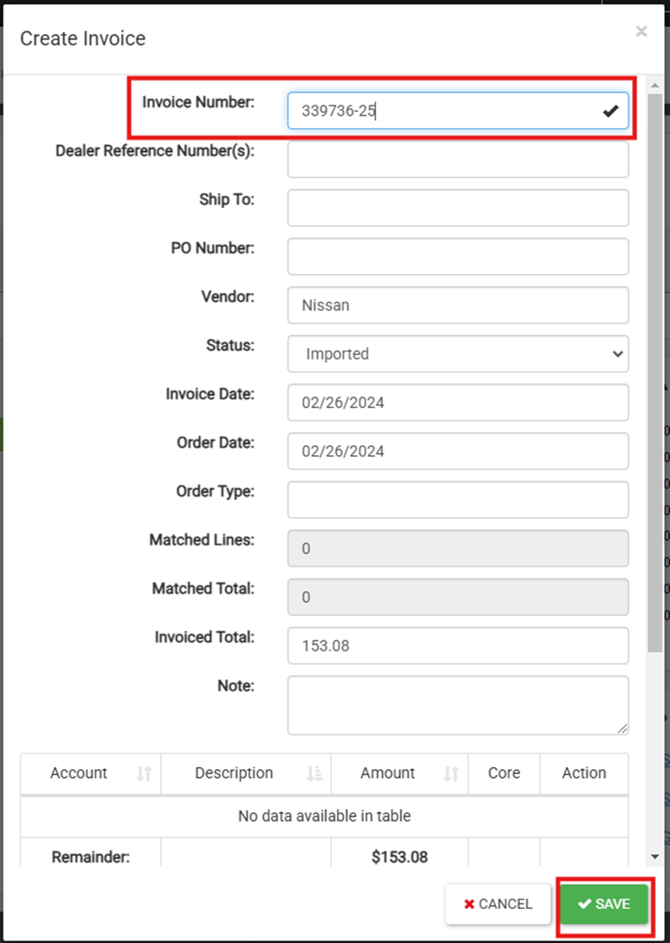
Since Honda reuses invoice numbers every 6 months, there is a way to force an upload by appending the invoice number with the two-digit year. Click on the duplicate invoice in the upload center. A modal will pop up where you can add the two-digit year. This invoice will be
339736-25. Click Save to complete the upload.