
Managing your PartsRec account is very simple. While your account is set up upon installation, there are some basic account maintenance items you may need updated in PartsRec. Please reach out to PartsRec Support by using the red Help button on the bottom, left corner of any page in PartsRec or reach out to partsrec@totaldealersolutions.na2.r.hs-inbox.com for help with the following items:
- Adding/changing/deleting GL accounts
- When updating GL accounts, please include the date you either started or stopped using the GL account in your request.
- Also specify if this is an inventory account or an allocation account. If an inventory account, please let us know what sources will need to be mapped.
- Adding/deleting/remapping sources
- If adding or remapping, please include the relevant GL account information for mapping.
- Adding or removing a user for PartsRec
- For adding a user, please include the name, email address, and title of the person you are adding.
- If your store has unlimited training, you can also request to set up training for the new person at this time.
- Adding or removing user claims such as modifying matching lines or the ability to generate transactions
- Adding or removing store access
Adding a new user
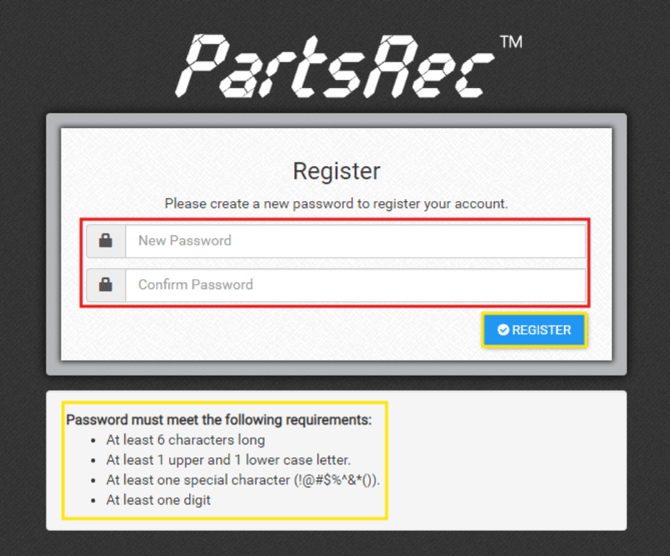
Once a PartsRec support team member has added a new user for your dealership, they can expect to receive an email with a link to set up their password. Simply click the link in the email to be prompted to create a new password. Passwords must meet the following criteria:
- A minimum of 6 characters long
- At least 1 uppercase and 1 lowercase letter
- At least 1 digit
- At least one special character (ie: ? @ # $ % &)
Type in your password twice to confirm and click REGISTER to be redirected to the PartsRec Daily Reconciliation Screen. 
I forgot my password
You can reset a forgotten password from the PartsRec login screen. Please note: PartsRec does not save your login information anywhere, and the support team is not able to give you a password.
- From the home page, click Member Login.

- When the login page comes up, click “Forgot your password?”

- Enter the email address associated with your PartsRec login and click “START”

- You will receive an email from no-reply@partsrec.com. Click the orange hyperlink that says Click Here to be directed to the place where the new password can be entered. If you do not receive this email, please reach out to support@totaldealersolutions.com.

- Type in the email address associated with your PartsRec account and your new password twice to confirm. Click Reset to use your new password. Now you are free to login to PartsRec!
