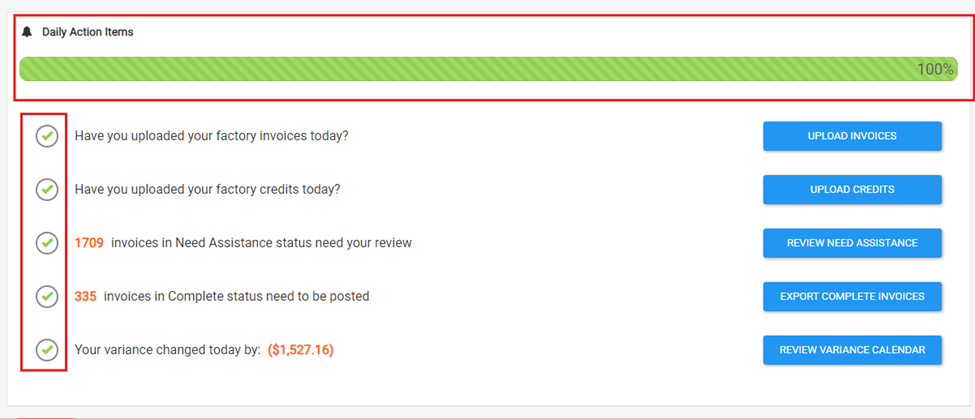
Logging in to PartsRec every day and completing your daily action items is very important when it comes to tracking variance. These five action items are split up in responsibility between the parts and accounting teams. Parts uploads invoices, uploads credits, and reviews invoices in Need Assistance status. Accounting exports complete invoices and posts to the GL. Both teams review the variance calendar to tackle variances day-to-day.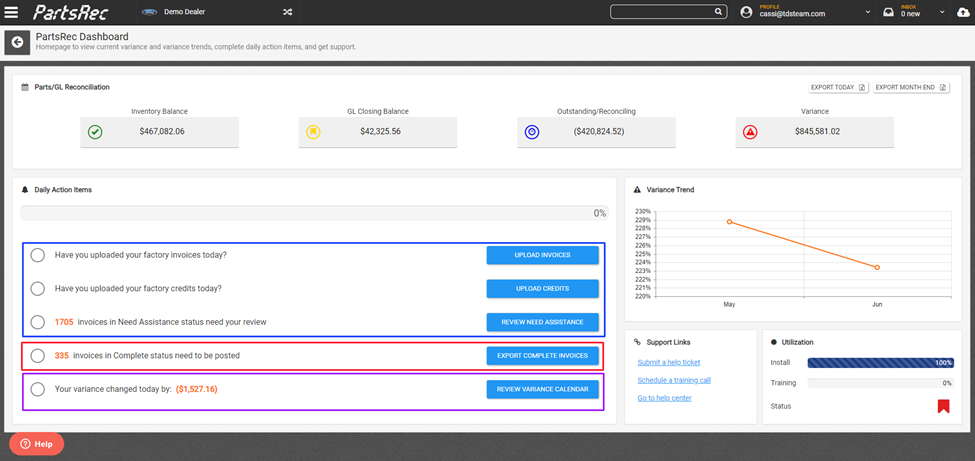
- Download factory invoices and credits from the factory website. Save to a folder labeled PartsRec on your desktop. PartsRec integrates with the DMS to import your PO file. A PO should be written for any part that will be receipted into and sold out of an inventory account, or returned to the vendor, that does not appear on a factory invoice.
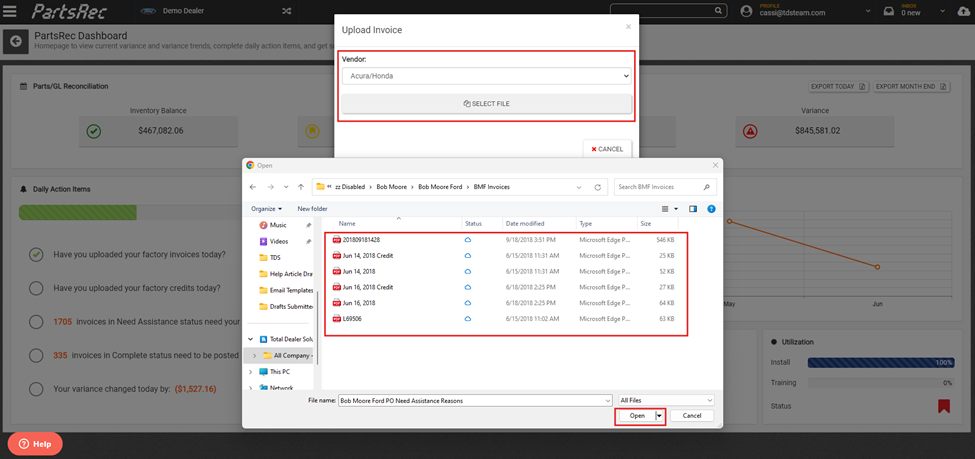
- Log in to PartsRec and upload factory invoices. This should be done using the Upload Invoices and Upload Credits buttons. A batch of invoices with a mixture of debits and credits can be uploaded into both buttons; Upload Invoices will only parse in debits and Upload Credits will only parse in credits.
- Select the vendor in the dropdown menu, if necessary. Find the file in the folder it is saved to on the computer. Click open.
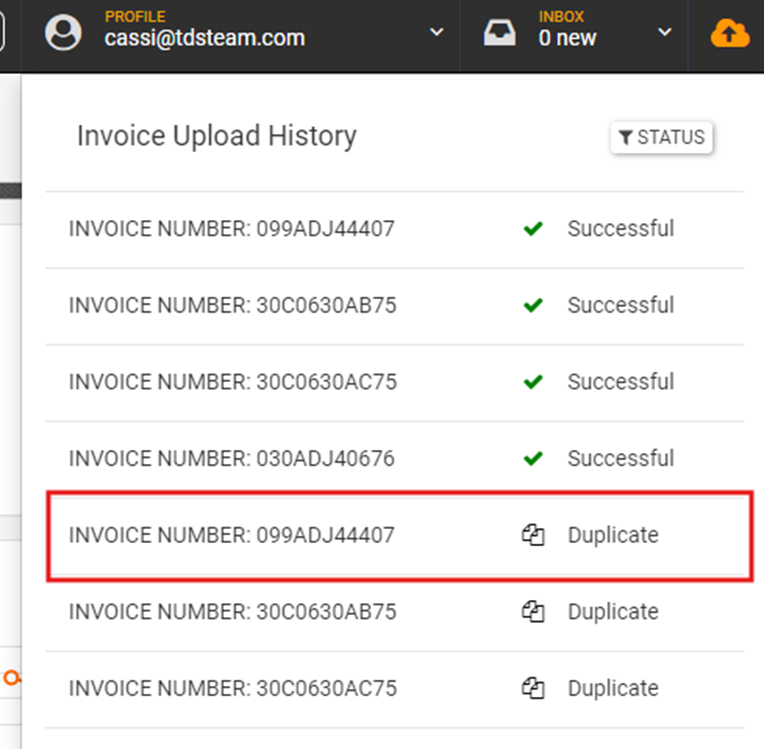
- The cloud icon in the upper right corner of the Dashboard is the Invoice Upload Center. This gives the status of invoices being uploaded. The color of the cloud indicates what is happening. A white cloud means nothing is happening or everything is uploaded successfully. A green cloud means invoices are processing. An orange cloud means there is an issue such as a duplicate or failed invoice.
- Click the cloud to view the status.
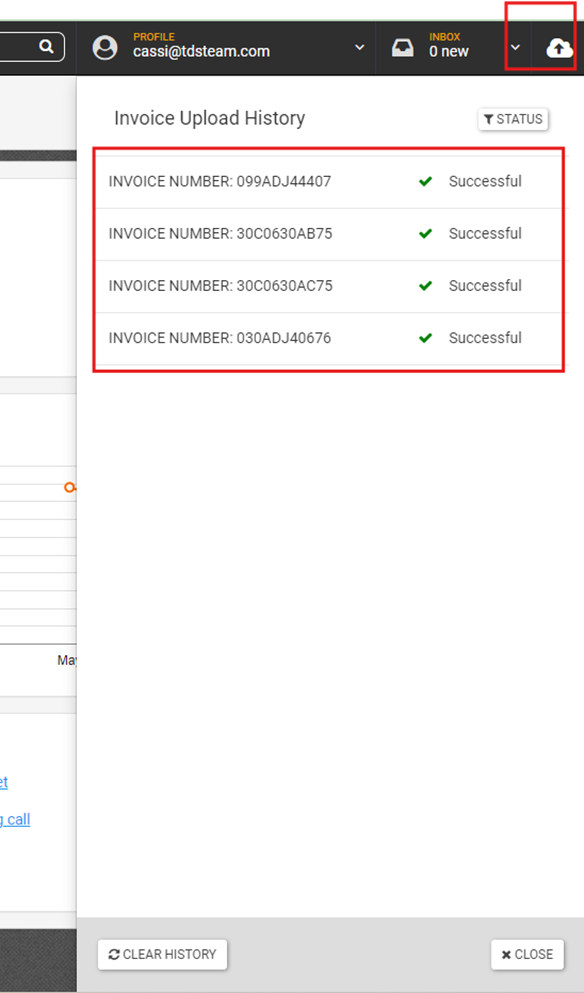
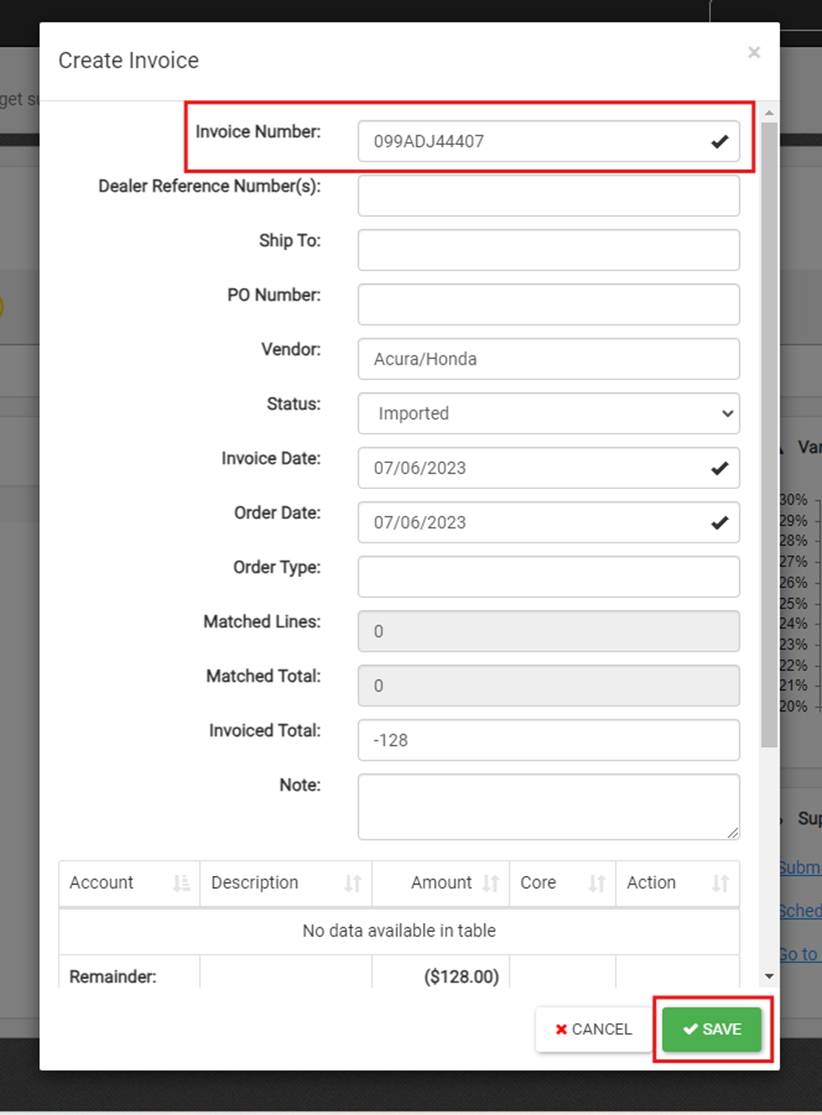
- PartsRec will not upload duplicate invoices. However, if the vendor is Acura/Honda, they do use duplicate invoices. This can be edited in PartsRec. When there is a duplicate, click on the invoice in the upload center. After clicking on the duplicate invoice number, the invoice number can be edited in the pop up. Click save, and the invoice will upload.
- As the invoices are uploading, PartsRec is scanning that invoice attempting to match the items billed on the invoice with transactions from the DMS. Any invoices with discrepancies like parts invoiced but not received or cost mismatches will be put in Need Assistance status. Note: there is a buffer between the invoice date and the invoice moving to Need Assistance status. More information on this is available in our Invoice Statuses in PartsRec help article.
- After factory invoices are uploaded, go through the invoices in Need Assistance. Click the Review Need Assistance button to go to the oldest invoice in Need Assistance status. More information can be found in the help center about the PartsRec Invoice Details Screen and Invoice Matching.

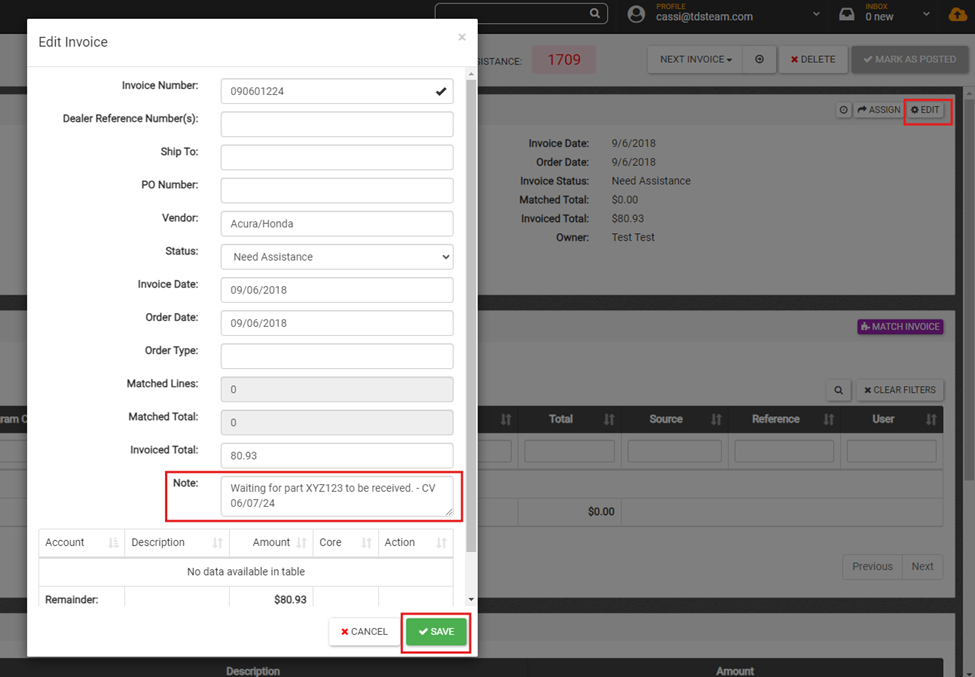
- Go through all of the invoices in Need Assistance, matching and completing what you can. If an invoice cannot be completed because a part has not been received or more research needs to be done, note the invoice. Be sure to come back to any invoices that have been notated to follow up.
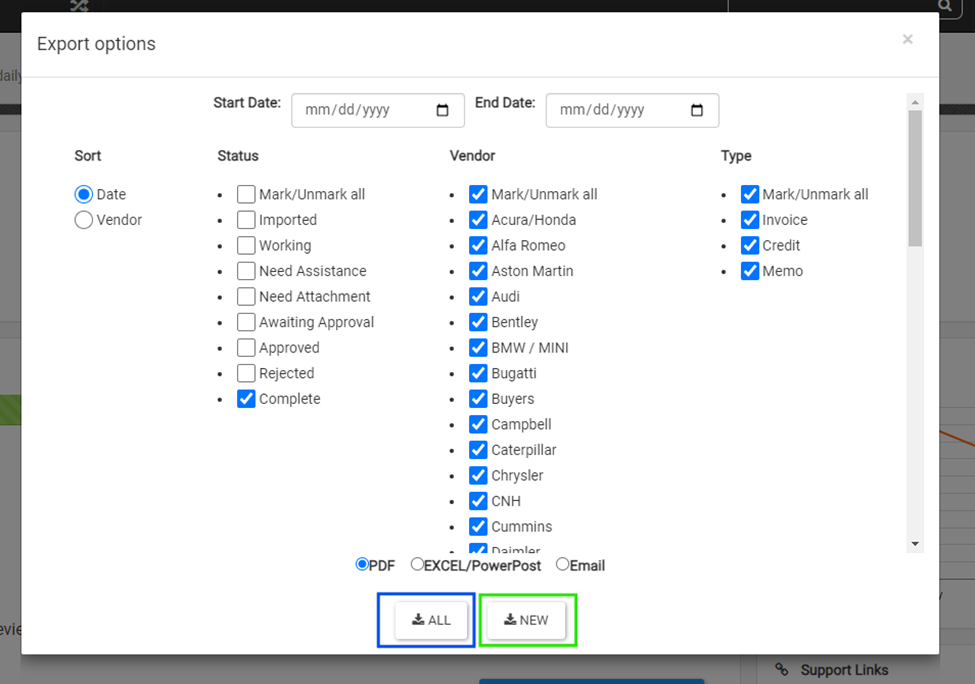
- Once the parts team has completed their review of Need Assistance, the accounting team can use the fourth daily action item, Export Complete Invoices, to get a list of invoices that are ready to be posted to the GL. The best practice here is to only post invoices one they are in complete status. Click the Export Complete Invoices button, select the options to run the desired report. Only factory invoices should be PowerPosted. The PDF can be downloaded for POs to verify postings or if the accounting team opts not to use PowerPost. “Other” and “Memo” refer to invoices created manually in PartsRec. For a more detailed procedure on PowerPosting, review the help article Accounting Team Best Practices
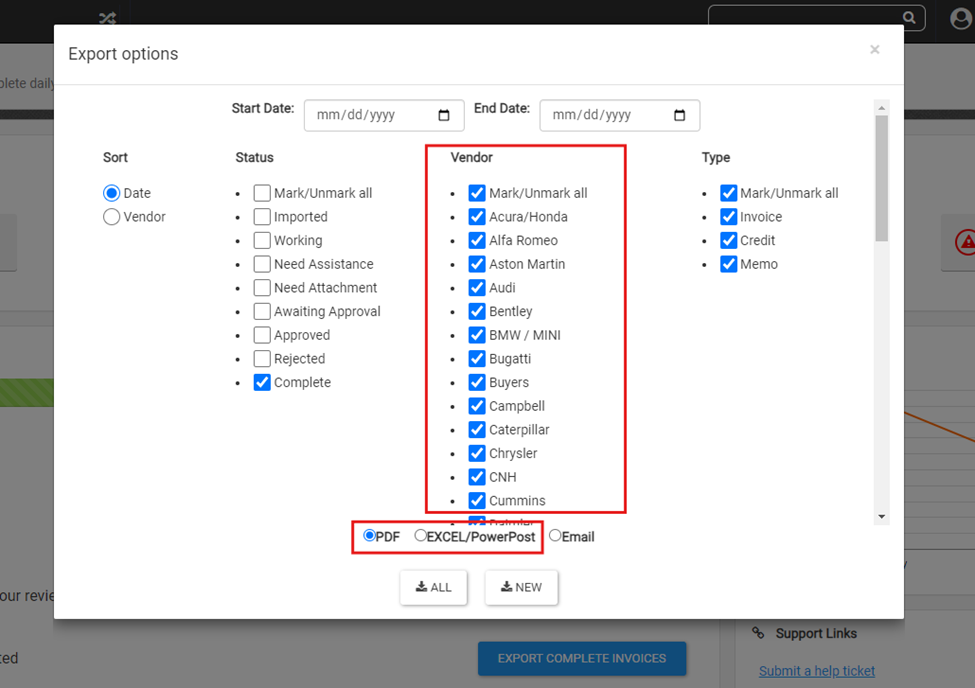
- Clicking the All button will download all invoices that are in complete status. Clicking the New button will download any invoices put into complete status since the last time the report was exported that day. It is important to note that this does not post to the GL for you. Exporting this report provides a list of all invoices that need to be posted. In the event an invoice is on the complete report that has already been posted, please reachout to PartsRec support. Anything posted today will show up in PartsRec tomorrow.
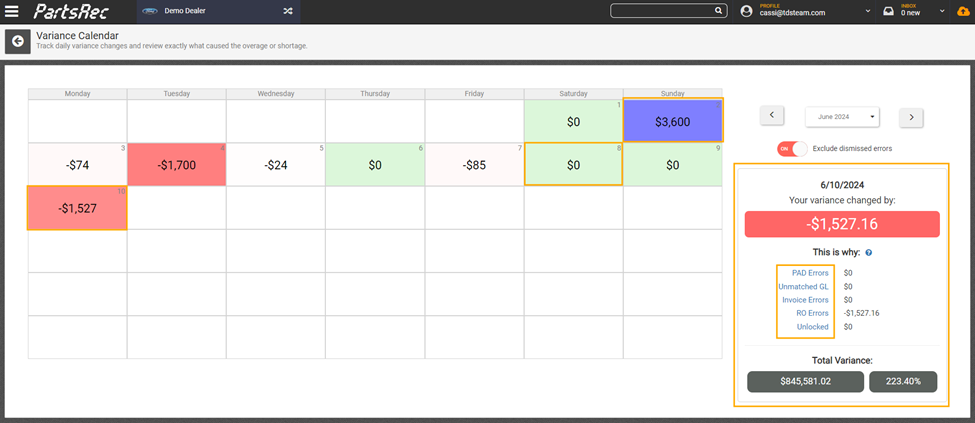
- The last daily action item is to Review Variance Calendar to see how the variance changed from the day before. The variance is color coordinated to show type of variance as well as draw your eye to the bigger variances first. A green day with a $0 indicates no variance change. A red day indicates a shortage, and a blue day indicates an overage. Also note, bigger variances are a darker shade to help identify the biggest variance issues first.
- Click on a specific date to see how the variance changed. The right side of the screen shows the variance categories. Each blue link will lead to the variance section so the variance can be investigated further and fixed.
- Once all the daily action items are done, your progress bar will be at 100%. Completing these every day will help ensure variance is being properly tracked and everyone is doing what they need to do.
Important things to remember:
- We automatically recheck all invoices nightly so once the issue is resolved or the part has been received, the invoice should automatically go to complete status if no other discrepancies are found.
- Data is updated nightly. Any changes to inventory or postings to the GL done today will show up in PartsRec tomorrow.
- Complete invoices will clear off the outstanding invoices list nightly once they are posted to the GL.
- Using Google Chrome gives the best speed for PartsRec.
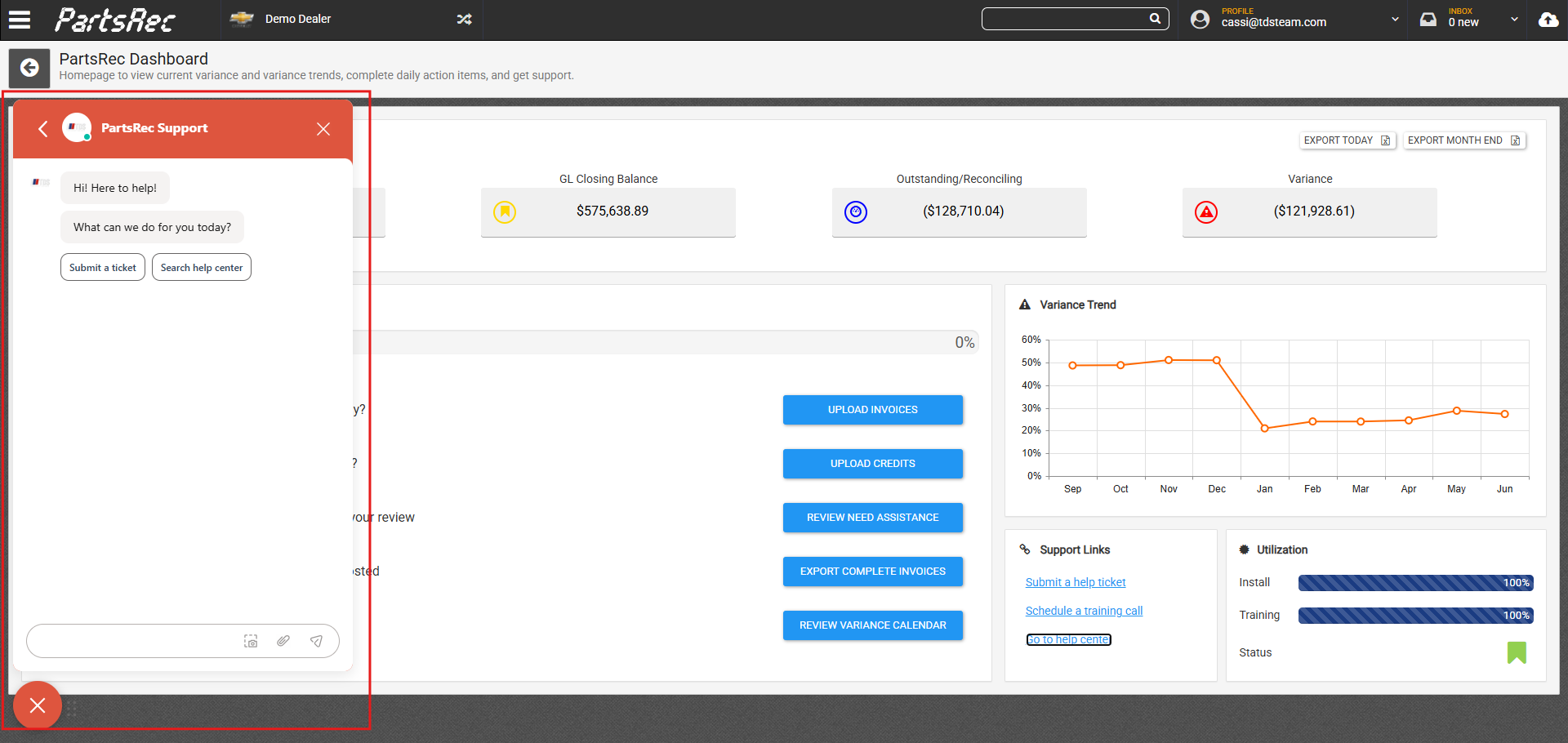
If any issues, questions, or concerns come up, reach out to PartsRec Support via the red help button located at the bottom left corner of every page in PartsRec.