An RO Error occurs in PartsRec when a repair order or parts invoice/counter sale/customer ticket closes and posts to the GL for an amount that does not match the total value of the parts sold. RO Errors can be found by going to your PartsRec menu, clicking on Variance, and selecting RO Errors or by clicking on the variance button in the Parts to GL reconciliation. This tab of the variance section will primarily catch prepaid special orders and sourcing/stocking group errors.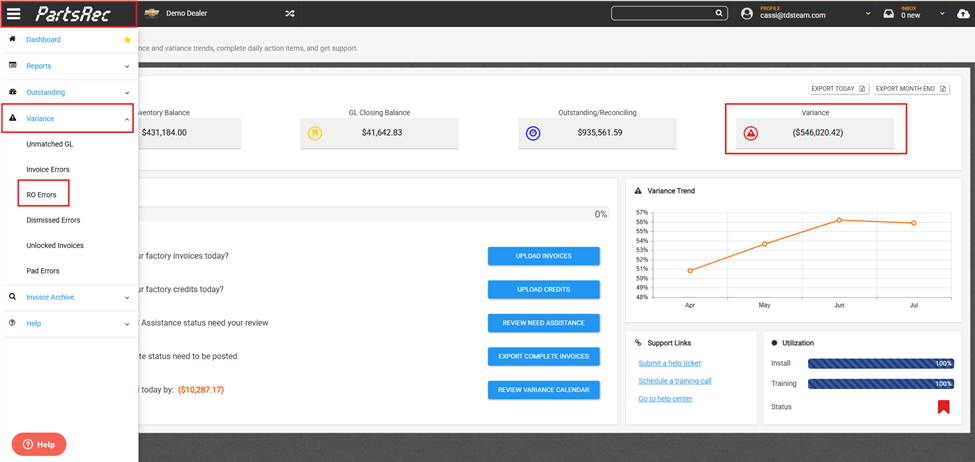
This is the RO errors page in PartsRec. There are a few tools and elements on this page that are important to understand.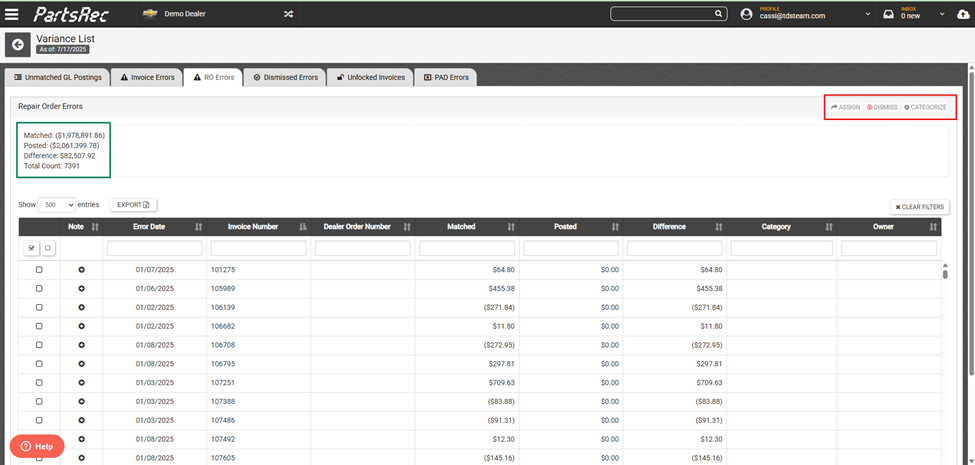
- Assign Button – Allows a user to assign an owner to the RO error for adjustment or further investigation.
- Dismiss – Allows a user to dismiss an error. Manually dismissing an error indicates you have acknowledged and accepted the variance but does not resolve the variance.
- Categorize – Allows a user to assign categories to the RO. This helps to decipher common issues with RO errors.
- Error Totals – This shows overall totals for RO errors including the total number of RO errors
This is the RO error detail. There are several elements and tools on this page with which you should be familiar.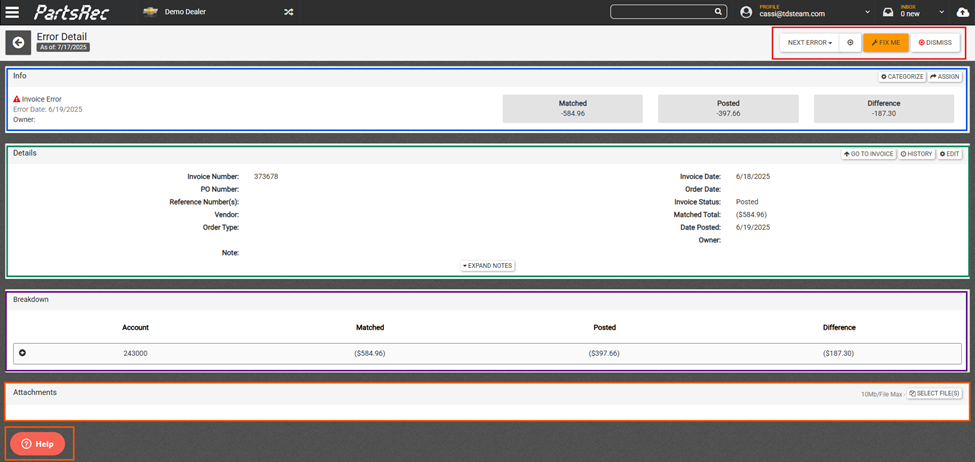
RO Error Detail
- Next Error – Filter how you see the RO errors using this button. Also allows the user to move to the next RO error in the list according to the filter settings.
- Fix Me – Allows you to apply a transaction to the RO error.
- Dismiss – Manually dismisses the current error; does not resolve a variance.
- Info Box – Details the date the error occurred as well as the Matched total, Posted total, and Difference.
- Categorize – Apply a relevant category to the error. Categorizing errors should be used to help identify the root cause of RO errors.
- Assign – Assign the error to another party.
- Matched – Total dollar amount of parts sold.
- Posted – Total dollar amount posted to the inventory GL.
- Difference – Discrepancy between matched and posted totals.
- Details – This is the same information that can be seen on the invoice details page. The addition here is the Date Posted which reflects the date the RO closed and posted to the GL.
- Go To Invoice – Links the user to the RO.
- History – Gives history of the RO in PartsRec.
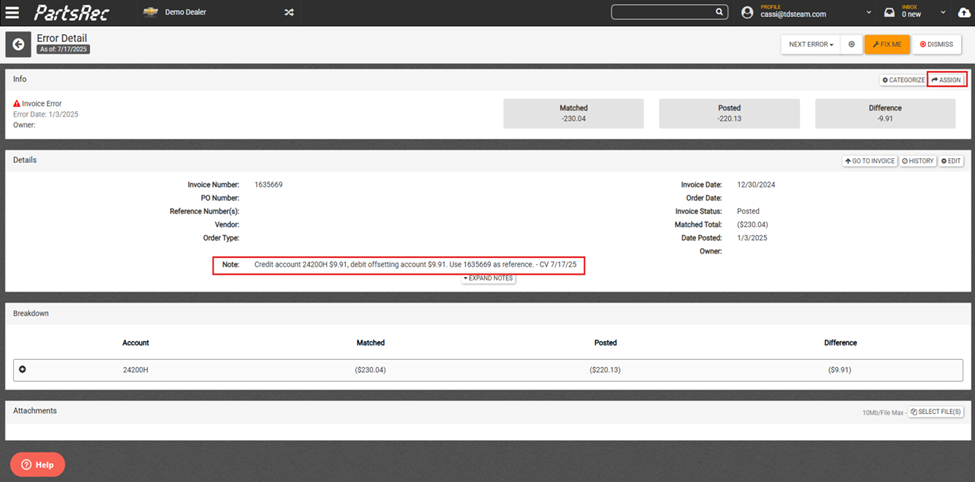
- Edit – For an RO error, this edit button should be used to notate the error. Notes are an extremely helpful tool to aid in communication between parts and accounting and should be utilized to help identify the cause of the error and what needs to be done to fix it.
- Breakdown – The Breakdown outlines the accounts impacted by the error, comparing the Matched Items to the Postings for each inventory account.
- Attachments – Shows anything attached to the RO. When asking for help, it is best practice to use this section to attach the accounting or audit copy.
- Help Button – On every page in PartsRec and gives access to our help center as well as opening a ticket in our help desk.
Prepaid Special Orders
A prepaid special order is indicated by a $0.00 matched total. These are errors in PartsRec because the GL has been impacted resulting in a posted total, but the parts have not been relieved from inventory resulting in a $0.00 matched total. These errors should be categorized as a Prepaid Special Order and should resolve when it is filled. If there is a cost change on the part once the special order is filled, an adjustment will need to be made.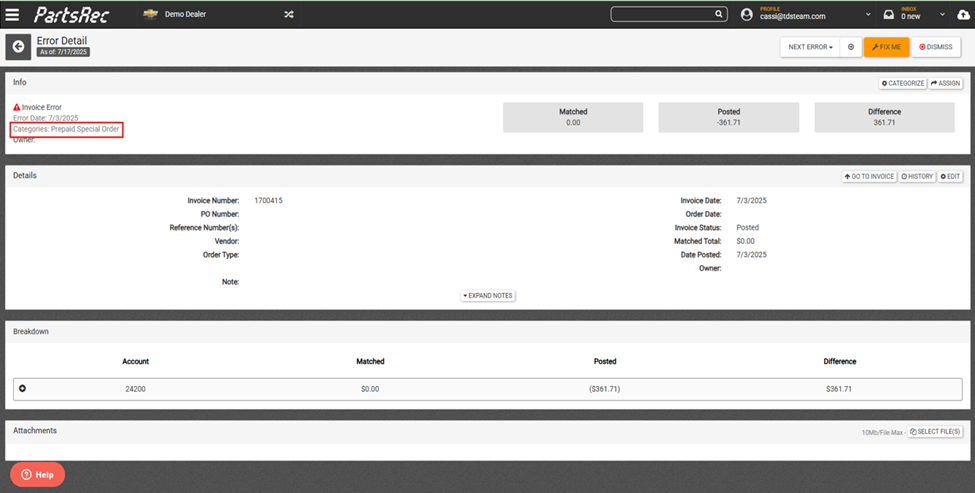
Cost Changes on Prepaid Special Orders
When a special order is placed and is prepaid, if the order is filled after a cost change has occurred, an adjustment will need to be made. In this example, the part was prepaid in December but was filled in January. The part was ordered and quoted at $220.13, but when it was relieved from inventory, the cost of the part was $230.04. Since the impact to inventory was more than originally expected, an adjustment needs to be made here.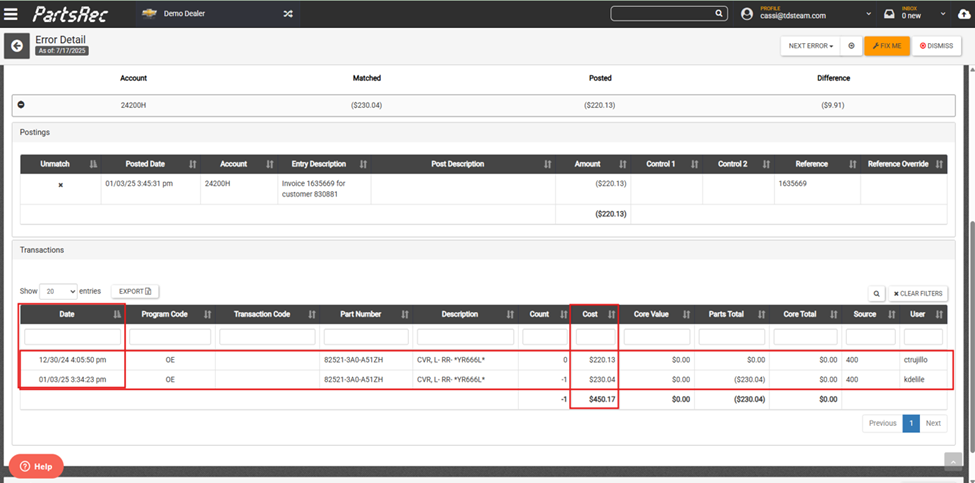
Posting Error
If an RO Error shows $0.00 posted, this typically indicates that either PartsRec never got a posting from the DMS for the RO or the posting was reversed. This can also indicate not all the postings have been made yet in regard to a store using the DealerTrack DMS.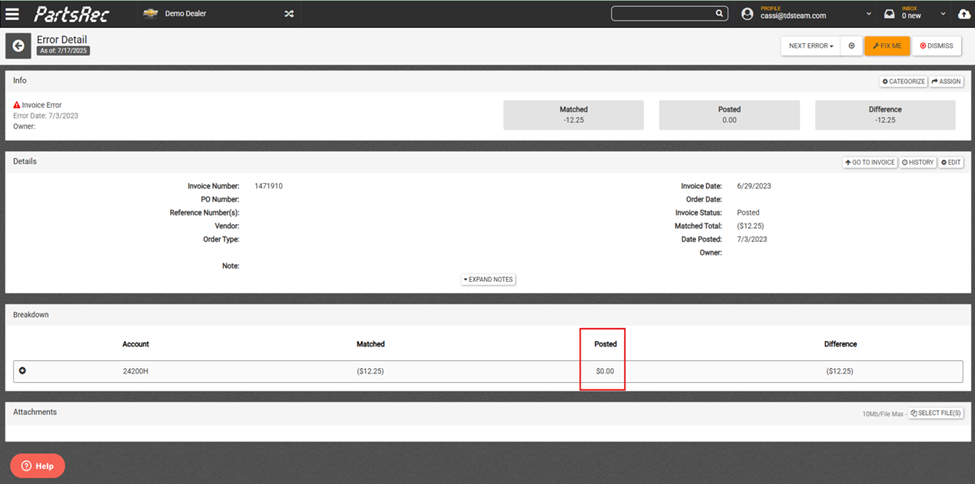
Sourcing/Stocking Group Errors
A sourcing (CDK) or stocking group (DealerTrack) error is indicated by an error with a $0.00 difference. The part was received into and relieved from (or sold as an emergency purchase) one account, and the GL of a different account received the posting.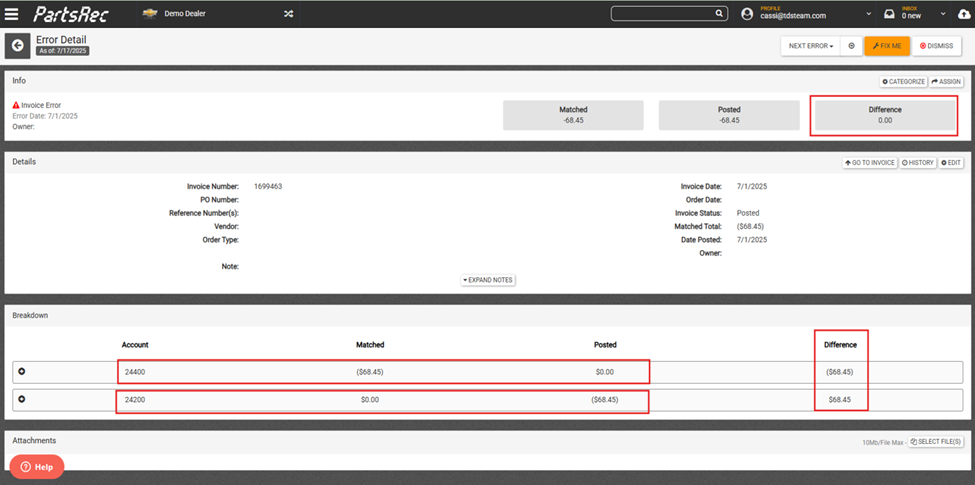
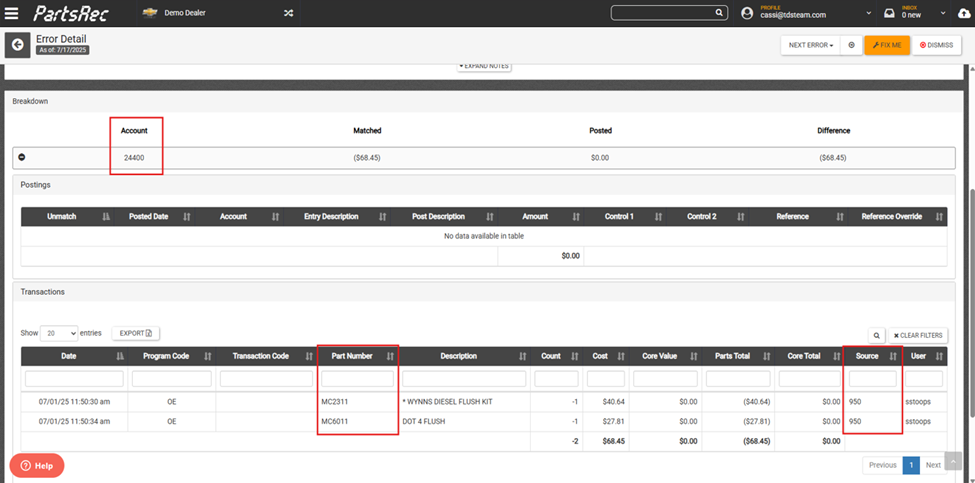
If the source is correct, accounting will need to make an adjustment.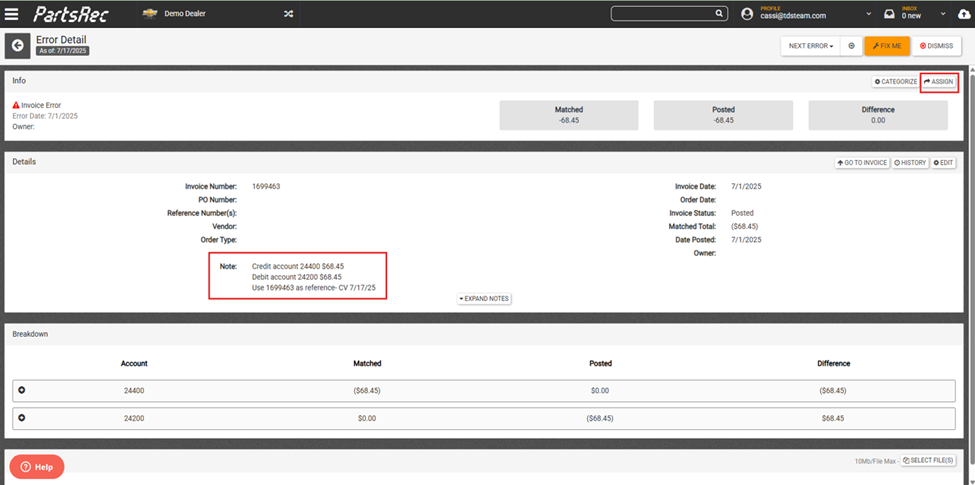
If the source is not correct, make this change in the DMS. After that, you can dismiss the error in PartsRec.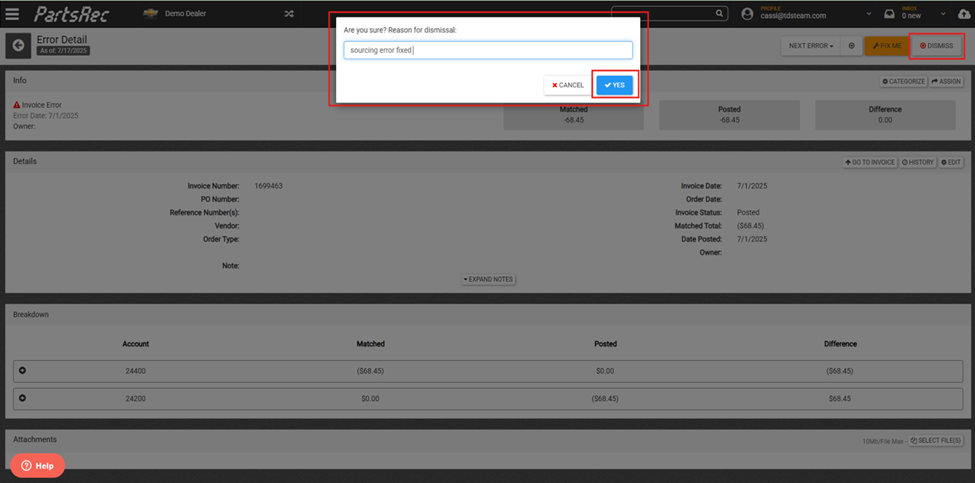
Using the Fix Me Button
The Fix Me button will allow you to use transactions from the Outstanding section to fix RO errors. There are two main scenarios where this will be used: to apply a minus adjustment in the case of a lube line or prepaid special order not closing properly or to apply an override in the case of a rollover RO (for more information on rollover ROs, see our help article Rollover & Split ROs in PartsRec).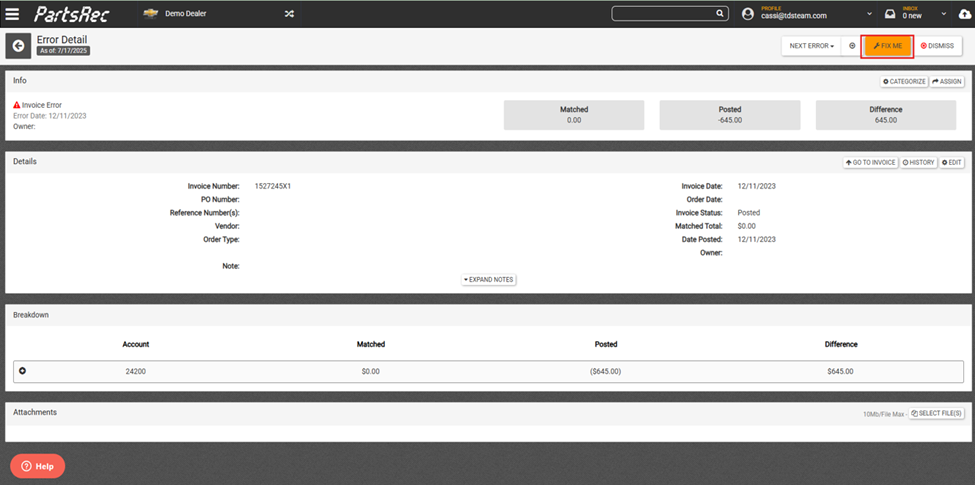
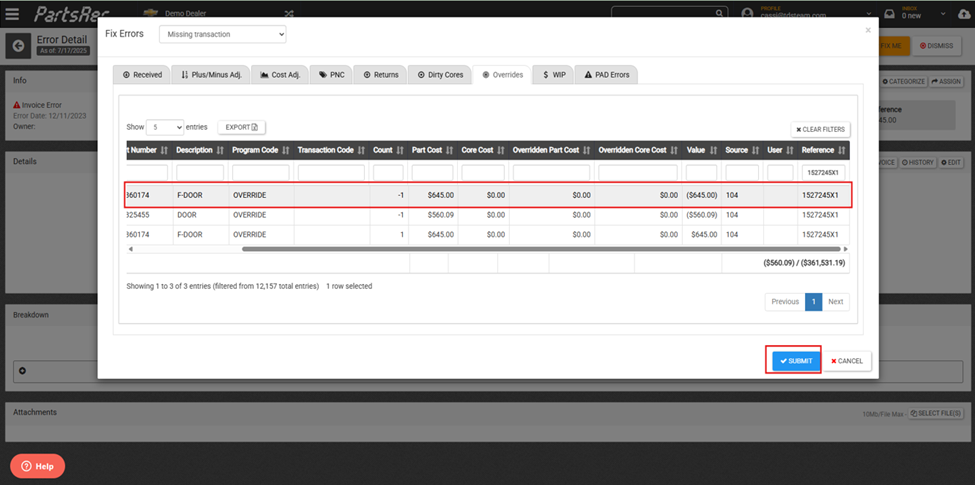
Once you have identified there is a transaction in Outstanding that will fix the error, click on the Fix Me button and choose Missing Transaction in the dropdown menu. Navigate to the appropriate tab. In this instance, we are matching an override to fix a rollover RO.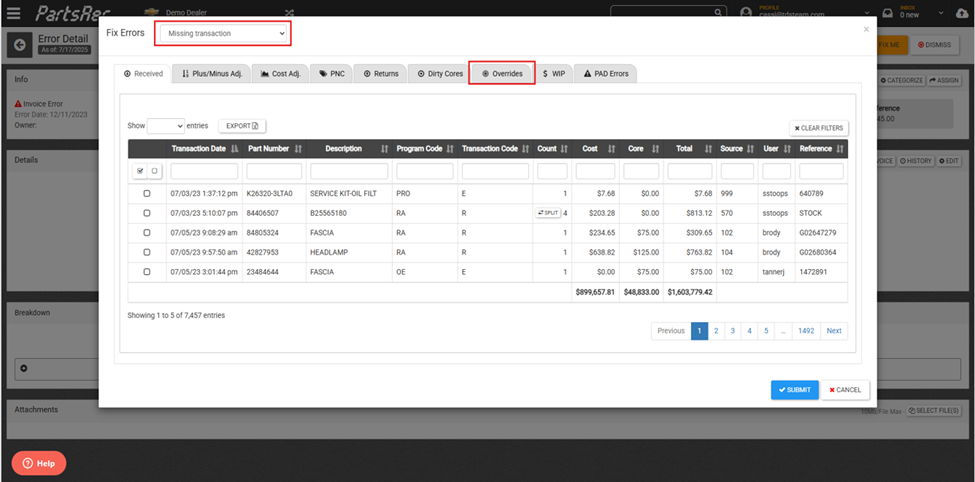
Find the override with the reference number. The reference number will be the same as the RO that the sale was rolled to. Select the transaction and click Submit. This will refresh the error and apply the transaction. If that is the only transaction required for the RO to be fixed, the error will be automatically dismissed.