Rollover ROs
A rollover RO occurs in PartsRec when a special order is prepaid on one RO and then the order filled on another RO. This will manifest in PartsRec as two separate repair order invoices: we will call them RO-A and RO-B for the examples below.
RO-A has a part special ordered where the customer has prepaid. The 0 in the Count column indicates a special order.
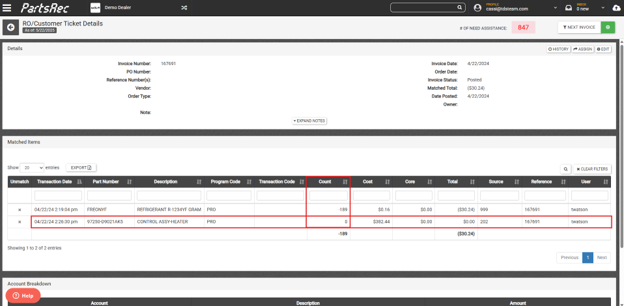
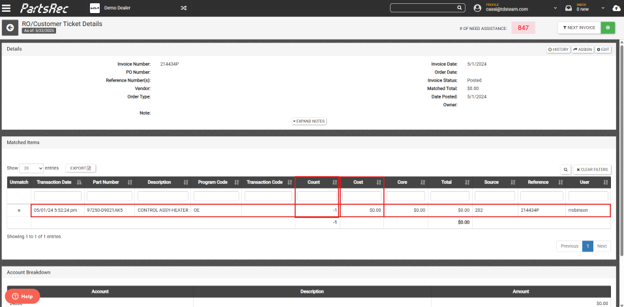
RO-B is where the special order was filled, and the part was relieved from inventory. Here you see the quantity is negative 1 indicating the part came out of inventory, but the cost is overridden to $0.00. This is because the GL has already been relieved on RO-A.
Because the part transaction has been rolled to another repair order, there is an RO error for RO-A. The error is for the pre-paid quantity/cost of the part rolled to RO-B.
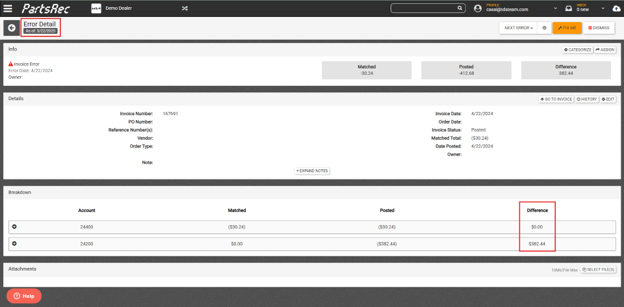
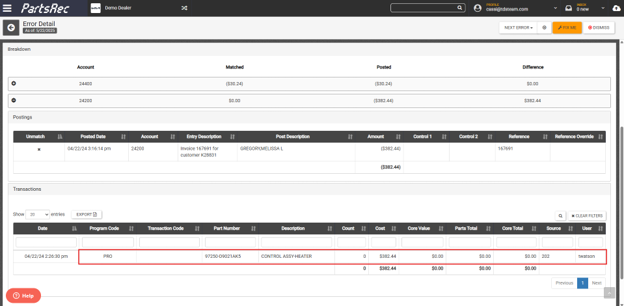
When the special order is filled for $0.00 on RO-B, PartsRec creates an override to reconcile RO-A and fix the error. This transaction can be found in the orange Fix Me button at the top of the error screen.
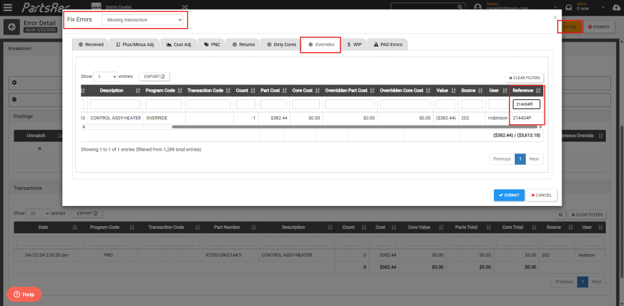
Click on the Fix Me button, choose Missing Transaction from the dropdown menu, and navigate to the Overrides tab. Scroll to the right and enter the invoice number for RO-B into the reference column. This will locate the override you need to fix this error.
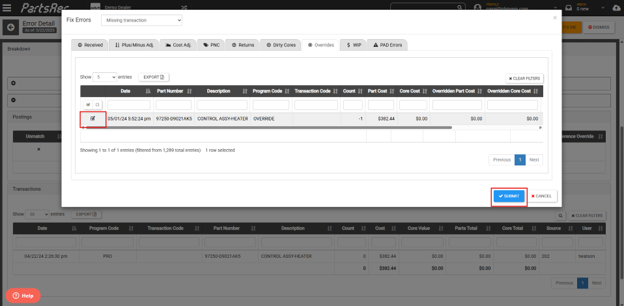
Select the override and click the blue Submit button. The page will refresh, and the system will resolve the error. Multiple transactions can be chosen at the same time if multiple parts were rolled to RO-B (or any subsequent rollover ROs).
Split ROs
A split RO in PartsRec happens when transactions are completely separated from the original GL entry and billed under a new RO. This creates two offsetting RO errors in PartsRec.
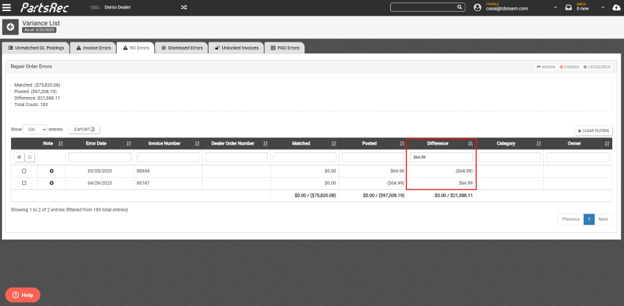
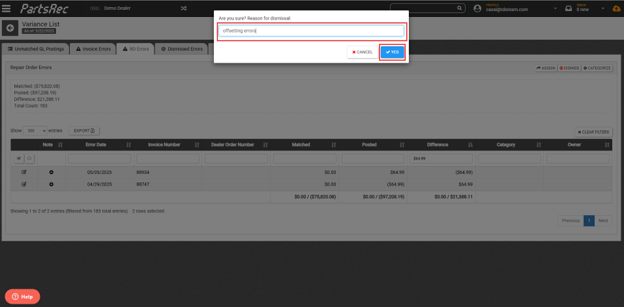
Resolving a split RO error is very simple. Once both RO errors have been identified, they just need to be dismissed as the errors offset to $0.00. Select both errors and click the dismiss button on the top, right side of the screen.
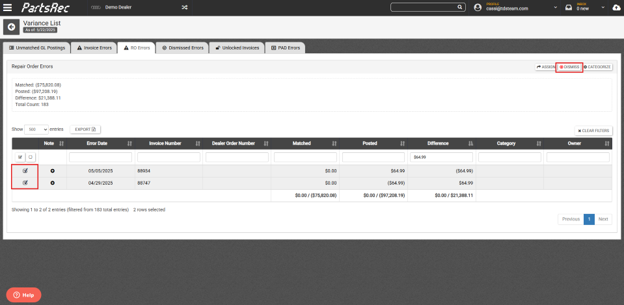
Use the reason “offsetting errors”, and click the blue Save button.