
**PLEASE REACH OUT TO PARTSREC SUPPORT TEAM IF YOU NEED ASSISTANCE OR HAVE QUESTIONS**
MUSTS FOR ACCURATE NUMBERS
- All factory invoices and credits uploaded.
- 'Need Assistance' items reviewed and current.
- Outstanding invoices checked to confirm they’re matched where possible.
- Verify that 'Complete' invoices require no further action.
- Review Unmatched GL. Complete any invoices that have been posted.
- Plus/Minus Adjustments and Overrides reviewed, matched and/or posted.
- Variance PAD errors reviewed and corrected or generated.
- Outstanding PAD errors reviewed, matched and/or posted.
Need to remove reconciling items in PartsRec before a certain date? Please contact support .
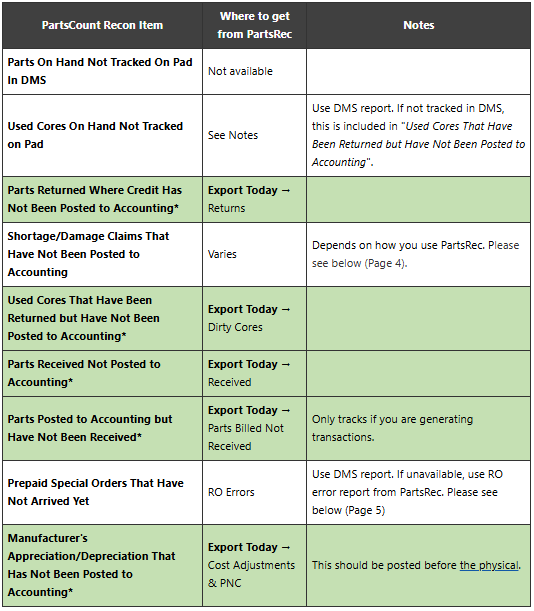
*Highlight items can be automatically exported from your PartsRec Dashboard.
HOW TO EXPORT RECON ITEMS FROM PARTSREC DASHBOARD
- Go to your PartsRec Dashboard
- Click “EXPORT TODAY”
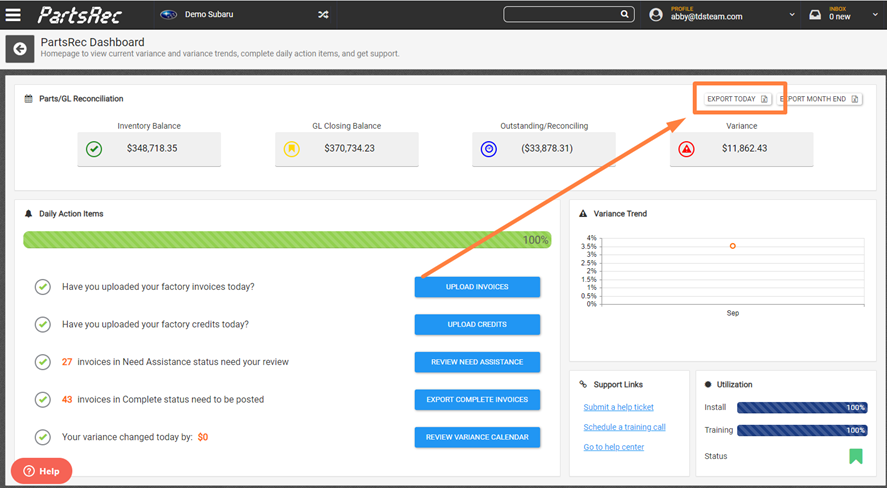
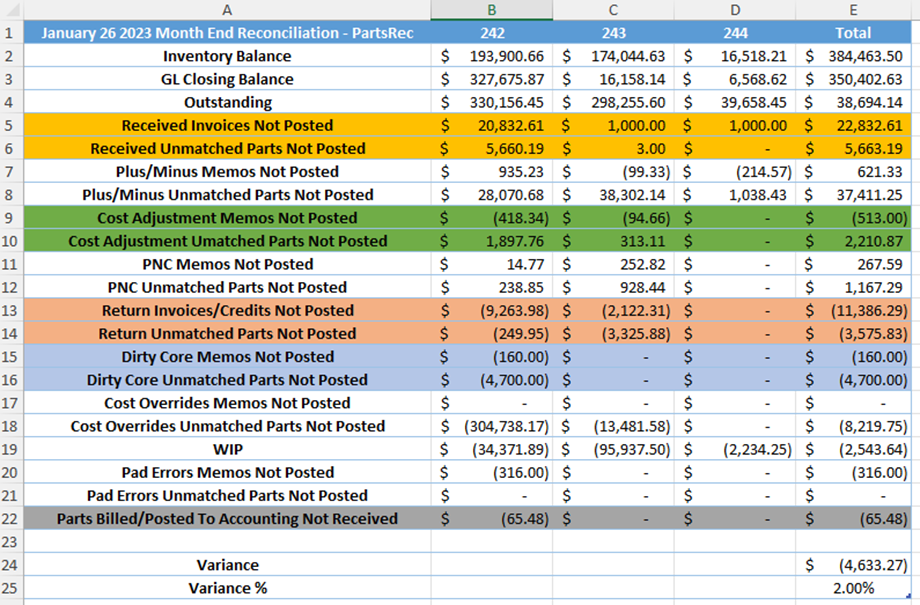
- A report will download to your computer. It will look like this:
Parts Received Not Posted to Accounting
- Take the total of “Received Invoices Not Posted” and “Received Unmatched Parts Not Posted” for each GL account.
- Go to Recon Item Wizard in PCOS
- Click “Add Recon Item”
- Type in qty of 1
- Type in Cost (In the above example you would enter $26,492.80 for 242, $1003.00 for 243, and $1000.00 for 244)
- Select GL account
- Click Add
Parts Returned Where Credit Has Not Been Posted to Accounting
- Take the total of “Return Invoices/Credits Not Posted” and “Return Unmatched Parts Not Posted” for each GL account.
- Go to Recon Item Wizard in PCOS
- Click “Add Recon Item”
- Type in qty of 1
- Type in Cost (In the above example you would enter $9,513.93 for 242, $5,448.19 for 243, and $0 for 244)
- Select GL account
- Click Add
Used Cores that have been Returned Not Posted to Accounting
- Take the total of “Dirty Core Memos Not Posted” and “Dirty Core Unmatched Parts Not Posted” for each GL account.
- Go to Recon Item Wizard in PCOS
- Click “Add Recon Item”
- Type in qty of 1
- Type in Core Value (In the above example you would enter $4860.00 for 242, $0 for 243, and $0 for 244)
- Select GL account
- Click Add
Parts Posted to Accounting but Have Not Been Received
- Take the total of “Parts Billed/Posted to Accounting Not Received” for each GL account.
- Go to Recon Item Wizard in PCOS
- Click “Add Recon Item”
- Type in qty of 1
- Type in Cost (in the above example you have a cost of $65.48 in account 242, $0 for 243, and $0 for 244)
- Select GL account
- Click Add
Manufacturer’s Appreciation/Depreciation That Has Not Been Posted to Accounting
- Take the total of “Cost Adjustment Memos Not Posted” and “Cost Adjustment Unmatched Parts Not Posted” for each GL account. Also include the total of "PNC Memos not Posted" and "PNC Unmatched Parts Not Posted"
- Go to Recon Item Wizard in PCOS
- Click “Add Recon Item”
- Type in qty of 1
- Type in Cost (In the above example you would enter $1,733.04 for 242, $1,399.71 for 243, and $0 for 244)
- Select GL account
- Click Add
HOW TO GET OTHER RECON ITEMS FROM PARTSREC
Shortage/Damage Claims That Have Not Been Posted to Accounting
- This depends on how you use PartsRec.
- If you generate transactions for shorted/damaged parts this amount is already included in “Parts Returned where Credit Has Not Been Posted to Accounting”
Prepaid Special Orders That Have Not Arrived Yet
**Errors need to be up-to-date and categorized.**
- Open the PartsRec menu
- Click on Variance → RO Errors
- Filter by error category “Prepaid Special Orders”
- Notate difference total
- Click export
- Go to Recon Item Wizard in PCOS
- Click “Add Recon Item”
- Type in qty of 1
- Type in Cost (Difference total that you notated earlier)
- Click Add
- Click the upload button and select PR-Variances-RO Errors.xlsx from your downloads folder
WIP
- You will use your DMS report. This is run by the inventory team day of the Physical. However, if the total doesn't match PartsRec total, please alert PartsRec Support for assistance.
PARTS TO PAD RECONCILIATION CHECKLIST:
1. Management report: Dollar value of inventory (ending inventory balance
(Just parts, no cores)
2. New Core Value
3. Dirty Cores on Hand
4. Dirty Cores in Transit
5. Pending Parts Return (waiting for credit, not posted to account)
6. Pending tire return (waiting for credit, not posted to account)
7. Outside Vendor returns
8. Service WIP (RO)
-Cost of part on every open repair orders
9. Parts WIP (Parts tickets)
10. App/Dep
11. Missing/Damaged Parts
- Claims not posted to accounting
12. Packing Slips
- Parts Received not Billed
13. Billed Not Received