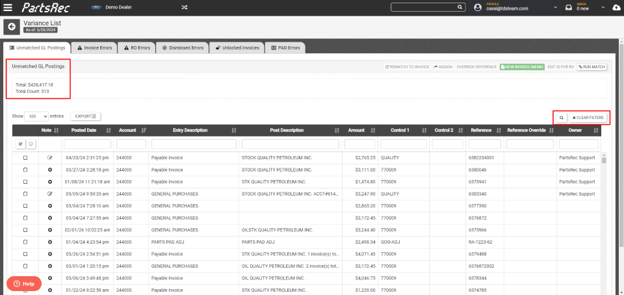
Unmatched GL postings are GL entries from accounting that do not have a matching invoice in complete status. The total reflects the dollar amount of GL entries with no corresponding invoice. This helps identify if invoices did not get uploaded to PartsRec, invoice number typos, or something that gets posted to your parts GL that is non-parts inventory related such as freight, discounts, etc. The best practice for posting invoices is to use the exact invoice number as the reference number on the posting. The magnifying glass can be used to search the reference number to find out if any invoices exist in PartsRec that match. The Clear Filters button will clear any filters put in place to see the entire list.
Unmatched GL postings will either match to an invoice or RO (including fixing invoice and RO errors), offset another posting, or true up a GL account. Various tools on this page can be utilized to investigate, notate, assign, and fix this type of variance.
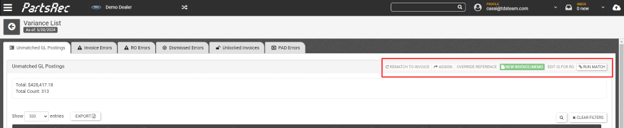
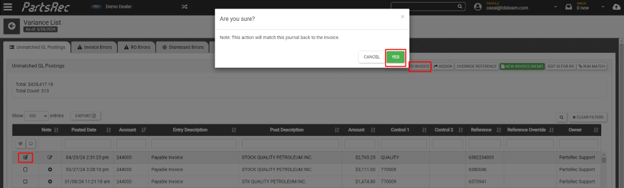
Rematch to Invoice – Use this in the event a posting is erroneously unmatched from an invoice or RO error. Select the checkbox to the left of the posting, click “Rematch to Invoice”, then click YES. Wait for the screen to refresh, and the journal entry will automatically match back up to the invoice.
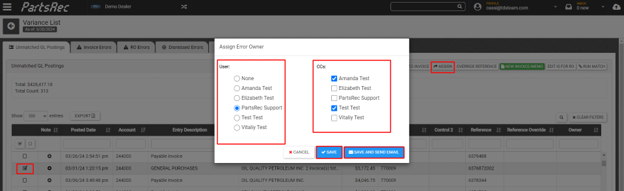
Assign – Use this to designate a specific user for further investigation or action. Select the journal entry, click “Assign”, and select the appropriate user. Only one person can be the owner, but multiple people can receive an email using the CC function. Clicking Save only changes the owner’s name. Clicking Save and Send Email will notify the user they have been assigned the entry.
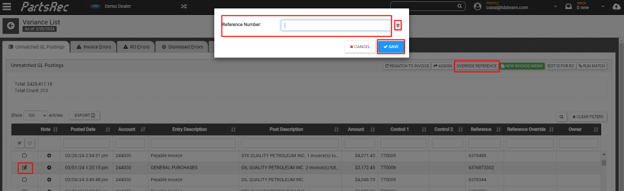
Override Reference – Use this to edit the reference number of the journal entry because the entry needs to be matched with a particular invoice. This will typically be used in cases where the reference number contains a typo or a generic journal reference number is used for a credit card, cash, or check payment. Select the journal entry, click “Override Reference, enter the number of the invoice to match, and click Save. If the invoice is in complete status or is listed in invoice errors, the posting will match automatically. If the invoice has not been matched, the posting will remain unmatched until the invoice is complete and nightly processing runs. The reference override can be undone by clicking the trash can in the pop up and saving.
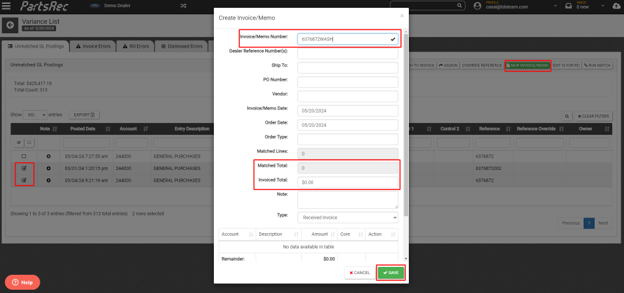
New Invoice/Memo – Use this to create an invoice/memo with no part transactions matched. This will be used for postings meant to true up a GL account or to wash offsetting journal entries. Select the journal entry or entries, click “New Invoice/Memo”, enter a unique invoice number, check the other details to ensure accuracy (if a wash memo, ensure matched and invoice total are $0.00), click Save. For a journal entry made to true up an account, an invoice error will be created. That invoice error can be dismissed.
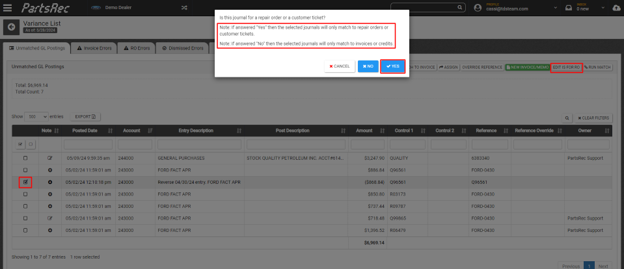
Edit is for RO – Use this to route a GL entry to match with an RO/counter ticket. ROs and counter tickets should not be in the unmatched GL report. However, if they are manually posted because of a manual adjustment made to correct an RO error, they will show up in unmatched GL. To use this button, select the entry to be matched with an RO, click Edit is for RO, and click “Yes”. Answering “Yes” will match the selected journal entry only to a repair order or customer ticket. Answering “No” will cause the selected journal entry to match only with invoices or credits (this option is commonly used to match journal entries with an intercompany transfer invoice).