
Q: How is my variance calculated?
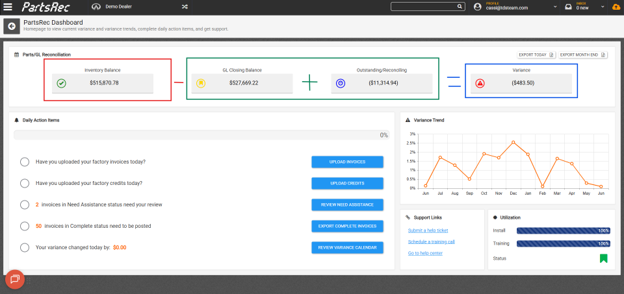
A: Your variance is calculated by adding together the GL Closing Balance and Outstanding Reconciling Item total then subtracting the Inventory Balance. See our Introduction to Variance help article.
GL Closing Balance + Outstanding – Inventory Balance = Variance.
Q: Can I track my variance daily?
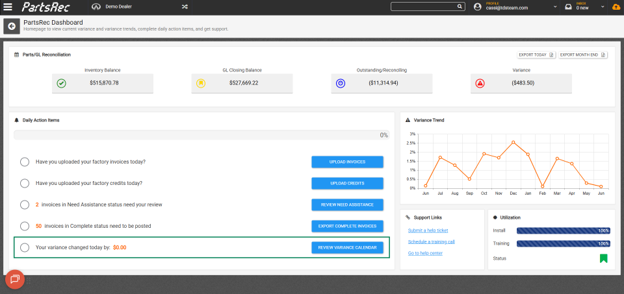
A: Yes! The Variance Calendar is designed to help you track down to the part and down to the penny how your variance changes each day. See our Variance Calendar help article.
Q: What steps should I take to ensure my variance stays under control?
A: Follow these three simple steps to keep your variance in check: See the help article PartsRec Daily Instructions.
- Complete Daily Action Items every day.
- Only post invoices to the GL when they are complete in PartsRec and finalized in the DMS.
- Monitor variance section for adjustments needed and Outstanding section for aging items regularly.
Q: I feel like I’m double working myself. I thought PartsRec was supposed to save me time. What gives?
A: Are you using PartsRec to reconcile and still following your old manual processes? If your answer is yes, then you are double working. PartsRec is meant to replace your old, manual processes. See our help articles PartsRec Invoice Workflow and PartsRec Credit Workflow to see how to switch your processes to stop double working.
Q: How can I see my variance broken down by GL account?
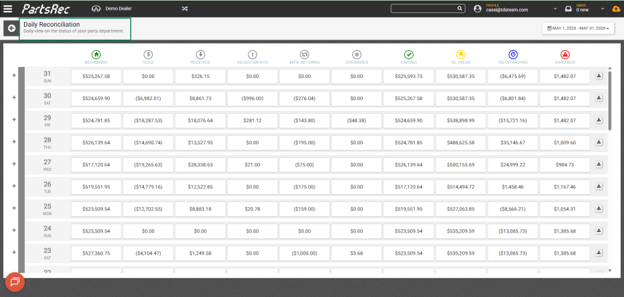
A: The Daily Reconciliation report will show you all movement from open to close of business for the previous day broken down by GL account. For more information, see our help article Daily Reconciliation Report.
Q: How is my variance % calculated?
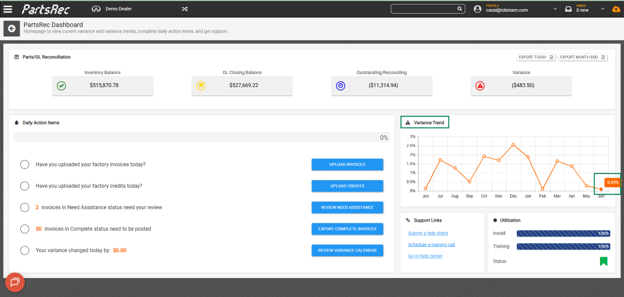
A: Variance % shows the size of your variance relative to your GL balance and outstanding items. It is calculated by dividing the variance amount by the total of your GL balance and outstanding amount:
Variance % = Variance ÷ (GL + Outstanding)
For example, if your variance is $100, your GL balance is $500, and your outstanding amount is $200, your variance percentage would be 14%.
You can track your variance percentage on the PartsRec dashboard.
Q: My variance changed, why?
A: A change in variance indicates that a discrepancy was identified between your parts inventory and your parts GL. To see what caused the change, click Review Variance Calendar from your dashboard and review the reports for the affected day.
The most common cause of variance changes is invoices or credits being posted to the GL before they are matched and in Complete status in PartsRec. For a detailed breakdown of the variance, navigate to PartsRec Menu > Variance, where you can review unmatched GL postings, invoice and RO errors, PAD errors, unlocked invoices, and dismissed or fixed errors.
Q: How do I get my variance to zero?
A: 7 Steps to get to (and stay at) Zero:
- Complete Onboarding and Training: Dealership staff in Parts, Accounting, and Management should complete basic training and have a solid understanding of how to use PartsRec.
- Complete Daily Action Items Daily: Actions items should be completed by Parts and Accounting teams daily and PartsRec used for at least 30 days.
- Data needs to be current and accurate: Unmatched GL should be ZERO and the number of “need assistance” invoices should be under 10. If needed, a data reset should be completed to true up outstanding reconciling items.
- Green Variance Calendar: Before getting to zero, your variance needs to be stable. The easiest way to track this is the utilization of the Variance Calendar report, your goal should be 80% green for a 30-day period.
- GL Adjustment: Once the above tasks are completed, you are ready to make your GL adjustment to balance to zero. Pick your cut-off date and post the +/- variance amount provided by PartsRec to each corresponding GL account (parts, tires, GOG, etc.).
- Dismiss Errors: Once the GL adjustment is made, that unmatched GL entry along with any variance errors dated prior to the adjustment cut-off date should be manually dismissed.
- Stay at Zero: To stay at zero, you need to monitor and fix new variance errors as they occur. Continue the above best practices and schedule additional training sessions as needed.