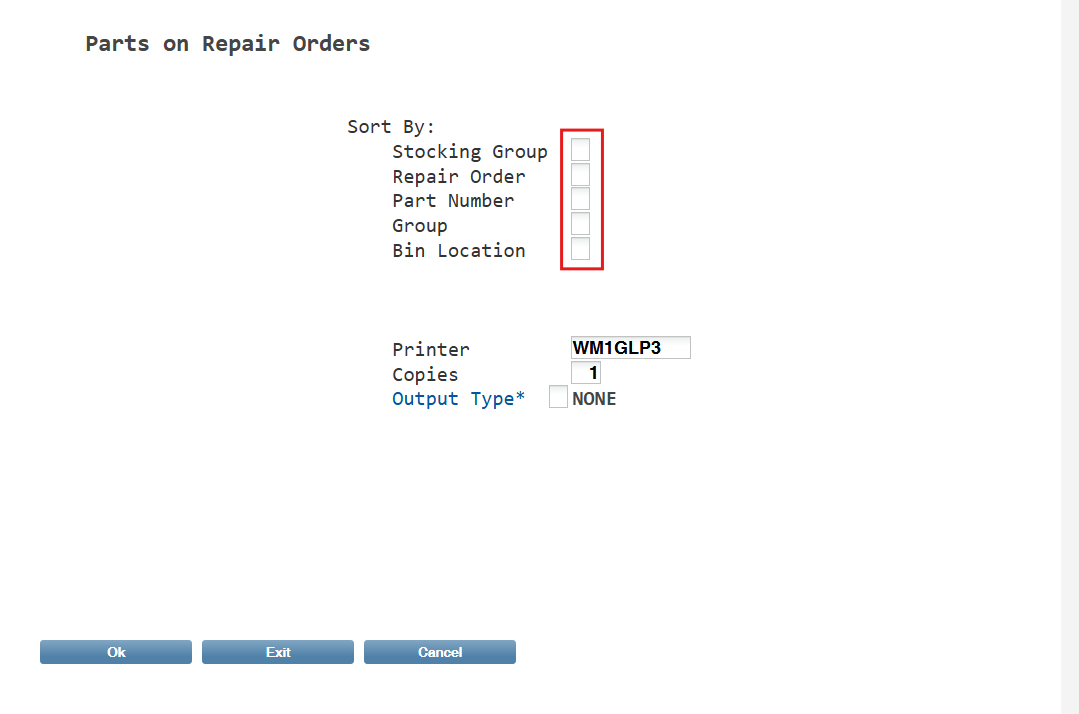
Work in Progress invoices (WIP) are included in the Outstanding section as these invoices have impacted the inventory but not the GL. The WIP tab in Outstanding is separated into two sections: the top section containing WIP invoices and the bottom section containing any transactions that have been unmatched from an RO.
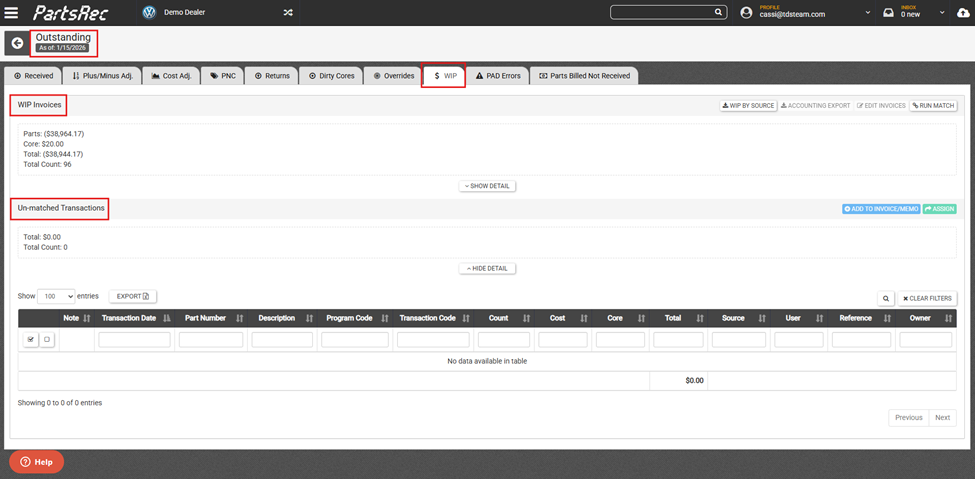
You should not unmatch transactions from an RO. Instead, anything being removed from an RO or customer ticket should be done in the DMS. If you see a transaction listed in the bottom section of the WIP tab, please contact the PartsRec support team for assistance.
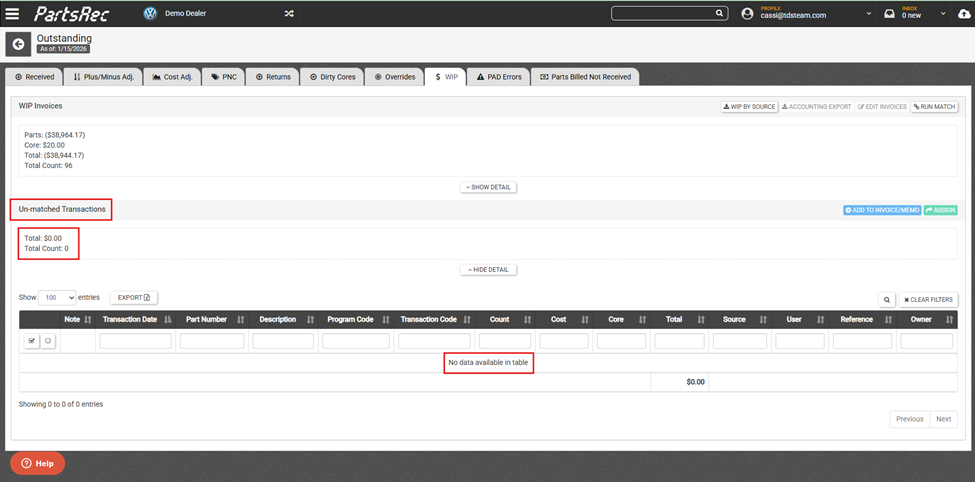
The top invoice section of the WIP tab holds all the WIP invoices. This section updates during nightly processing, so everything you see here is accurate as of close of business yesterday. If the totals look like they do not match what is in the DMS, a WIP tie out may be needed. A WIP tie out will allow you to compare what PartsRec shows as still open to what the DMS shows as still open. Clicking “Show Detail” will display the list of WIP invoices.
Performing the WIP Tie Out
To perform a WIP tie out, start by running the ROO report in the DMS and download it as an Excel spreadsheet. This should be done before the opening or after the close of business for the day for the most accurate report.
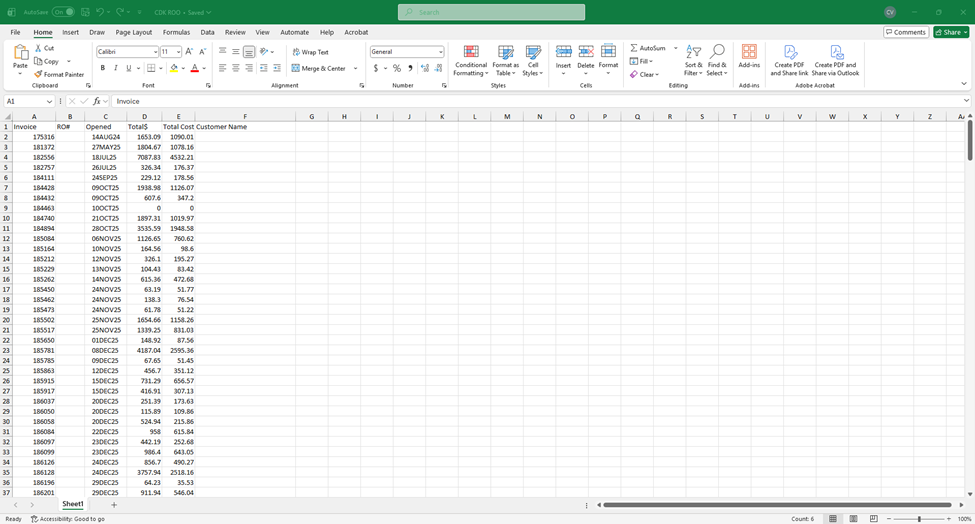
Using the Excel spreadsheet ROO report is the easiest and quickest way to perform a WIP tie out as you can compare the two reports very easily. The Excel spreadsheet that generates should look something like this. Your specific report may have slight variations.
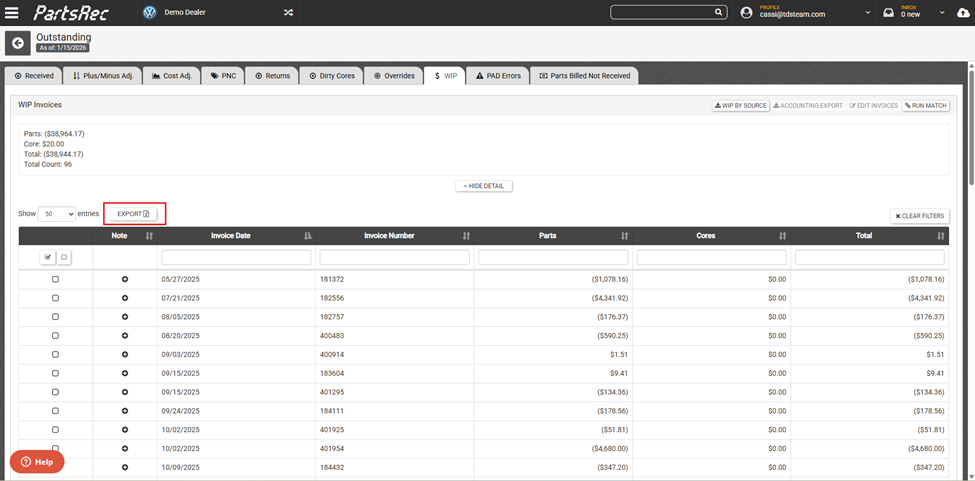
Back in PartsRec, click the Show Detail button then the Export button to download the WIP report.
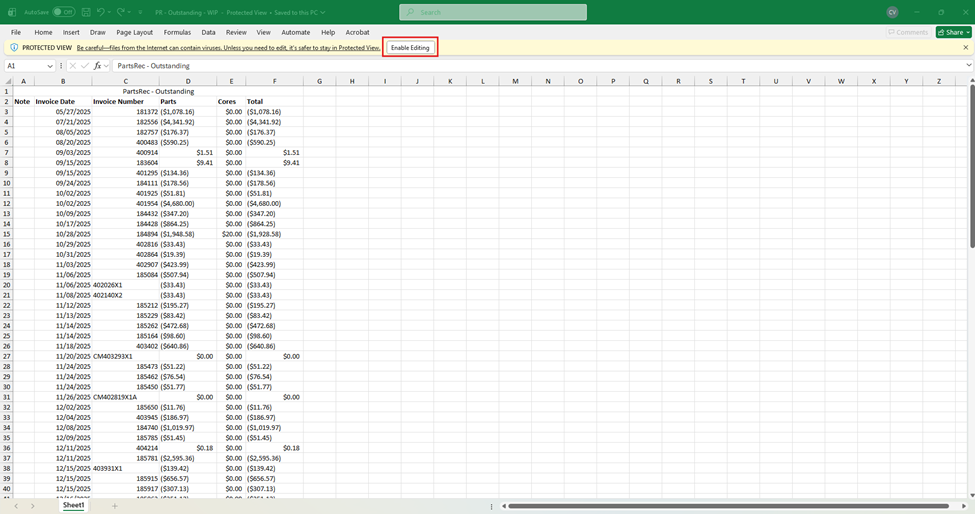
This is what that report will look like. Click Enable Editing to have full access to the document.
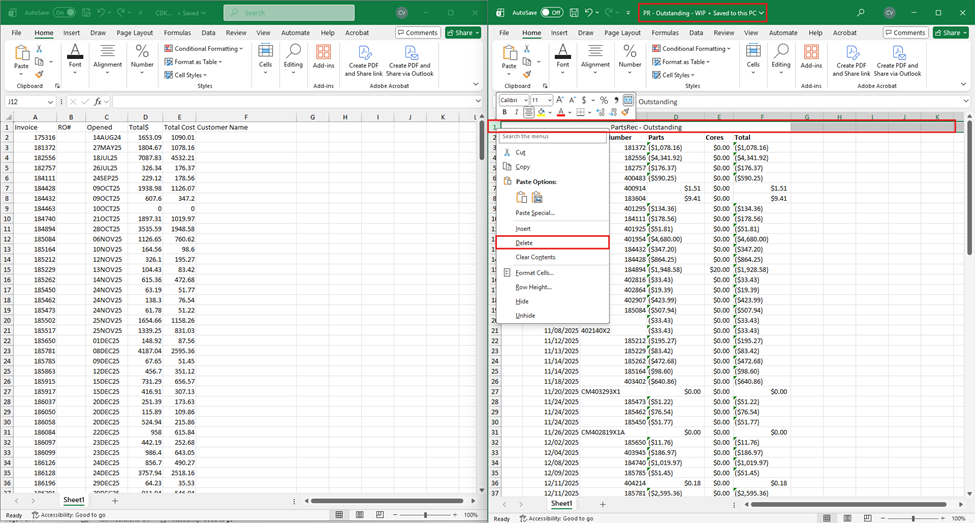
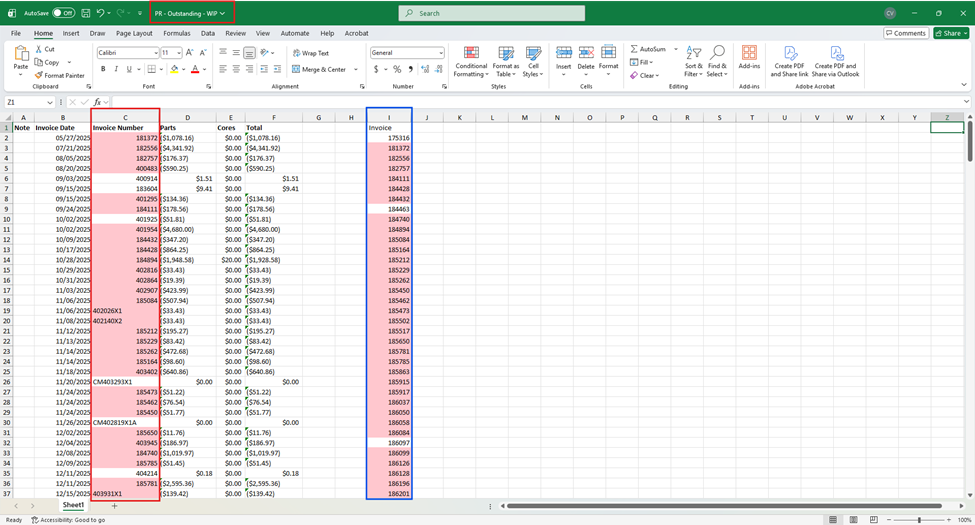
In the spreadsheet from PartsRec (title when downloaded will be PR-Outstanding-WIP), delete row 1 by right clicking on the 1 on the left of the screen and clicking Delete. This will make the format of the spreadsheets match a little more.
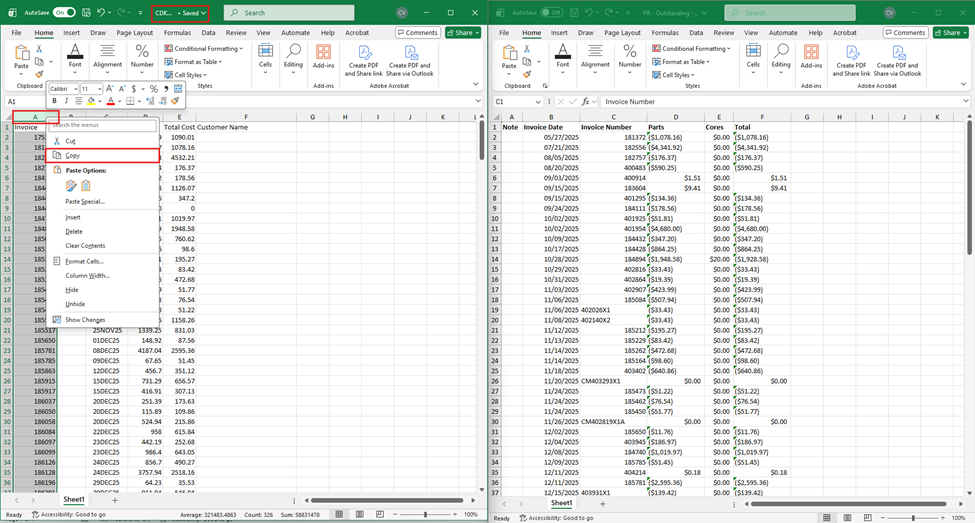
Next, we need to compare the invoice numbers on the ROO to the invoice numbers in the WIP report. To do that, choose one spreadsheet to copy the invoice numbers from. For this example, I will copy the invoice column on the ROO report. To do that, left click on the A tab across the top, right click, and click Copy.
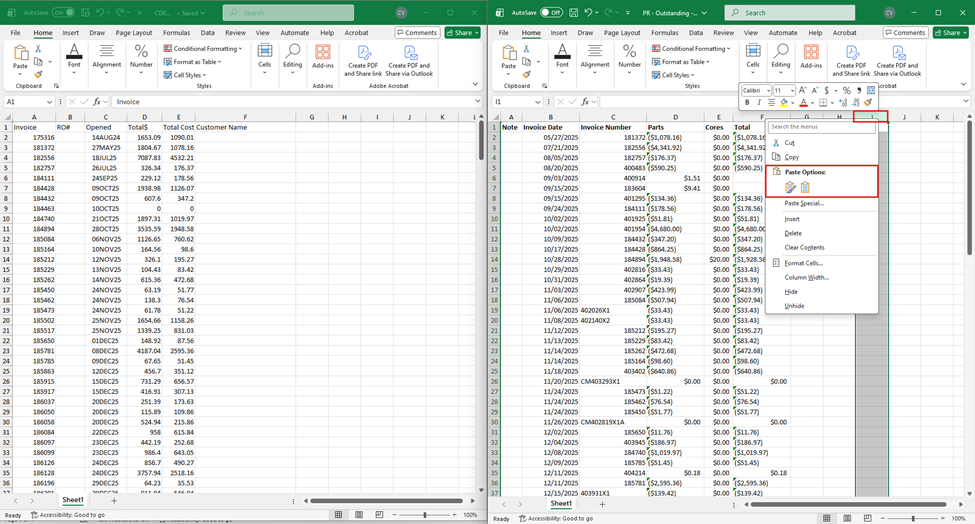
In the WIP report, find a clean column a few spaces away from the last column, right click on the column letter, and click Paste.
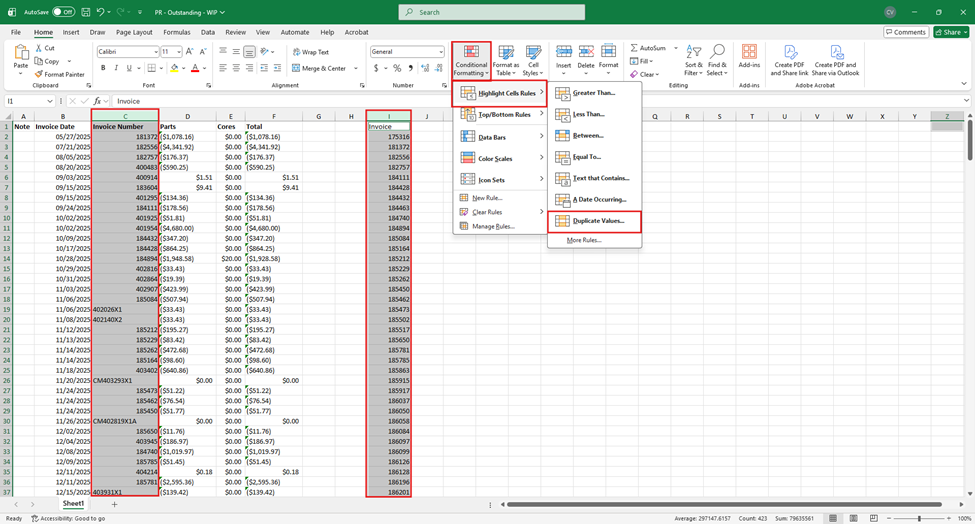
In the WIP spreadsheet, hold the Control key on the keyboard and click on each column containing the invoice numbers. This will highlight both columns so we can format the cells to show duplicate entries. Then, click the Conditional Formatting button at the top, and select Highlight Cell Rules then Duplicate Values.
In the first drop down, select Duplicates, and in the second drop down, select Light Red Fill. Click OK.
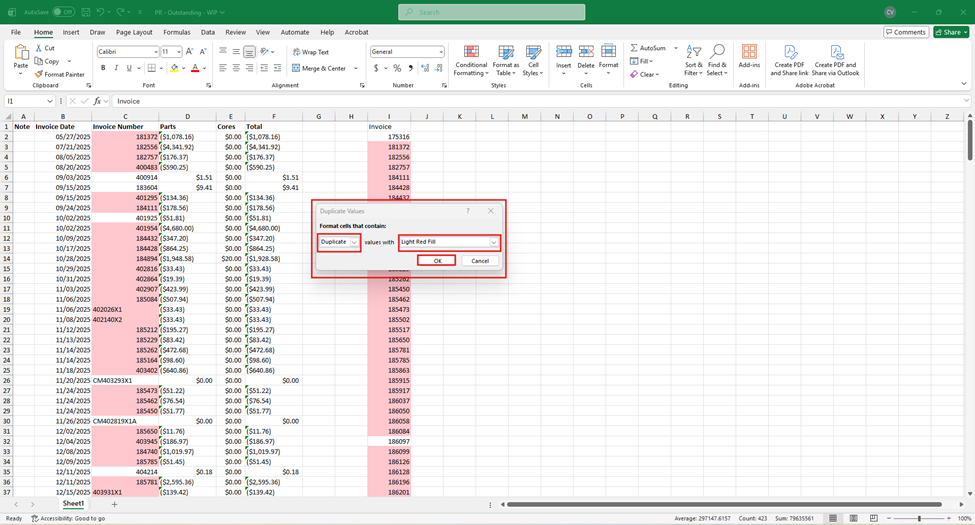
This will highlight all the duplicate invoice numbers in a light red color. These invoices appear in both reports and do not need to be investigated.
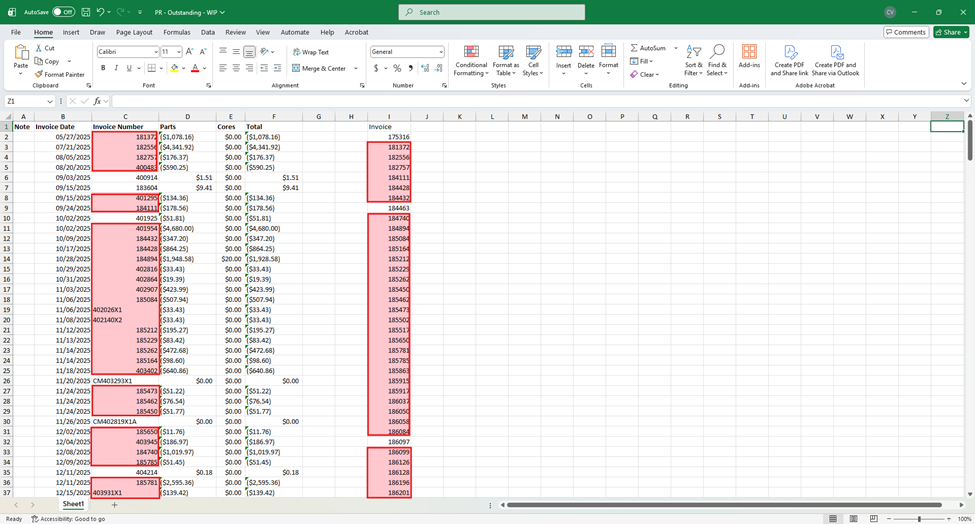
Remember that we used the WIP report from PartsRec as the main spreadsheet, so all the invoices not highlighted in the column to the left are shown as closed in the DMS, but PartsRec does not have any GL data for them. You should send this list of invoices to the accounting team to find out to which account the invoice closed. If it is a non-inventory account, PartsRec will not see that entry and will not move the WIP invoice to posted status. Work with the accounting team to resolve this issue and reach out to PartsRec support for guidance on how to resolve the issue in PartsRec.
In the column to the right, any invoices not highlighted are shown as open in the DMS, but we have not built an invoice in PartsRec for it yet. These invoices are built with transaction data from the DMS, so if no transactions have occurred yet, PartsRec will not have the invoice. You should confirm that is the case for any not highlighted in this column. If you show transactions listed in PDA transaction history, please reach out to PartsRec support.
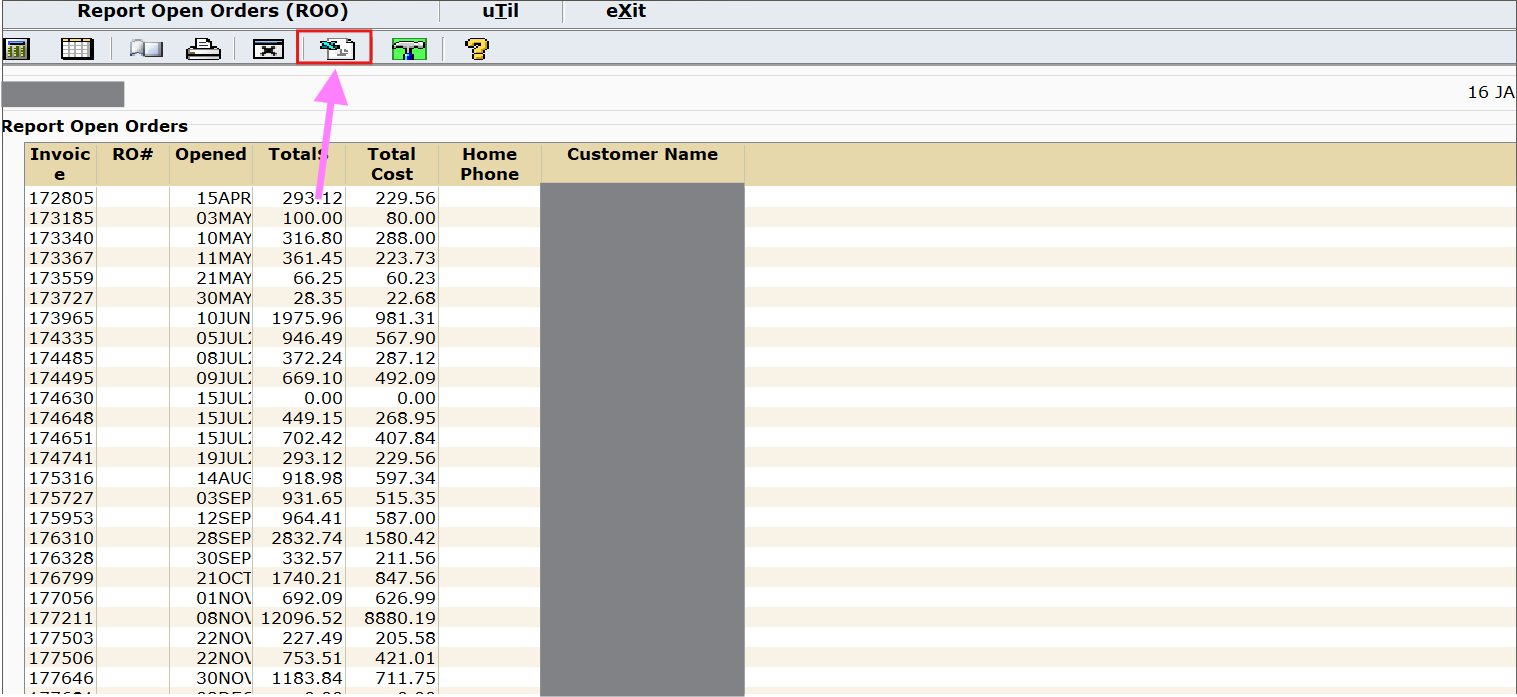
To download the Excel version of the ROO from CDK:
Navigate to the Report Open Orders screen and click the 6th icon from the left
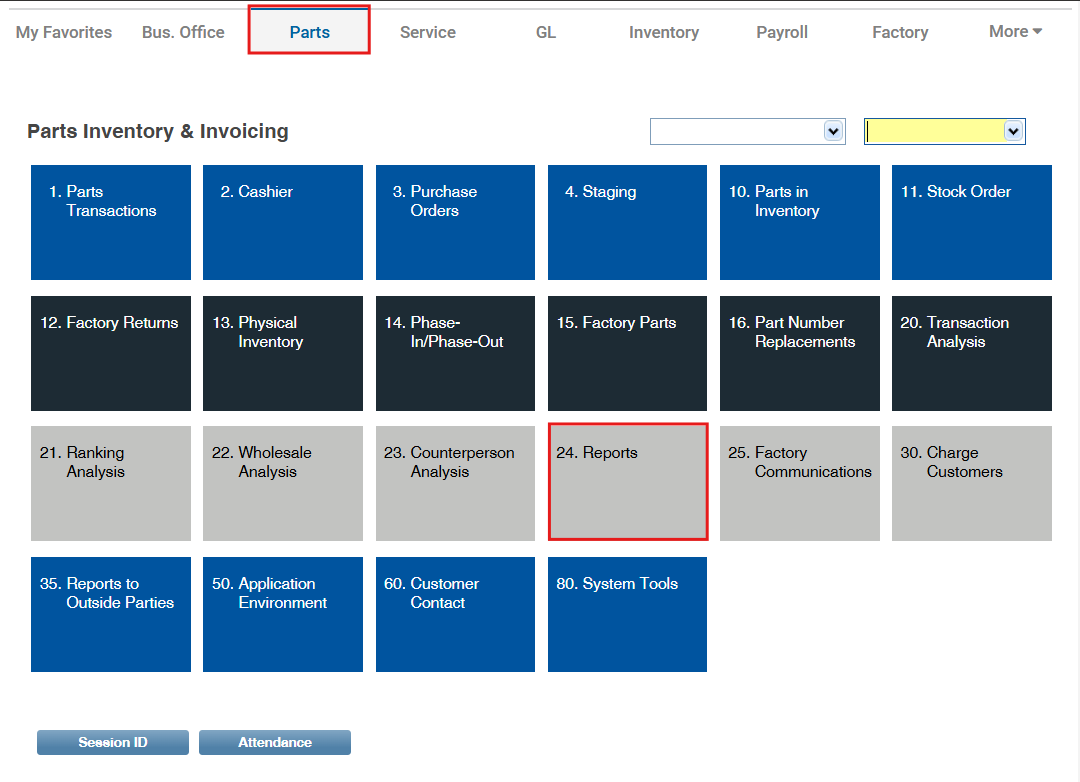
To download the Excel version of the OpenRepairOrders Report from Dealertrack:
In the Parts tab, select "24. Reports".
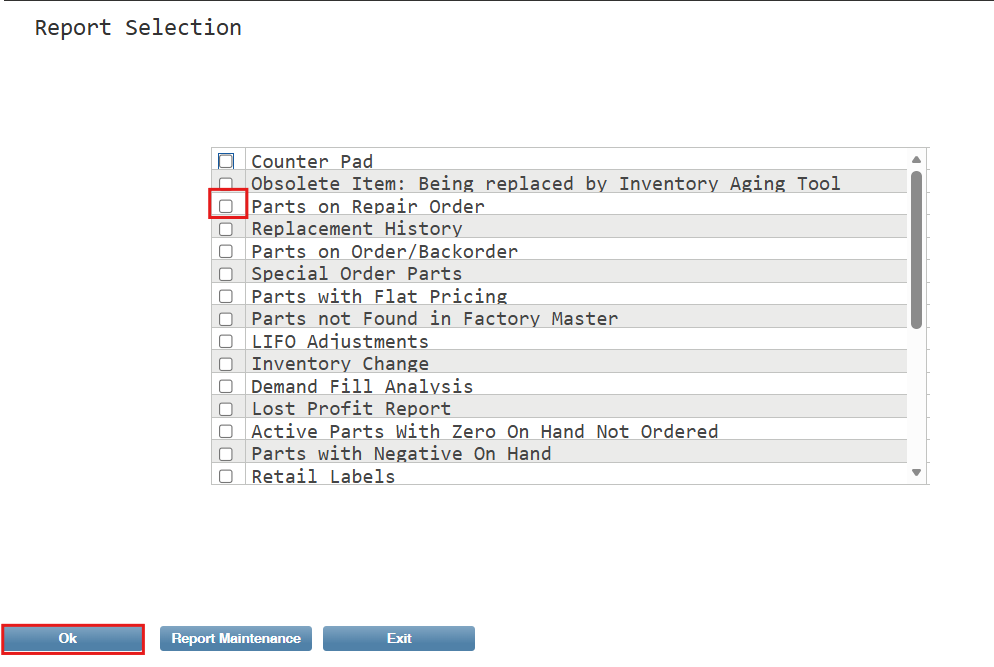
Select "Parts on Repair Order" and click "Ok".
Clear any data from the sort boxes and select Output Type "XLS8".