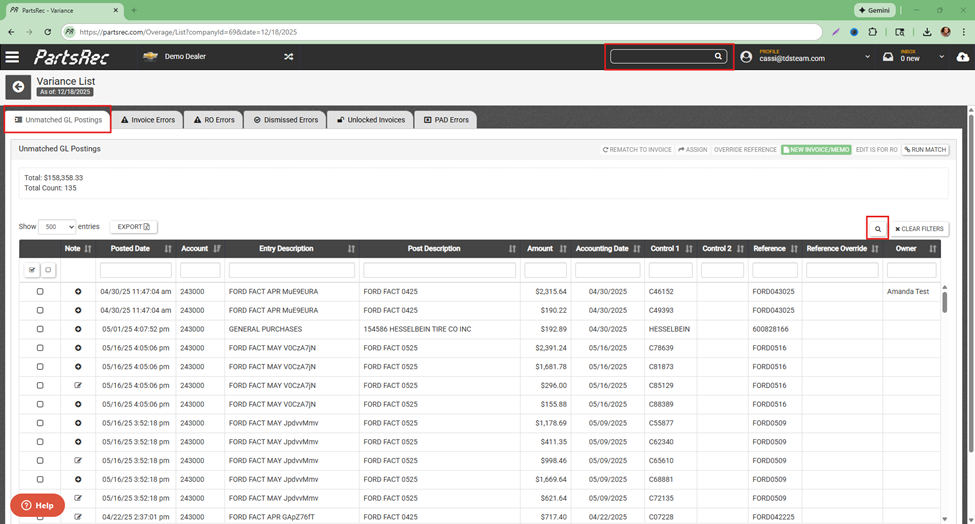
The Unmatched GL section in Variance displays journal entries that have not been matched to an invoice. These entries must be investigated and resolved to ensure accurate variance calculation. For an introduction to unmatched GL, please see our help article for Unmatched GL Postings.
This article will review common issues found in unmatched GL and the appropriate steps to resolve them. To begin investigating, select the magnifying glass icon and click on the line to investigate. This will search for the reference number only. If other numbers need to be searched (such as the control number), copy and paste that into the search bar.
Invoice Not Complete
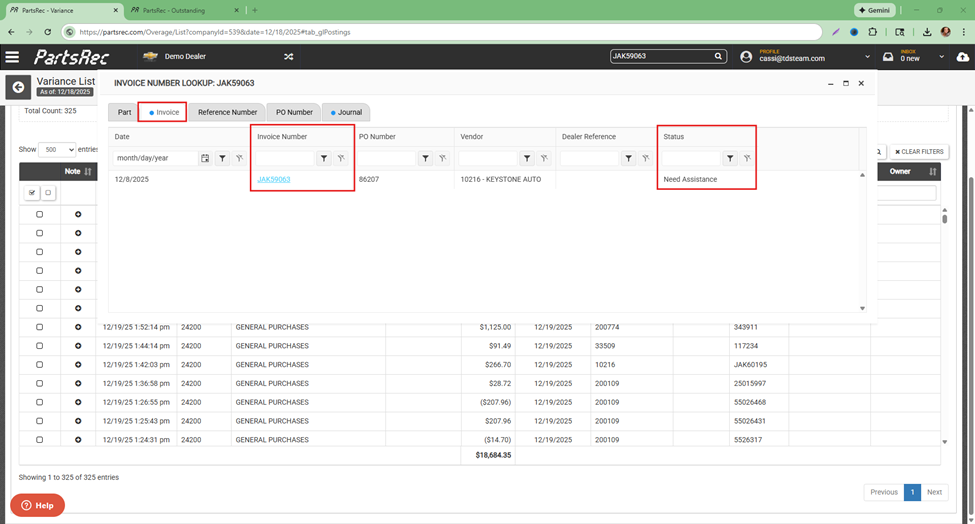
If the invoice is not in complete status, the posting cannot match with it. If the invoice is in imported, working, or need assistance status, complete the invoice to have it match with the posting.
No Invoice in PartsRec – Factory Invoice
If the reference or control are for a factory invoice and that invoice does not appear in the search results, upload the factory invoice. Once the invoice is uploaded and completed, it will match with the posting.
No Invoice in PartsRec – Purchase Order
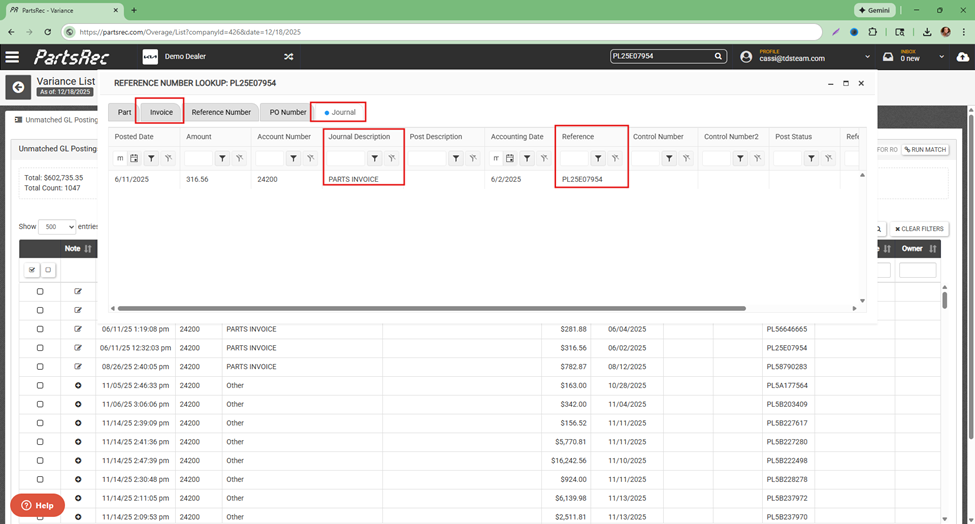
If the reference or control are for a third party vendor invoice and does not appear in PartsRec, a PO was likely not written and imported to PartsRec.
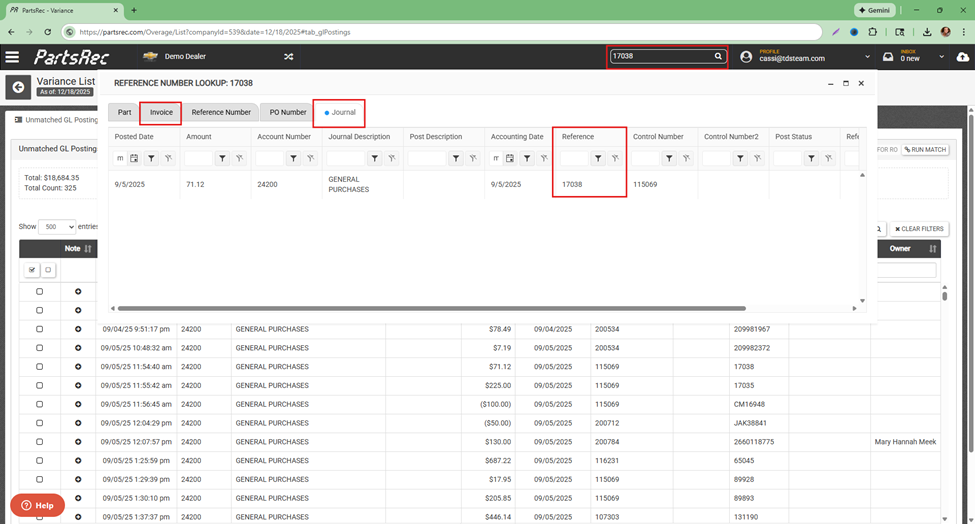
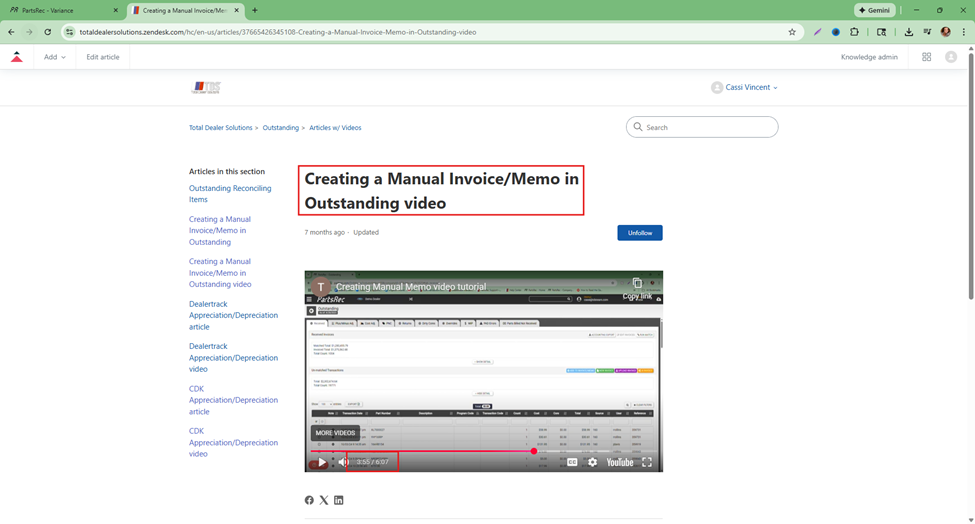
In this case, the best course of action is to create a manual invoice. Locate a copy of the vendor invoice and follow the instructions in our help article video Creating a Manual Invoice/Memo in Outstanding. Skip to the 3:55 mark for the instructions to create an invoice to replace a missing PO.
Offsetting Entries
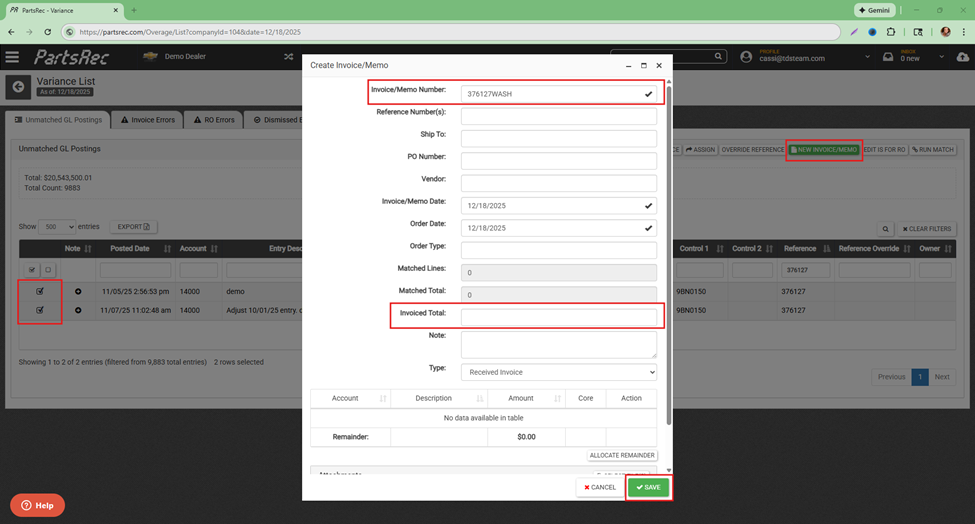
In the event two entries offset, they should be put on a memo to be cleared from the unmatched GL section. To be sure the entries offset, they should have the same reference number. If two offsetting entries have different reference numbers, they may need to match with their individual invoices. To clear the entries, select the offsetting items and click the green New Invoice button. Give the invoice a name (the easiest option here is to use the reference number on both entries with the word WASH behind it). Ensure the Invoiced Total is $0.00. Click Save to create the memo and clear the entries.
True Up Entry
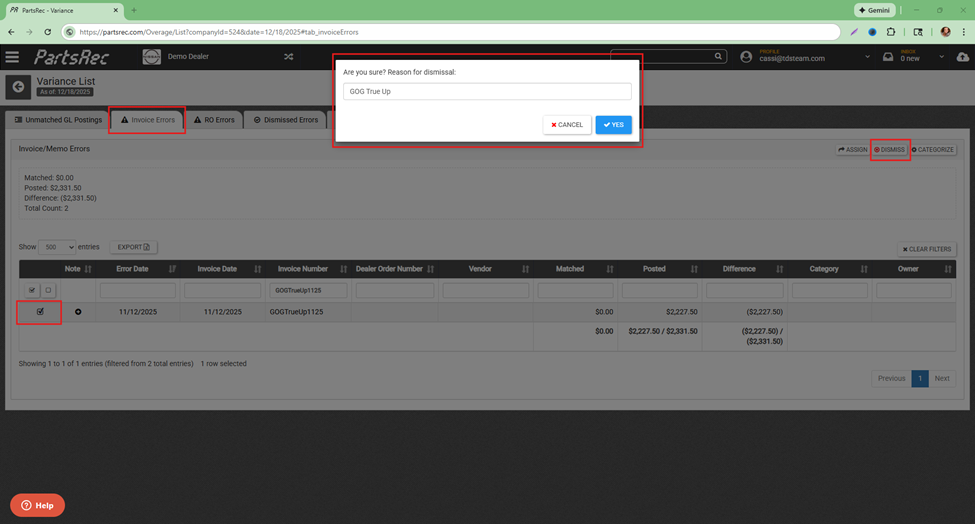
Each month, the accounting team will likely need to make an entry to true up the GOG account. This is due to differences when converting from bulk oil to gallons or quarts. This entry will have no parts to match to it because it is fixing a variance. To clear this entry, simply select the entry and click the green New Invoice button. Name the memo “GOGTrueUpMMYY”, change the date if necessary, and click Save.
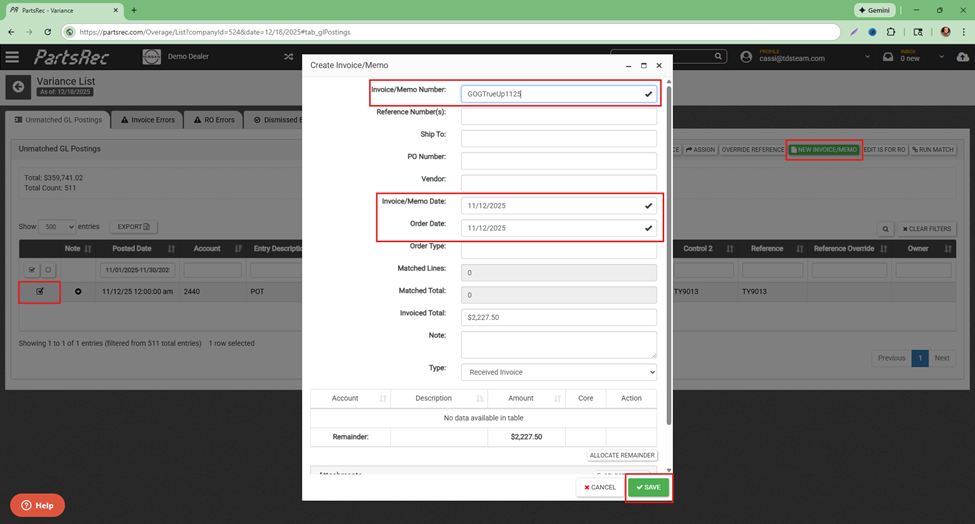
This will create an invoice error with a $0.00 matched total because there are no parts on this memo. Since this entry was fixing the variance in the GOG account, dismiss this invoice error.
Wrong Reference Number
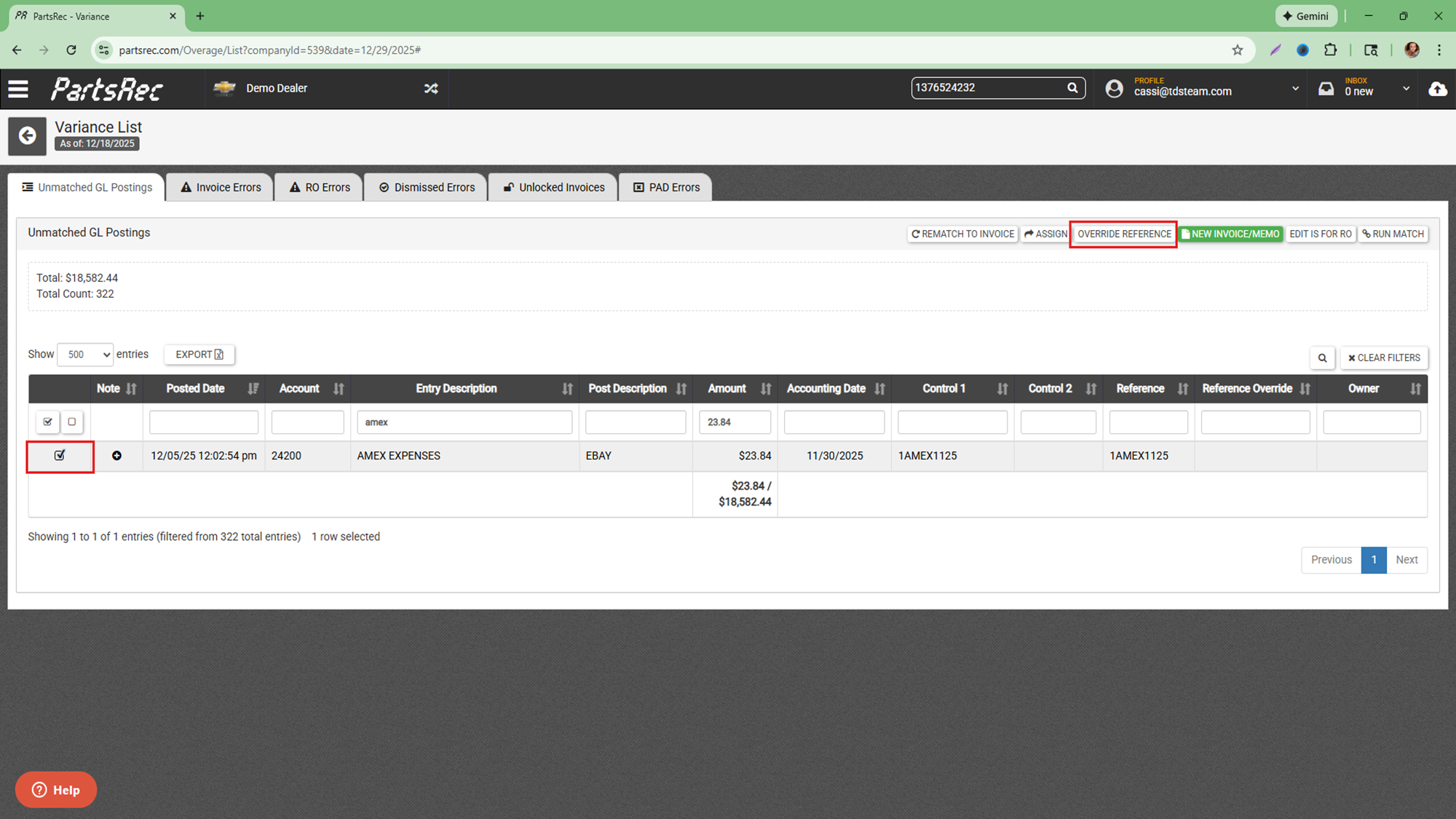
A journal entry will only match to a complete invoice if the reference or control number on the posting match the invoice or PO number on the invoice. In the event these do not match, use the Override Reference button to match them. Select the entry that needs the reference overridden and click Override Reference. Enter the corresponding invoice number and click Save. If the invoice is complete, the entry will match automatically. If the invoice is not yet complete, the entry will stay in unmatched GL with the reference override applied until the invoice is complete.
Rematch to Invoice
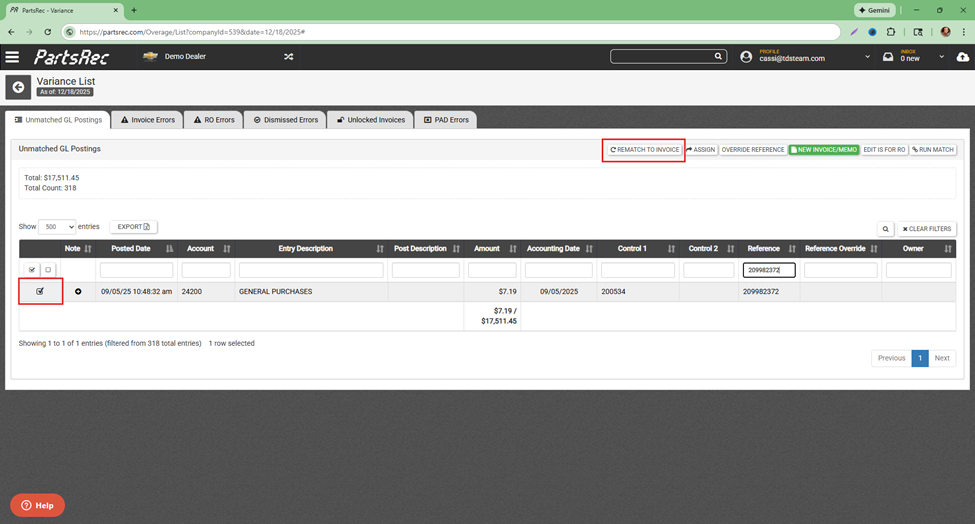
If a GL entry has been unmatched from an invoice, the system will not allow it to rematch to the same invoice. In the event an invoice is accidentally unmatched from an invoice, rematch it by selecting the entry and clicking “Rematch to Invoice”.
Posting is for an RO
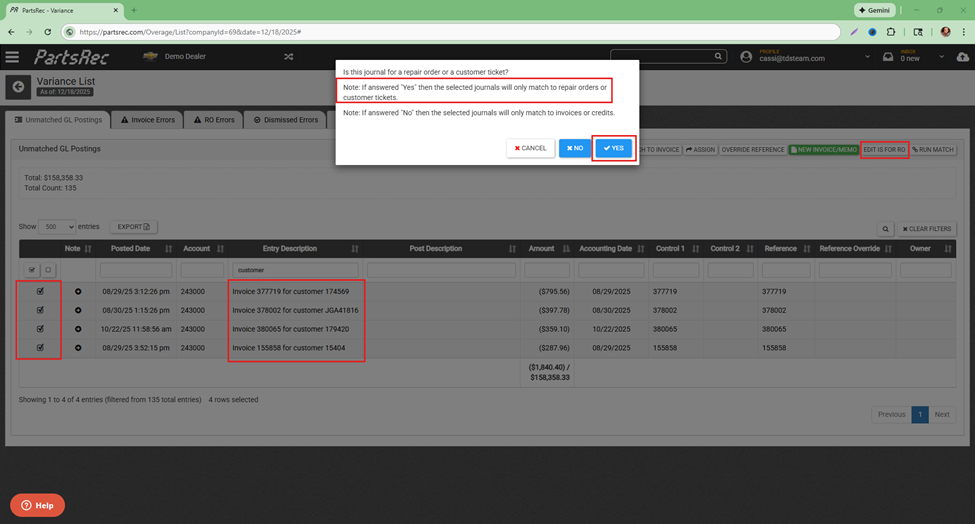
Sometimes, entries that should match with an RO get routed to the unmatched GL section. When this happens, use the “Edit is for RO” button to correctly route the posting to the RO. Typically, a posting meant for an RO will contain the verbiage “entry xx for customer xx”.
Unsure and Need More Information
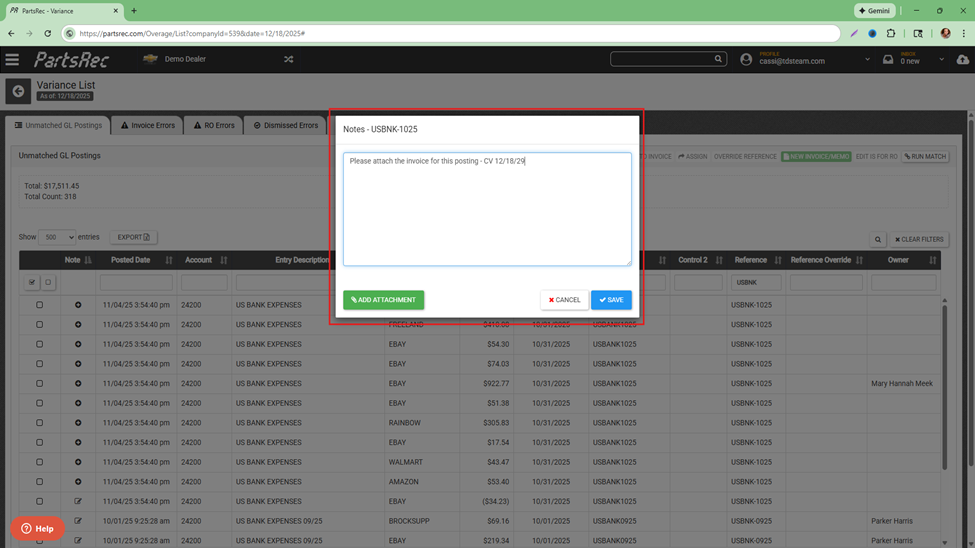
In the event an unmatched GL entry cannot be resolved, notate the posting and assign it to the appropriate person (typically someone on the accounting team). Use the plus symbol in the Note column to notate the entry. Typically, this note should be requesting more information or requesting that the invoice related to the posting be attached. Assign the entry to the correct person and wait for their response.