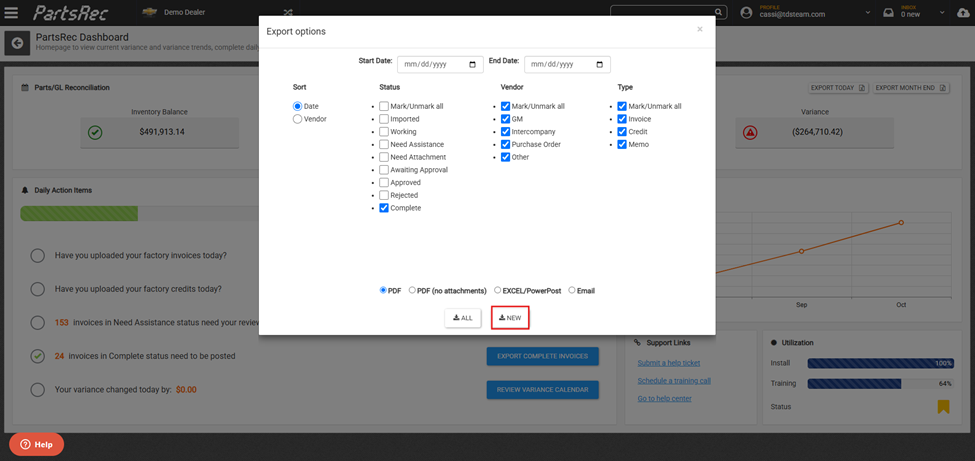
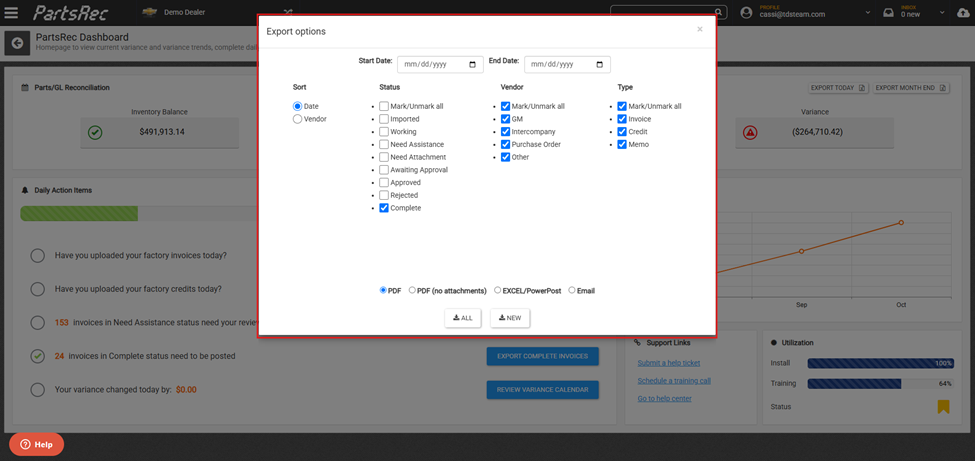
The fourth daily action item, Export Complete Invoices, is intended for accounting to post invoices with no errors. The use of this report will help prevent variance errors by only posting invoices that are in complete status as well as ensuring the final GL coding is correct. For this article, we will focus on the export filter options. To learn more about the report itself, please see the article or video in our help center: Exporting Complete Invoices article; Exporting Complete Invoices video.
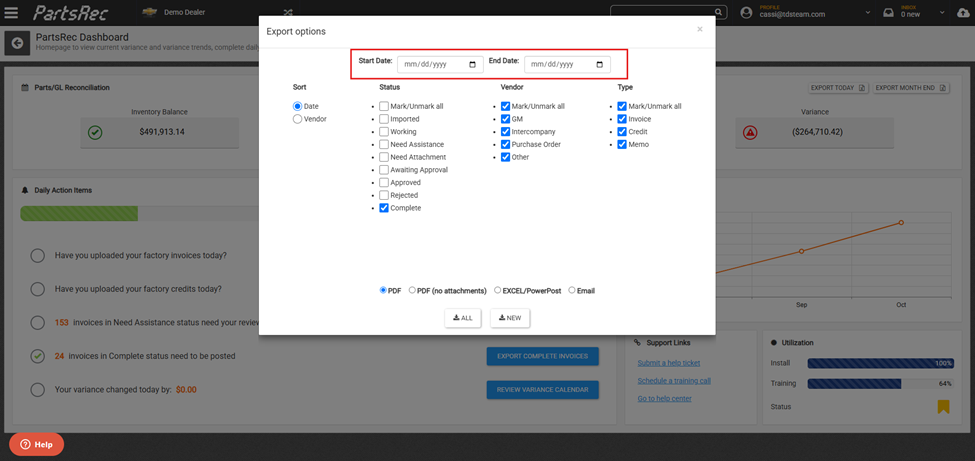
Date Filter
The date filter will allow you to choose a specific range of dates for your report. This can be helpful if a report of aged complete invoices is needed. Simply choose the date range of the aged complete invoices before you run the report.
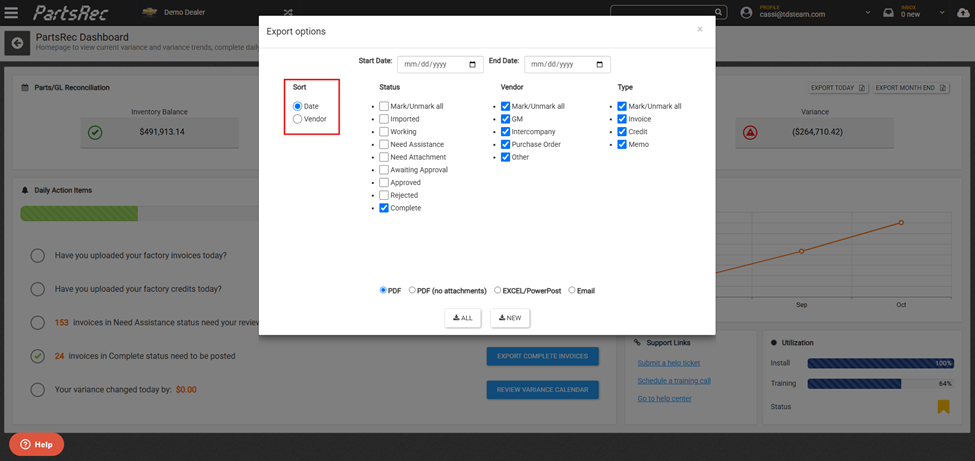
Sort
You can choose to sort your invoices by the date or vendor. The default for this filter option is “date” which will export a report with all of your complete invoices in date order. The “vendor” option will group together factory invoices and purchase orders. Note that this recognizes all purchase orders as one vendor regardless of the actual vendor you wrote the PO for.
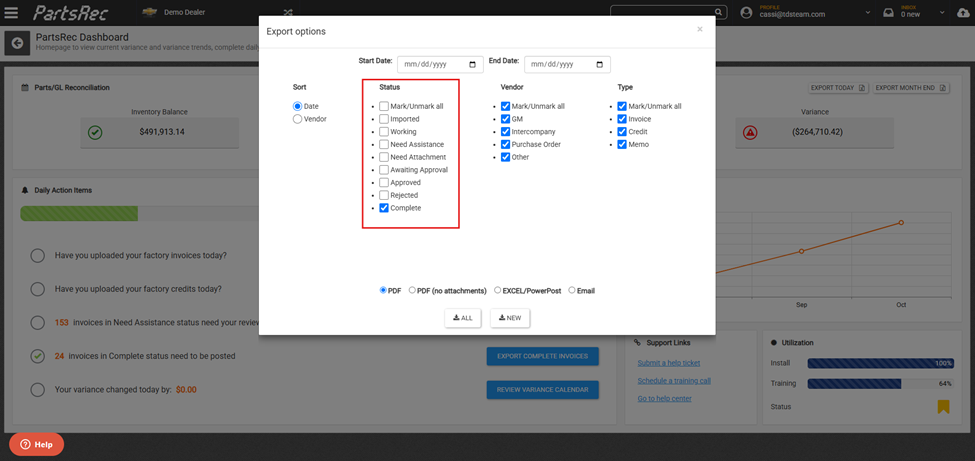
Status
The “status” filter will allow you to export the report for more than just complete invoices. While complete is the default option here, should you need to run a report of just Need Assistance invoices, you can do that here as well.
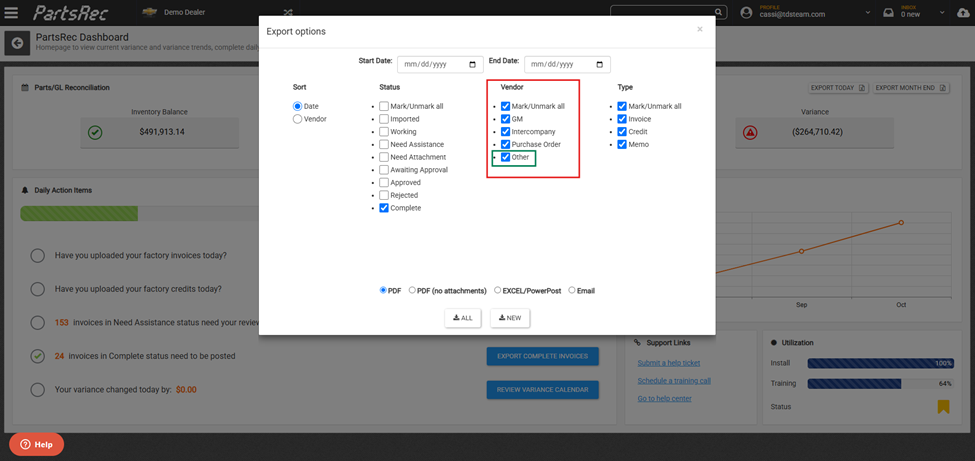
Vendor
The “vendor” filter will be primarily used to run separate reports for factory invoices and purchase orders if you use PowerPost or Bulk Post. Select only factory vendors when you want to download a PowerPost/Bulk Post template. The “Other” vendor here refers to any invoice that has been manually created and no vendor listed.
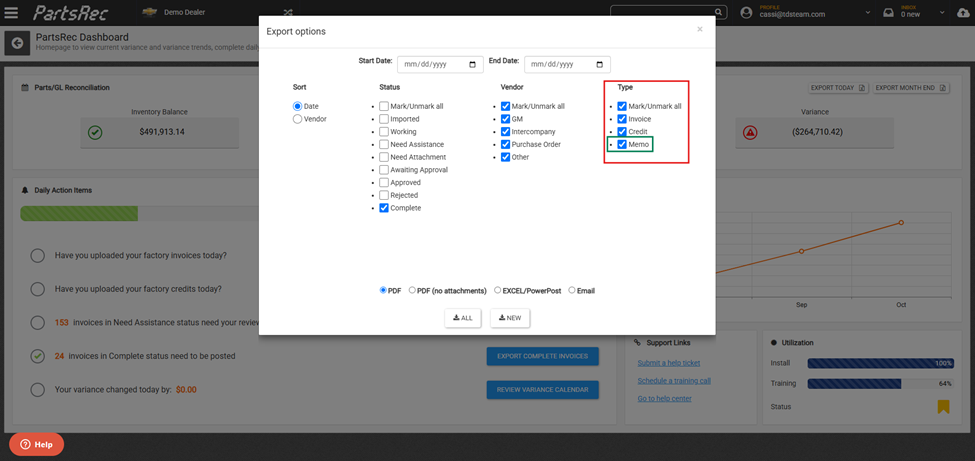
Type
The “type” filter allows you to choose only debits or only credits for your report. The “Memo” type here refers to manually created memos in PartsRec.
Report Delivery Options
There are four report delivery options at the bottom of the filter: PDF, PDF (no attachments), Excel/PowerPost, and Email. Each of these options produces a different report format.
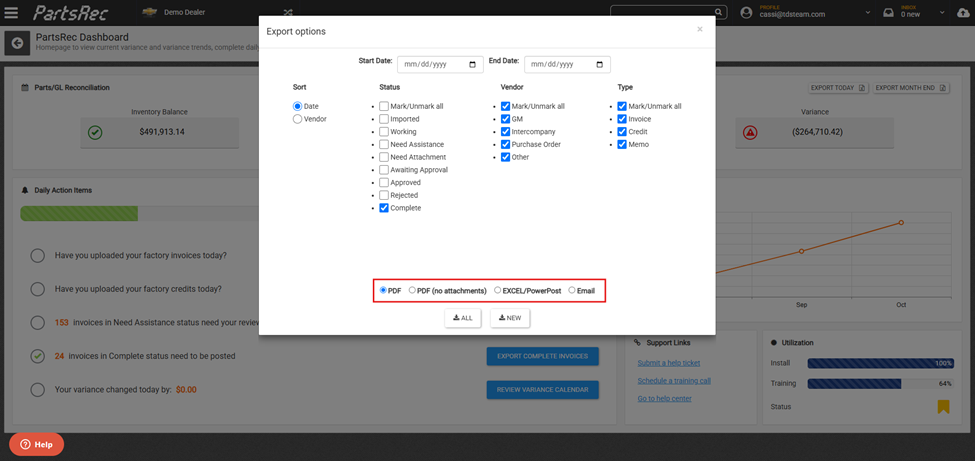
- “PDF” will export a PDF report including a summary page of all invoices in complete status including the GL coding and PDF copies of all of the factory invoices that are complete.
- “PDF (no attachments)” producing only the summary page.
- Excel/PowerPost will produce an Excel spreadsheet to be used for PowerPost for CDK stores and Bulk Post for Dealertrack stores.
- “Email” gives the option to send the PDF (no attachments) report to a specific email address.
All vs New
The two buttons at the bottom, “All” and “New” allow the report to be exported multiple times in a day without getting duplicate data.
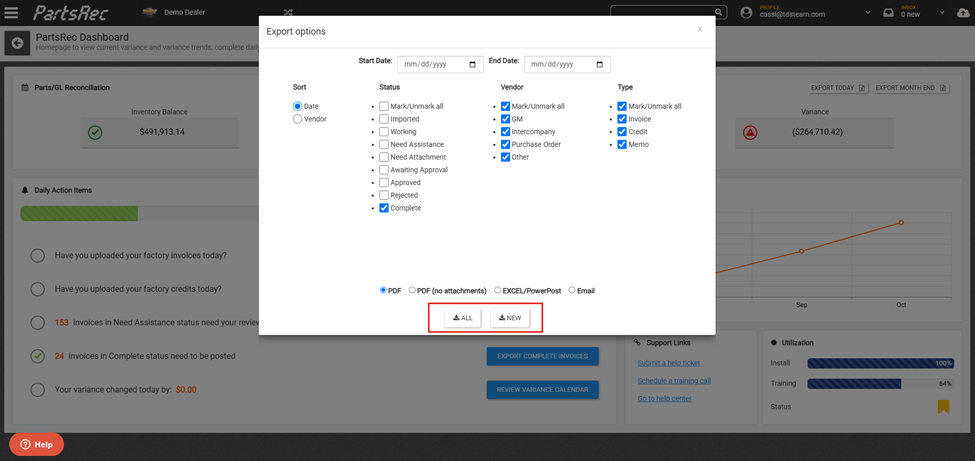
For example, there are currently 24 invoices in complete status. Should the report be exported for those 24 invoices and then all 24 invoices posted that data would not be imported into PartsRec until tomorrow.
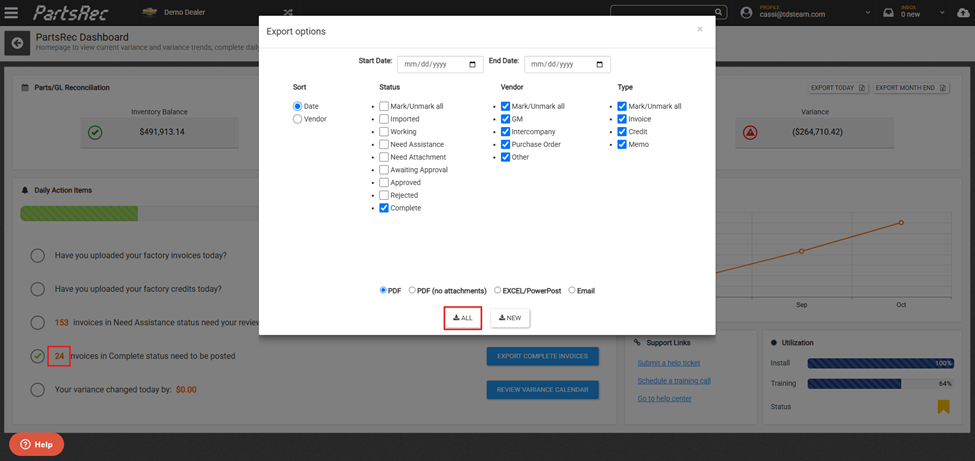
If another 24 invoices are completed after the first 24 currently marked as “complete” are posted, you’ll see a total of 48 invoices in “complete” status. This happens because, although the first 24 have been posted, their data hasn’t yet been imported into PartsRec.
If you export the report again and only want to view the new 24 invoices completed since your first export, click New. This option filters the report to include only invoices marked as “Complete” after the previous run.